News › Pre-Order
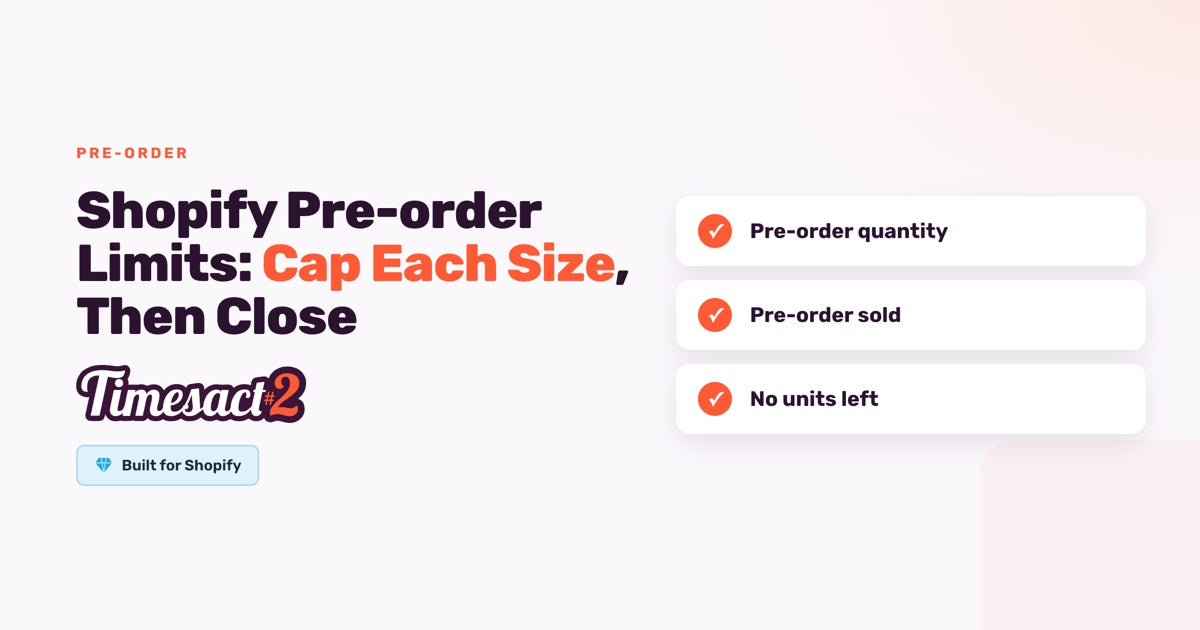
Shopify Pre-order Limits: Cap Each Size, Then Close
A bag made in two colors, with 80 beige and 20 black coming from the factory, should stop taking pre-orders once each color reaches its number. A Shopify pre-order limit in Timesact does this per variant: give each color or size its own number, and once the pre-orders reach it, that variant stops taking pre-orders while the others carry on.
How does a Shopify pre-order limit work?
Each variant gets its own Pre-order quantity, and it's Unlimited until you set a number. Timesact counts the units on orders as they're placed: an order for three uses three. When a variant's count reaches its number, Timesact stops offering the pre-order for that variant and its status in Timesact reads No units left.
At that point the theme's own button comes back for that variant. Shoppers see Sold out if its Shopify stock is at 0 or below, or Add to cart if you have stock. In the bag example, black can show Sold out at 20 while beige keeps taking pre-orders up to 80.
Set a limit on each size
On one variant:
- Go to Products, expand the product's variant rows, and click the Edit pencil on the variant.
- In the Customer Experience library, the template the variant is on is already ticked. Under it, find Pre-order quantity settings.
- Switch Unlimited pre-order quantity off and type your number in Pre-order quantity. The field starts at 100.
- Click Save changes, then repeat for the other sizes.
When you add products, the Assign Customer Experiences step has a Pre-order quantity configuration block for templates with Pre-order. A number set there goes on every variant you're adding, each counted separately, and you can fine-tune individual sizes afterwards on their variant pages.
If you'd like a scarcity line on the product page, write the run size into your pre-order message in words, such as "Limited run of 200".
What counts toward the limit?
Every unit on a placed pre-order counts toward the limit, and nothing before checkout does.
| Situation | Counts? |
|---|---|
| An item sitting in a cart, or an abandoned cart | No. The count moves when the order is placed |
| An order placed while the pre-order is active | Yes, by quantity: an order for 3 uses 3 |
| A mixed order with in-stock items | Only the pre-order items |
| Sales of in-stock units before the variant sells out, on Only when out of stock | No, those are normal orders |
| Every sale on Always, whatever the stock level | Yes, since every sale is a pre-order in that mode |
| A test order | Yes. Our support team can clear test orders for you |
A canceled order keeps its units in the count, so the number reflects every pre-order taken. To reopen units after a cancellation, raise the variant's Pre-order quantity by that many.
A Timesact limit or Shopify stock as the cap?
You can cap a run with the Pre-order quantity, or with the stock count in Shopify itself. Which one applies depends on When Pre-order shows in your template.
| Timesact Pre-order quantity | Shopify stock | |
|---|---|---|
| Used with | Only when out of stock or Always, whatever the stock level | Only while Shopify stock lasts |
| Where the number lives | Timesact, on each variant | Shopify's Available quantity on each variant |
| What happens to Shopify stock | With the default When the order is placed, it goes to 0 and below as pre-orders come in | It counts down from the run size |
| Suits | Runs larger than the stock on hand, and stores whose stock syncs from a warehouse app | A fixed allocation you've already entered in Shopify |
With Only while Shopify stock lasts, the Pre-order quantity field doesn't apply: the variant shows Pre-order while Shopify reports stock and goes Sold out at 0. Keep When to reduce stock on When the order is placed, the default, and Shopify's stock count drops with each pre-order, so the run closes at your number.
One total across all sizes
Limits are counted per size, so a product with three sizes and a limit of 100 on each can take up to 300. For a single total across sizes, use one of these:
- Split the total by your size curve (how your sales usually spread across sizes). For 100 units across five sizes, you might give the middle sizes more and the outer sizes fewer. As sizes sell, move room from slow sizes to fast ones by editing each variant's Pre-order quantity. The Pre-order tab on the Products page shows each size's quantity and how many have sold.
- Put the whole run on one single-variant product. Create a product in Shopify with one variant, add it in Timesact with a Pre-order template, and put the whole total on that variant. Customers pre-order from one shared number, and you confirm sizes with them before you fulfill.
Show Notify Me when the run is full
Add the Back in Stock functionality to the product's template, and shoppers who arrive after the limit can still leave their email through a Notify Me sign-up. The sign-up shows on a variant whenever its Shopify stock is at 0 or below, so the timing depends on the stock mode:
| Setup | While pre-orders are open | Once the run is full |
|---|---|---|
| Only when out of stock with a limit | Pre-order and the Notify Me sign-up show together | Notify Me takes the place of Sold out |
| Only while Shopify stock lasts, with the run entered as Shopify stock | Pre-order only | Notify Me appears as stock reaches 0 |
To show the sign-up only once your pre-order sells out, use the second setup and say so in its Notify Me message: "This run is fully pre-ordered. Sign up for the next one." Or give Back in Stock a template of its own and tick it on the variant once the run is full. As with any setup, enable the Timesact V2 app embed on the theme you publish (Online Store > Themes > Customize > App embeds) and click Save.
Opening a second run on the same size
The sold count for a variant on its template keeps running across edits and new runs, and the limit is compared with that running total. So to take 50 more after selling 80, set the Pre-order quantity to 130, not 50. The variant reopens as soon as you save, and its new orders count toward the same total.
The Pre-order tab on the Products page lists every variant on pre-order with its Pre-order quantity and Pre-order sold, so you can see how much room each size has left. Each variant's page shows the same two numbers as Pre-order quantity limit and Pre-order quantity sold, with a status badge such as "Pre-order - Active" or "Pre-order - No units left".
Set your first limit before the next drop
Start with the product you'll drop next: give each size its number, and add Back in Stock for shoppers who arrive after the cap. If your sizes sell unevenly, we can work out the split with you on a setup call.
FAQs
How do I set a pre-order limit on Shopify?
In Timesact, go to Products, expand the product and click the Edit pencil on a variant. In the Customer Experience library, under the variant's ticked template, switch Unlimited pre-order quantity off in Pre-order quantity settings, enter your number and click Save changes. Each variant takes its own number.
Can I set one pre-order limit for all sizes of a product?
Limits are counted per size. For one total, split it across the sizes by your size curve and adjust as they sell, or put the whole total on a single-variant product and confirm sizes with customers before you fulfill.
What happens when a pre-order limit is reached?
That variant stops taking pre-orders and reads No units left in Timesact. Shoppers see your theme's Sold out button if the variant has no stock, or Add to cart if it does. If the product also runs Back in Stock, the Notify Me sign-up shows in place of Sold out. Other sizes keep selling against their own numbers.
Do abandoned carts or canceled orders count toward the pre-order limit?
Abandoned carts don't count, because the number moves only when an order is placed. Canceled orders stay in the count, so to give those units back, raise the variant's Pre-order quantity by the number canceled.
How do I open more pre-orders after the limit is reached?
Raise the variant's Pre-order quantity to the new total. The count keeps running, so after 80 sold, a new run of 50 needs a quantity of 130. The variant starts taking pre-orders again as soon as you click Save changes.
Run this in Timesact
Pre-order, back-in-stock, coming-soon and more — one app, no code.
Install the app →