News › Pre-Order
Shopify Pre-order Estimated Delivery: Why It Says 1–2 Days
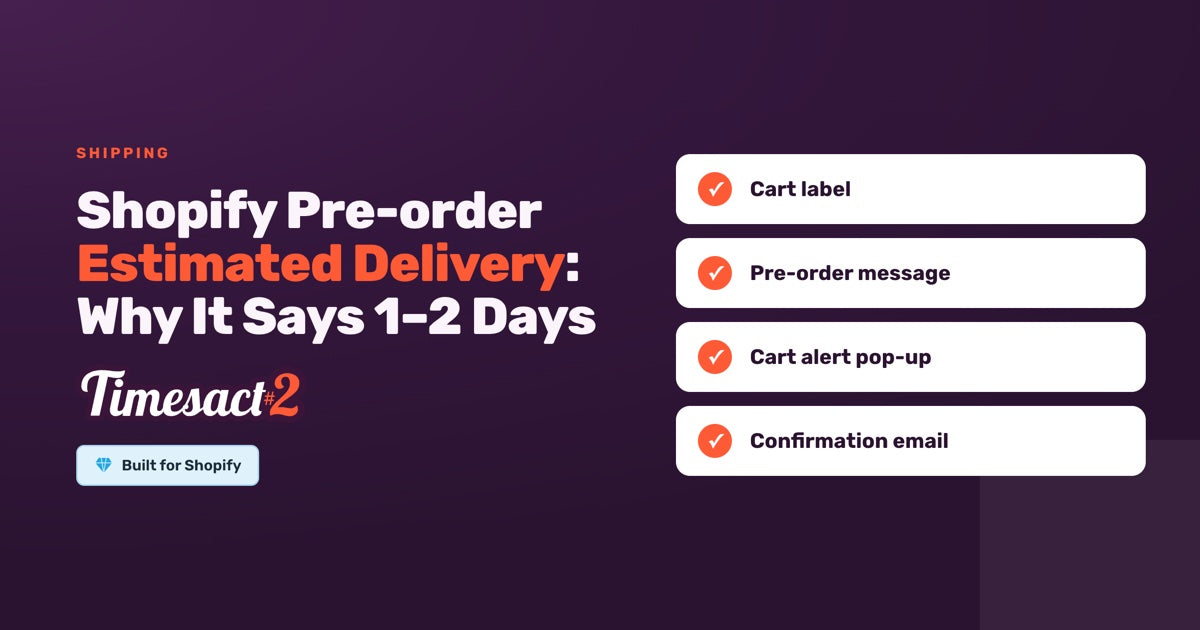
On a Shopify pre-order, the estimated delivery at checkout usually comes from the shipping rate's transit time, which leaves out the weeks the order waits for stock. Give pre-order items their own shipping rates and write the real timing into Timesact's cart label, so checkout carries the same timing as your product page.
When the two disagree, shoppers notice. One merchant received this message: "When ordering it says pre order for October 6. When checking out I get a delivery date of September 26. Which is it." The October date was the merchant's pre-order message on the product page. The September date came from the shipping rate at checkout.
Where does Shopify's "1–2 days" come from?
The "1–2 days" under a shipping method at checkout is usually the transit time of the shipping rate the shopper picked. Shopify's own example is an "Express (1 to 2 business days)" option. Transit time covers the trip from the carrier collecting the parcel to the customer's door, and Shopify notes that it "doesn't account for order processing time." The weeks a pre-order waits for stock all come before the carrier collects the parcel, so the rate's transit time leaves them out.
Shopify can put a delivery promise on the checkout page from any of these, and each behaves differently on a pre-order item:
| What the shopper sees | Where it comes from | Level | On a pre-order item |
|---|---|---|---|
| "1 to 2 business days" under the rate | Transit time on a flat rate, or built into a carrier-calculated rate | Per rate | Shows as set |
| Words in the rate name or description | Whatever was typed in, such as "Express 1–2 days" | Per rate | Shows exactly as written |
| An estimated delivery date range | Settings > Shipping and delivery > Estimated delivery dates (Automated or Manual) | Whole store | Automated dates leave app pre-orders out; manual dates show only while the product's inventory is above 0 |
| Shop Promise badge and date | Shopify's Shop Promise program | Whole store | Pre-orders aren't eligible |
So on most pre-orders, the promise that reaches checkout is the rate's transit time or the words in its name. Setting Estimated delivery dates to Off leaves those in place: with dates off, Shopify still shows "transit times or custom shipping rate descriptions." The change that works is on the rate itself.
Can you remove the estimated delivery for pre-order items only?
Yes, by giving pre-order items their own shipping rates. In Shopify, rates belong to a shipping profile: a group of products that share the same rates. Put your pre-order items in a custom profile and they get rates of their own, while the rest of the store keeps its usual ones.
Set it up in Shopify under Settings > Shipping and delivery:
- Create a custom shipping profile and name it something like "Pre-order".
- Add the products or variants you sell on pre-order. A product or variant sits in one profile at a time.
- Add the locations that ship them and the zones you sell to, and give every zone a rate.
- Use flat rates without a transit time, or give the rate a delivery description that states the real lead time, such as "Ships in 4–6 weeks". Carrier-calculated rates bring their own transit time, so use flat rates here.
- Add a pre-order item to your cart and go to the shipping step to preview what shoppers see.
A product keeps the shipping profile you gave it after the pre-order ends. When the stock lands, move it back to your general profile so it picks up your regular rates.
When a shopper buys a pre-order item and an in-stock item together, Shopify either adds the two profiles' rates into one shipping charge or, with split shipping in checkout, shows them as separate shipments. How that plays out is covered in split shipping for mixed orders. On stores using Shopify's newer shipping options by market, the same idea applies: give pre-order products a rate of their own.
Put the real timing in the line Shopify carries to checkout
Timesact's Cart label is the line Shopify shows under the pre-order item in the cart, at checkout, in the shopper's past order details and on the order page in your admin. You'll find it in the customer experience template attached to the product: open it under Experiences and go to the Cart page settings. Out of the box it reads "Pre-order item delivers as soon as available." (With the default Use Shopify purchase option, the cart label becomes the purchase option's name, which is why Shopify shows it in all those places.)
That puts your timing on the same checkout page as Shopify's estimate. Write it into the cart label in words:
- "Pre-order: ships in 4–6 weeks"
- "Pre-order: ships from 15 November"
The cart label is plain text, so variables such as {{shippingDate}} show exactly as typed there. Keep it short and factual, without prices if you sell in more than one currency.
If the template uses Don't use a Shopify purchase option, the cart label travels with the item as a line item property instead: a name and a value you set in Property name and Property value, such as "Pre-order" and "Ships in 4–6 weeks". Shopify shows it with the item at checkout.
Two more settings in the same template carry the timing before the cart:
- The pre-order Message on the product page. With the template's Shipping option set to a fixed date or a period,
{{shippingDate}}in the message shows it. With As soon as possible, write the timing in words. - The Pre-order badge, which starts switched off. Turn on Enable badge in the Badge settings on both the Product page and the Collection page, and it shows on the product image on each, so shoppers see it's a pre-order while they browse.
As with any setup, enable the Timesact V2 app embed on the theme you publish (Online Store > Themes > Customize > App embeds) and click Save in the theme editor.
How do you make sure shoppers from ads know it's a pre-order?
Turn on the Cart alert pop-up with Show on button click, and shoppers coming in from an ad see one clear notice, in your words and with an "I agree" button, as soon as they click Pre-order.
In the template's Cart page settings, turn on Enable cart alert pop-up, then switch on Show on button click. Show on cart page is a separate switch and is on by default; it opens the pop-up again when the shopper reaches the cart. Switch it off if you'd rather the notice showed once. Fill in the title, message and button text, and put the timing in the message, for example "This item is a pre-order and ships in 4–6 weeks."
Shopify adds its own step for pre-orders on the default purchase option setting. At the Payment step of checkout, the customer confirms they understand they're buying a product with a purchase option, and the order can't be completed until they agree.
Which confirmation emails does a pre-order customer get?
Two emails can go out, and only one of them comes from Timesact.
Shopify's order confirmation is Shopify's own email. If you use estimated delivery dates and the order qualifies, it can include Shopify's estimate.
Timesact's Confirmation email tells the customer their order is a pre-order and ships later than a normal order. It starts as a Draft, so open it under Notifications and publish it to set it Live. You write it once for the whole store, and it lists each pre-order item with its cart label, which is where you wrote the timing. If you send pre-order emails through Klaviyo instead, the Timesact - Preorder Confirmed event carries the same item details for your flow.
If a date moves after customers have ordered, the Shipping delay email lets them know. Send it from Analytics > Pre-order > Sales: select the orders in the orders table, enter the product title and the new shipping date, and send. Then update the template's Shipping setting and cart label so new shoppers see the new timing too.
Fix the rate first, then the wording
Start with the shipping profile, since that's where the "1–2 days" comes from, then write the same timing into the cart label and the pre-order message. If you'd like help with the template and its wording, book a setup call.
FAQs
Why does Shopify show "1–2 days" on my pre-order at checkout?
It comes from the shipping rate the customer chose: usually its transit time, for example "Express (1 to 2 business days)", or words typed into the rate's name or description. Transit time doesn't include the time an order waits before it ships. To change what pre-order items show, put them in their own shipping profile with rates that don't promise a speed.
Can I turn off Shopify's estimated delivery dates for pre-order products only?
The Estimated delivery dates setting applies to the whole store, and with it off Shopify still shows transit times and rate descriptions. Instead, move pre-order products into a custom shipping profile under Settings > Shipping and delivery, with flat rates that have no transit time or that describe the real lead time.
How do I set customer expectations at checkout for a pre-order?
Write the timing into the cart label, which Shopify shows under the pre-order item at checkout, for example "Pre-order: ships in 4–6 weeks". For shoppers who arrive from ads, turn on the cart alert pop-up with Show on button click, so they see the pre-order notice as soon as they click Pre-order. On pre-orders that use Shopify's purchase option, Shopify also asks the customer to confirm the purchase option at the Payment step.
Does the pre-order date appear in the order confirmation email?
Timesact's Confirmation email lists each pre-order item with its cart label, so a cart label that states the timing carries it into the email. Publish the email under Notifications so it's Live, since it starts as a Draft. Shopify's own order confirmation is a separate email and can show Shopify's delivery estimate if you use estimated delivery dates.
What can I do if my pre-order ships later than I said?
Send the Shipping delay email from Analytics > Pre-order > Sales. Select the affected orders, enter the product title and the new shipping date, and Timesact emails those customers. Then update the timing in the template's Shipping setting and cart label so new shoppers see it as well.
Run this in Timesact
Pre-order, back-in-stock, coming-soon and more — one app, no code.
Install the app →