News › Pre-Order
Shopify Preorder Shipping Dates: Fixed Date or Period
The date you set in March is wrong by April
A preorder campaign that runs for one drop can carry one calendar date. "Ships 15 October" is precise, everyone who orders gets the same answer, and when the stock lands you are done.
An always-on preorder is different. A made-to-order line, a product you restock continuously, a bestseller you keep selling through a gap: these run for months, and a fixed calendar date starts drifting the moment it is set. Someone ordering in week one reads a sensible six-week wait. Someone ordering in week seven reads a date that has already passed. Nothing is broken; the date simply says the same thing forever while the calendar moves.
That is the problem the shipping option A set time from checkout solves, and it is a different setting rather than a different app.
Why a fixed date drifts and a period does not
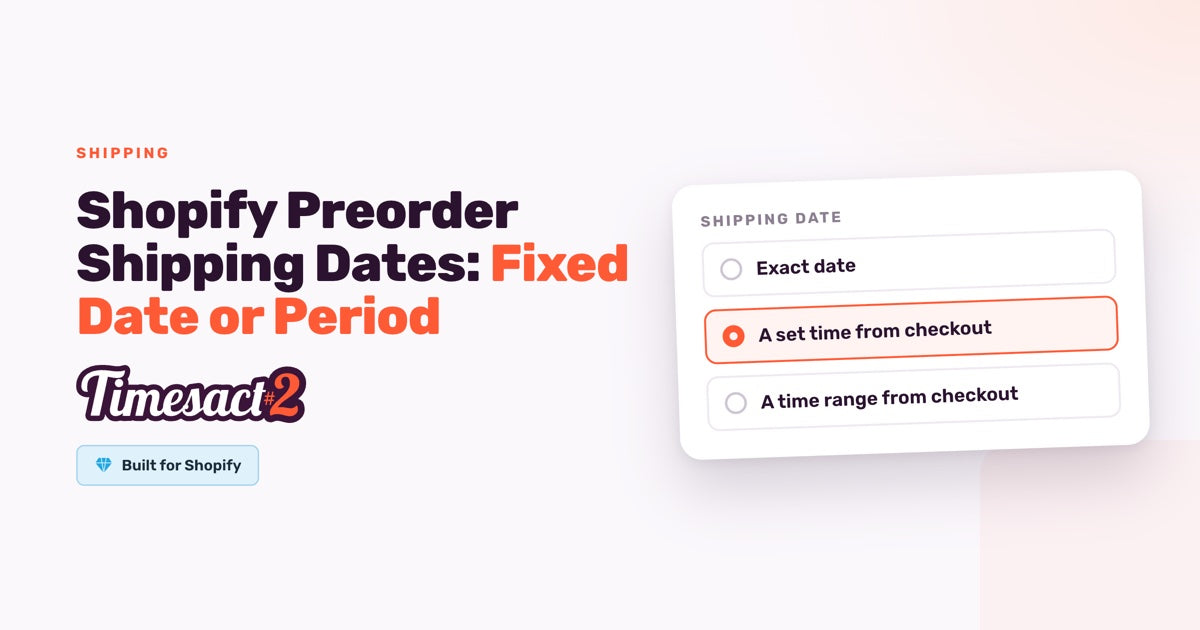
A shipping date on a preorder is one setting in the Customer Experience attached to the variant: the Shipping card under Functionality settings. It has four options. Exact date is one fixed calendar date, the same for every shopper. A set time from checkout is a timeframe such as four weeks, and A time range from checkout is a window such as 4 to 6 weeks. As soon as possible sets no date at all.
The difference is what the value is measured from. An Exact date is absolute: 15 October is 15 October whenever the shopper reads it. A set time from checkout is relative to the order, so it is recalculated for each shopper. Four weeks always reads roughly four weeks out from the day someone is looking at it, and it moves forward on its own without you touching the campaign. A time range from checkout moves the same way, with an earliest and a latest date.
So the choice is really a question about your campaign, not about your product:
- You know the arrival date: a container landing, a print run finishing, a launch day. Use Exact date.
- You know the lead time, not the date: made to order, restocking on a cycle, production that starts when the order does. Use A set time from checkout, or A time range from checkout if you quote a window.
A set time from checkout is not an estimate the app invents. It is the lead time you already quote, expressed as a timeframe instead of a day.
Setting the shipping date
Preorder is switched on per variant: under Experiences, open a Customer Experience with Pre-order (or create one), then attach it to the product's variants from Products and save. From there, the value and the words that display it live in two different places, and keeping them straight is most of the setup.
The value goes in Functionality settings. In the Customer Experience, open Functionality settings and, under Shipping, choose Exact date, A set time from checkout or A time range from checkout, then fill in the date or the timeframe. The Customer Experience holds the timing, so every product and variant it is attached to reads the same shipping date. That is exactly what you want for a whole made-to-order line, and the reason to create a second Customer Experience when one product runs on a different lead time.
The wording goes on the Product page. The {{shippingDate}} smart variable is what puts the value in front of a shopper, and it belongs in your pre-order Message on the Product page. It renders whichever option you chose: the exact date, the date that set time from today, or a date range for a time range. So you write the sentence once, and it stays correct if you later switch from one option to another. The Cart label doesn't fill in variables, so type the timing there in words.
If you use the variable, set a date behind it. As soon as possible sets no date, so a message using {{shippingDate}} has no date to show, and that part of the message comes out blank. With that option, take the variable out and write the timing in words.
The option you choose also decides how Shopify files the order after checkout. With the default Use Shopify purchase option, Exact date marks it Scheduled, A set time from checkout or A time range from checkout puts it On hold, and As soon as possible leaves it Unfulfilled. The Fulfillment status card on the same tab shows which one applies. If your fulfilment runs off Unfulfilled orders, such as a 3PL pulling the queue or a warehouse you would rather not have splitting shipments, choose As soon as possible and put the timeframe in your pre-order message and cart label instead.
Four more pieces complete the setup. When Pre-order shows decides when the preorder turns on: Only when out of stock, Always, whatever the stock level, or Only while Shopify stock lasts. It sits on the same Functionality settings tab as Shipping, so it applies to every variant the Customer Experience is attached to. The Billing card carries the charge timing: the Full amount at checkout, or a Split payment with the rest charged later, as set under When to charge the rest. The Cart label on the Cart page is the line shoppers read on cart line items, at checkout and in past order details. And the Timesact App Embed turns those elements on: enable it on the theme you publish, under Online Store → Themes → Customize → App embeds, then click Save in the theme editor. The embed takes effect once the theme is saved, and it is set per theme.
Dates follow the Time zone set under Billing & Account → Store settings. A date takes effect at midnight at the start of that day in that time zone, and an end date is exclusive, so set a start or end date against that clock rather than your local one.
Three dates that are not the same date
Most shipping-date confusion is actually one of these three being read as another. They are set in different places and do different jobs.
| Setting | Where it lives | What it does |
|---|---|---|
| Shipping date | Functionality settings → Shipping | What you tell shoppers about arrival: an exact date, a set time or a time range from checkout |
| When to charge the rest | Functionality settings → Billing (Split payment) | When the outstanding balance is charged |
| Preorder end date | Products, on the variant (End date) | When the campaign closes on your storefront |
They are often close together in practice: a campaign that closes when stock lands, charges the balance the same week, and quotes that week as the shipping date. But they are set separately and can be set to whatever each one needs. Getting a campaign end date right is its own decision, and so is when the balance comes out on a deposit setup.
Offering more than one timeline on the same product
The shipping date is set by you rather than chosen by the shopper, and every customer who preorders a given variant gets the same timing. That is usually what you want: one lead time, stated once.
When you genuinely need two, the supported route is to make the timeline part of the product. Create separate variants or options, "Standard" and "Priority", say, and attach a different Customer Experience to each one, with its own Shipping option. The shopper then picks the timing by picking the variant, and each one carries its own answer. For a true calendar date-picker at checkout, that is what a dedicated delivery-date app does, and our support team can look at how one fits alongside your preorder setup.
Setting a shipping date and showing it to shoppers is part of the standard preorder setup, available from the moment you install.
Give every shopper a date that is true today
A fixed date is the right answer when you know the day. A set time from checkout is the right answer when you know the wait, and it keeps the page honest for a campaign that outlives any single calendar date. Both are one option on the Shipping card and one variable in your message, so switching between them as a campaign changes shape takes a minute rather than a rebuild.
FAQs
Which smart variable should I use if my shipping date is a set time from checkout?
Use {{shippingDate}} in your pre-order message. It shows the shipping date from the Customer Experience's Shipping card whichever option you pick: the exact date for Exact date, the date that far from today for A set time from checkout, or a date range for A time range from checkout. The cart label doesn't fill in variables, so write the timing there in words.
Where do I set the shipping date for a preorder?
In the Customer Experience attached to the variant: open it under Experiences, go to Functionality settings, and choose an option under Shipping. Every product and variant that carries that Customer Experience picks up the same shipping date, so a product that needs a different lead time gets its own Customer Experience. Shoppers see it once the Timesact App Embed is enabled on your published theme (Online Store → Themes → Customize → App embeds) and you click Save in the theme editor.
Can customers choose their own delivery timing on a preorder?
The timing is set by you in the Customer Experience, and everyone who preorders that variant gets the same answer. To offer a choice, create separate variants or options such as "Standard" and "Priority" and attach a different Customer Experience to each, with its own Shipping option, so the shopper picks the timing through the variant.
Why is the shipping date missing from my pre-order message?
This happens when your message uses {{shippingDate}} but Shipping is set to As soon as possible, which sets no date, so there is nothing to fill in and that spot comes out blank. The app's note under As soon as possible mentions variable_not_set, but on the storefront the spot is simply empty. Open the Customer Experience attached to that variant, go to Functionality settings, choose Exact date, A set time from checkout or A time range from checkout under Shipping, fill it in and save. To keep As soon as possible, take {{shippingDate}} out of the message and write the timing in words.
Do I need to upgrade my plan to show a shipping date?
No. Setting a shipping date and displaying it on your storefront is part of the standard preorder setup and is available from the moment you install.
Run this in Timesact
Pre-order, back-in-stock, coming-soon and more — one app, no code.
Install the app →