News › Pre-Order
Preorder Split Shipping on Shopify: How Mixed Orders Ship
Two boxes, two shipping lines, one customer
A customer buys a jacket you have on the shelf and a hoodie that's still on preorder. That's one checkout and one order number, but with preorder split shipping, Shopify can treat it as two shipments. So the customer may see two shipping lines at checkout, and you're left deciding whether to post the jacket today or hold the whole order until the hoodie arrives.
Split shipping is Shopify's checkout dividing one cart into separate shipments, each of which can carry its own shipping charge. You can shape it three ways: set the preorder's shipping to As soon as possible in Timesact so one shipment is more likely, ship the in-stock item first, or block mixed carts at checkout. Here's where each is set, and how to hold mixed orders so your warehouse doesn't ship half of one.
Why does Shopify split shipping and charge twice on a preorder order?
Shopify's checkout splits a cart when some items can't ship together, and preorder items are one of the cases Shopify names. When a cart mixes an item that's ready to ship with a preorder item that has a future shipping date, checkout can treat them as two shipments and apply a shipping charge to each. Shopify also splits products that sit in different shipping profiles, and items that ship from different location groups.
Shipping rates come from your delivery profiles under Settings → Shipping and delivery in Shopify, and Shopify's order routing decides which location fulfills an order. Timesact handles the preorder button, messaging and order tags, plus payment terms when you use a Shopify purchase option (the selling plan that carries the preorder's payment terms).
Stores with more than one shipping profile or location can switch Shopify's Show split shipping in checkout setting on or off. On stores that have moved to Shopify's shipping options by market, split shipping is always on, and what a split order costs depends on the rate types you use.
Scheduling the preorder and allowing mixed carts are set in Timesact. Fulfillment is up to Shopify, Flow or your 3PL (the outside warehouse that packs and ships for you).
Pick the outcome, then the setting
Decide what you want a mixed order to look like, then set the one thing that produces it. The Timesact settings live in the customer experience assigned to the product.
| What you want | How to set it | What comes with it |
|---|---|---|
| No mixed orders at all | Timesact: Cart page tab → Block checkout | Shoppers with a mixed cart see your error message |
| One shipment, so one shipping charge is more likely | Timesact: Shipping → As soon as possible | No scheduled date. Write the timing in words |
| A scheduled fulfillment date on the preorder line | Timesact: Shipping → Exact date | Shopify can split the cart into two shipments |
| Preorders arriving as Unfulfilled orders | Timesact: Don't use a Shopify purchase option | Full payment at checkout. Discounts run from Shopify |
| The ready item now, the preorder later | Shopify Orders: fulfill in parts | Two parcels, so say so in your cart messaging |
| The whole order held until everything is ready | Shopify: a fulfillment hold, by hand or with Flow | Find them by the Partial Pre-order tag |
How do you keep a mixed order to one shipment?
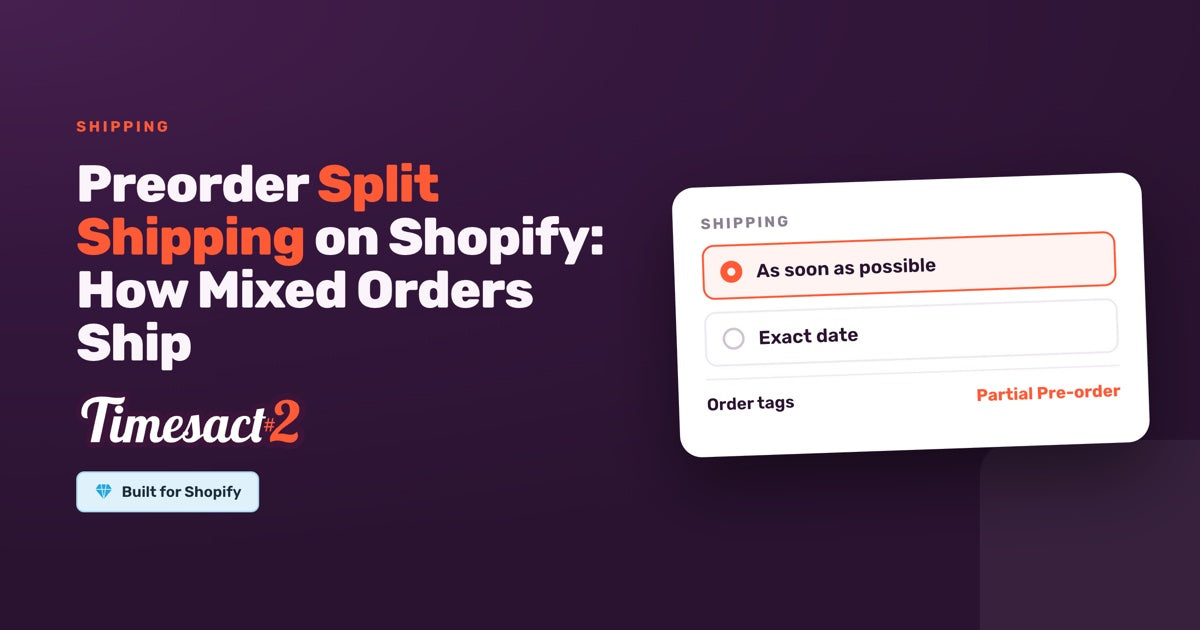
Set the preorder's shipping to As soon as possible, under Shipping in the experience's Functionality settings. Shopify then stops scheduling the preorder item as a separate future shipment. The cart is more likely to stay as one shipment, with one shipping charge.
The order then carries no scheduled date, so you choose when it ships from Shopify Orders. Write the timing into your product-page message in plain words rather than with the {{shippingDate}} variable, since this option sets no date for it to show. In the Timesact app:
- Open Experiences, then open the experience assigned to the product.
- On the Product page tab, write the Message, for example: "Pre-order: ships in about six weeks. In-stock items in the same order ship together with it." Set the Button text and Badge text too, then Save.
- On the Cart page tab, turn on Enable mixed cart alert pop-up, so shoppers whose cart combines in-stock and preorder items see the one-shipment promise before checkout.
- As part of setup, enable the Timesact App Embed on the theme you publish (Online Store → Themes → Customize → App embeds) and click Save. This activates the storefront elements.
Each variant can have its own experience, so you can ship one line as a single parcel and keep dated shipping on another.
For no mixed orders at all, use the same Cart page tab: under Mixed cart checkout, turn on Block checkout when cart mixes pre-order and in-stock items and write the Checkout error message, for example asking shoppers to order the preorder on its own. The block is enforced at checkout, including Shop Pay, Apple Pay, Google Pay and other express checkouts.
Can you ship the in-stock item now and the preorder later?
Yes: date the preorder and fulfill the order in parts in Shopify Orders. To date it, choose Exact date under Shipping and set the Shipping date (dates follow the time zone set in your Timesact account settings). The jacket and the hoodie then sit in separate fulfillments, so you ship the jacket now and the hoodie when it lands. Within a fulfillment, you can ship just some items by entering the quantity you're sending.
Stock landed early? Open the order in Shopify and change the fulfillment date to ship it sooner, and collect any remaining balance from the same order with Collect payment or Send invoice. There's no Timesact deadline for shipping a preorder. If a promised date moves, send preorder customers a shipping-delay update from the app's notification settings.
Tell the shopper up front, so they expect two parcels. Your mixed-cart messaging on the product page and cart sets that expectation.
How do you stop a 3PL from shipping half a mixed order?
Put mixed orders on hold, and use Timesact's preorder order tags to find them. Every order that contains a preorder item is tagged Pre-order. A mixed order, with a preorder item plus in-stock items, also gets Partial Pre-order, so it carries both tags. Both are order-level (they sit on the order, not on individual items) and written with a capital P, so filter on them exactly as shown.
You can place the hold in Shopify, with Flow, or in your 3PL's system:
-
By hand: in Shopify admin → Orders, filter on
Partial Pre-order, open an order, choose Mark as on hold from the Unfulfilled section, pick the items and a hold reason, then Mark as on hold. Release hold undoes it. -
With Shopify Flow: start the workflow on Order created, add a Wait step of a few minutes so the order's tags are in place, then check the order tags for
Partial Pre-orderand run Hold fulfillment order, which holds the order's fulfillments. To release, Release fulfillment order holds works per fulfillment order, so in an order-based workflow loop over them with For each. -
In your 3PL or ERP: tags travel as ordinary Shopify order data, so a warehouse system that filters on tags can use
Partial Pre-orderas its "wait for the rest" signal.
What if your 3PL only picks Unfulfilled orders?
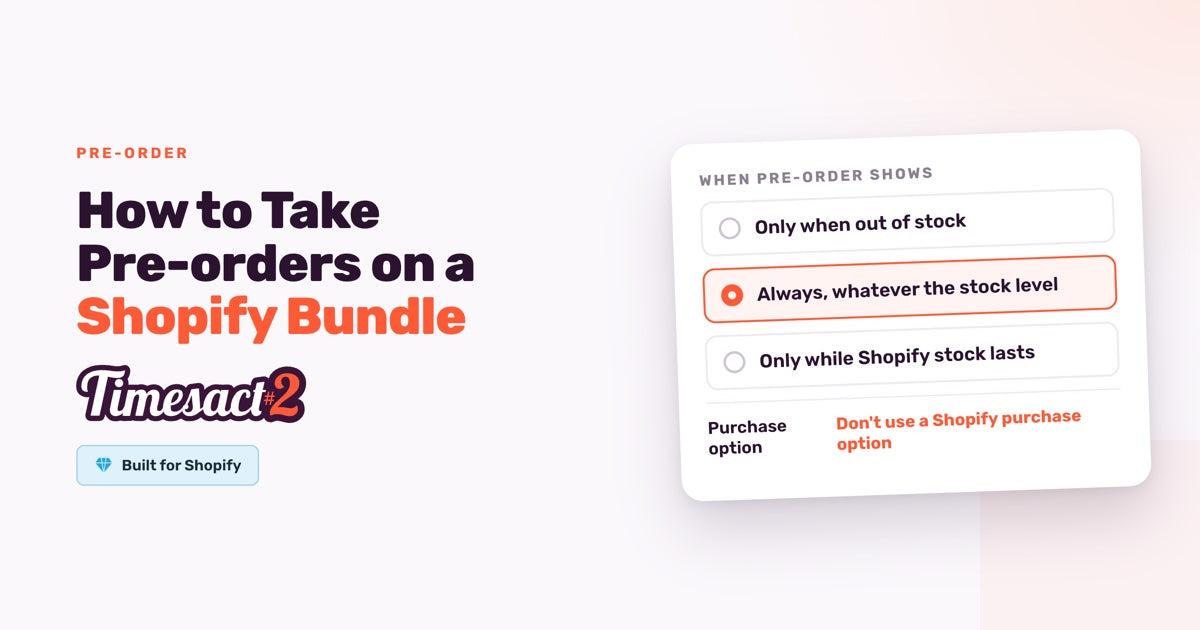
Set the preorder up without a Shopify purchase option, and new orders arrive as ordinary Unfulfilled orders with no scheduled fulfillment date. In Functionality settings, under Purchase option, choose Don't use a Shopify purchase option. Payment is taken in full at checkout, every payment method your store offers stays available, and any preorder discount runs from Shopify admin → Discounts. For an order already placed with a scheduled date, change its fulfillment date in Shopify Orders to bring it forward.
To take a deposit now and the balance later, keep the purchase option. Under Billing, choose Split payment, set the First charge, then pick When to charge the rest, for example On a specific date (in the time zone set in your Timesact account settings). On Shopify Payments the balance is collected automatically on the date you set.
Set your mixed-order rule before the next drop
Pick one rule for mixed orders: ship them together, ship the ready item first with the rest to follow, or keep mixed carts out at checkout. Try a small preorder first, then roll the same rule out to the rest of your catalog.
FAQs
Why is my customer charged shipping twice when they order a preorder and an in-stock item together?
Because Shopify's checkout can split the cart into two shipments when one item is ready and a preorder item has a future shipping date, and each shipment can carry its own charge. Setting the preorder's shipping to As soon as possible in Timesact makes a single shipment more likely. Rates themselves are set in Shopify under Settings → Shipping and delivery.
Should I ship a mixed preorder order together or in two parts?
Either works, so choose by what matters more to your customers. For one parcel, set the preorder's shipping to As soon as possible in Timesact, which makes a single shipment more likely. For speed on the in-stock item, fulfill the order in parts in Shopify. To avoid mixed orders altogether, turn on Block checkout under Mixed cart checkout on the experience's Cart page tab.
How do I ship the in-stock items now and the preorder later?
Fulfill the order in parts in Shopify Orders: ship the ready fulfillment now, then the preorder once stock arrives. If stock lands before the preorder line's scheduled date, change its fulfillment date on the order page to ship it sooner.
How do I move preorder orders from Scheduled to Unfulfilled?
For new orders, choose Don't use a Shopify purchase option in the Timesact experience: orders then arrive as ordinary Unfulfilled orders, paid in full at checkout. For an order already placed with a scheduled date, change its fulfillment date in Shopify Orders to ship it sooner.
How can I stop my 3PL from shipping part of a mixed order?
Put the order on hold in Shopify. Find mixed orders by the Partial Pre-order tag, then hold them by hand or with a Shopify Flow workflow that waits a few minutes, checks for the tag and runs Hold fulfillment order. A 3PL that filters on Shopify order tags can use the same tag as its hold signal.
Run this in Timesact
Pre-order, back-in-stock, coming-soon and more — one app, no code.
Install the app →