News › Pre-Order
How to Take Pre-orders on a Shopify Bundle
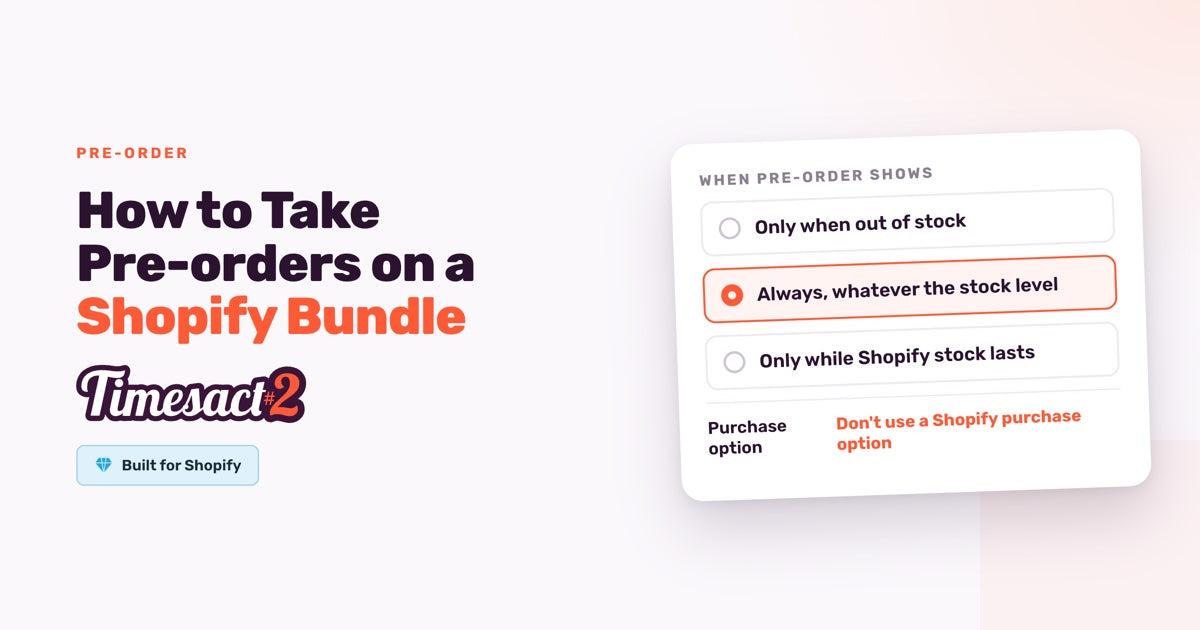
You can take pre-orders on a bundle made in the Shopify Bundles app. A Shopify bundle pre-order needs two settings that differ from a normal Timesact pre-order: the bundle is charged in full at checkout, and its Pre-order button shows whatever the stock level. Set those two on a template of its own, and the bundle shows a Pre-order button, message and badge like any other pre-order.
Why won't a bundle take a standard pre-order?
A new Timesact pre-order runs on a Shopify purchase option: the Shopify feature that carries split payments, deposits and pre-order discounts through checkout. It's the default setting, Use Shopify purchase option, marked Recommended in the app. Shopify doesn't allow purchase options on bundles. In its words, "bundles aren't compatible with purchase options, which includes subscriptions, pre-orders, and try-before-you-buy."
So a bundle on a template with the default purchase option runs into Shopify's rule. Merchants report that the bundle won't go into the cart, or that it does but the pre-order terms don't carry through to checkout. One merchant switched their bundles' template to Don't use a Shopify purchase option and had them selling again the same day.
A second cause is stock. If one component reaches 0 and can't be sold while out of stock, Shopify treats the whole bundle as unavailable before the Pre-order button gets a say. The setup below covers both.
How do you set up a Shopify bundle pre-order?
- In the Shopify Bundles app, create the bundle and set its status to Active (new bundles start as Draft).
- On each component that could reach 0 during the pre-order, turn on Continue selling when out of stock in Shopify, with inventory tracking on. The components aren't on a Timesact template, so this setting is yours to switch on in Shopify.
- In Timesact, go to Experiences and create a template just for bundles. On its Functionality tab, choose Add functionality, then Pre-order.
- Under Functionality settings, choose Don't use a Shopify purchase option. The bundle is then charged in full at checkout, and the app notes this route "works with gift cards and Buy X Get Y".
- Set When Pre-order shows to Always, whatever the stock level.
- Under Shipping, pick the option that matches your timeline.
- On the Product page tab, put the timing and the payment terms in the pre-order message, for example "Pre-order: pay today, ships the week of 9 November." Switch on the Pre-order badge there too if you want it on the product image.
- Go to Products > Add products, add the bundle and assign it the bundle template.
- Enable the Timesact V2 app embed on the theme you publish (Online Store > Themes > Customize > App embeds) and click Save.
- On the Products page, the bundle's status reads Active. Open the bundle in a private window to see what shoppers see.
If your bundles come from a bundle app rather than Shopify Bundles, our support team can go through the setup with you.
How does Shopify count a bundle's stock?
Shopify works out how many bundles you can sell from the components. For each component, it divides the available quantity by how many units one bundle needs, rounds each result down, and uses the lowest. Take Shopify's example, a bundle of two chairs and one desk:
| Component | Available | Needed per bundle | Bundles it allows |
|---|---|---|---|
| Chair | 15 | 2 | 7 |
| Desk | 8 | 1 | 8 |
| Bundle | 7 |
Shopify leaves a component out of that calculation when its inventory isn't tracked or when it's set to continue selling when out of stock. Timesact reads the bundle as one product with that single number, so it sees "7", not the chairs and desks inside.
This is why the bundle template uses Always, whatever the stock level. With the default Only when out of stock, the pre-order waits for the bundle's own quantity to reach 0. Shopify keeps calculating a number above 0 for the bundle from its components, so it sits On standby and the button never changes, even when the bundle looks sold out to you. With Always, whatever the stock level, the Pre-order button shows as soon as the bundle is active on the template, whatever the component stock says.
Bundle or components: where does the pre-order go?
The pre-order goes on the bundle product itself. Putting the components on pre-order doesn't put the bundle on pre-order, because Timesact decides what to show per variant, from that variant's own Shopify stock.
A bundle with sizes or styles is one product with variants, and each variant gets its own status on the Products page. If some variants should be pre-orders and others shouldn't, add only those variants to the template.
The Purchase option choice applies to every product on a template. That's why bundles get a template of their own: your other pre-orders keep split payments or a deposit on their template, while bundles run on full payment on theirs. One bundle template can serve as many bundles as you like.
Paying for and discounting a bundle pre-order
A bundle pre-order is paid in full at checkout. In return it accepts every payment method your store already offers, plus gift cards and Buy X Get Y deals.
Discounts on a bundle pre-order run from Shopify's Discounts page. Codes and automatic discounts both work. If the discount targets specific products, include the bundle product itself (Shopify calls it the parent bundle product): Shopify says "the discount won't apply if you select only the component products." You can also set a lower price on the bundle.
If the launch needs a deposit, sell the items on pre-order individually and let shoppers add the set to one order. Each item then keeps Shopify's purchase option, so the order can take a deposit.
When the stock arrives
On Always, whatever the stock level, every sale of the bundle is a pre-order, including bundles you could ship today from components on hand. When the components are in, take the bundle off pre-order yourself: set an end date on its variants to close the run and keep the setup, or remove it from Timesact with Delete products. Neither removes the bundle from Shopify or changes the orders already placed.
If you switched on Continue selling when out of stock on the components for the campaign, switch it back off in Shopify once the bundle is selling normally again.
Start with one bundle
Try a small pre-order on one bundle first. If you'd like a hand with the settings, book a setup call and we'll go through them with you.
FAQs
Can I take pre-orders on a Shopify bundle?
Yes, on a bundle made in the Shopify Bundles app. Give the bundle its own Timesact template, choose "Don't use a Shopify purchase option" and set When Pre-order shows to "Always, whatever the stock level". In Shopify, turn on Continue selling when out of stock for the components. Then enable the Timesact V2 app embed on your published theme (Online Store > Themes > Customize > App embeds) and click Save. The bundle is paid in full at checkout.
Why won't my bundle add to the cart when it's on pre-order?
Usually because the bundle's template uses Shopify's purchase option, which Shopify doesn't allow on bundles. Give the bundle a template of its own and set its Purchase option to "Don't use a Shopify purchase option". If a component has reached 0 without Continue selling when out of stock switched on, Shopify also treats the bundle as unavailable, so turn that setting on for the components.
Why does my bundle stay On standby instead of showing Pre-order?
The template is set to "Only when out of stock", and Shopify keeps calculating a stock number above 0 for the bundle from its components. Give the bundle a template of its own with When Pre-order shows set to "Always, whatever the stock level", and the Pre-order button shows while the bundle is on that template.
Can I take a deposit on a bundle pre-order?
A bundle pre-order is charged in full at checkout, because deposits and split payments run on Shopify's purchase option and Shopify doesn't combine purchase options with bundles. For a deposit, put each item in the set on pre-order on its own and let shoppers add them to one order.
How do I discount a bundle pre-order?
Create the discount in Shopify under Discounts and include the bundle product itself when you choose which products it applies to. A discount that targets only the component products won't apply to the bundle. You can also set a lower price on the bundle.
Run this in Timesact
Pre-order, back-in-stock, coming-soon and more — one app, no code.
Install the app →