News › Pre-Order
Klarna, Gift Cards and Buy X Get Y on Shopify Pre-orders
One setting decides what a pre-order checkout accepts
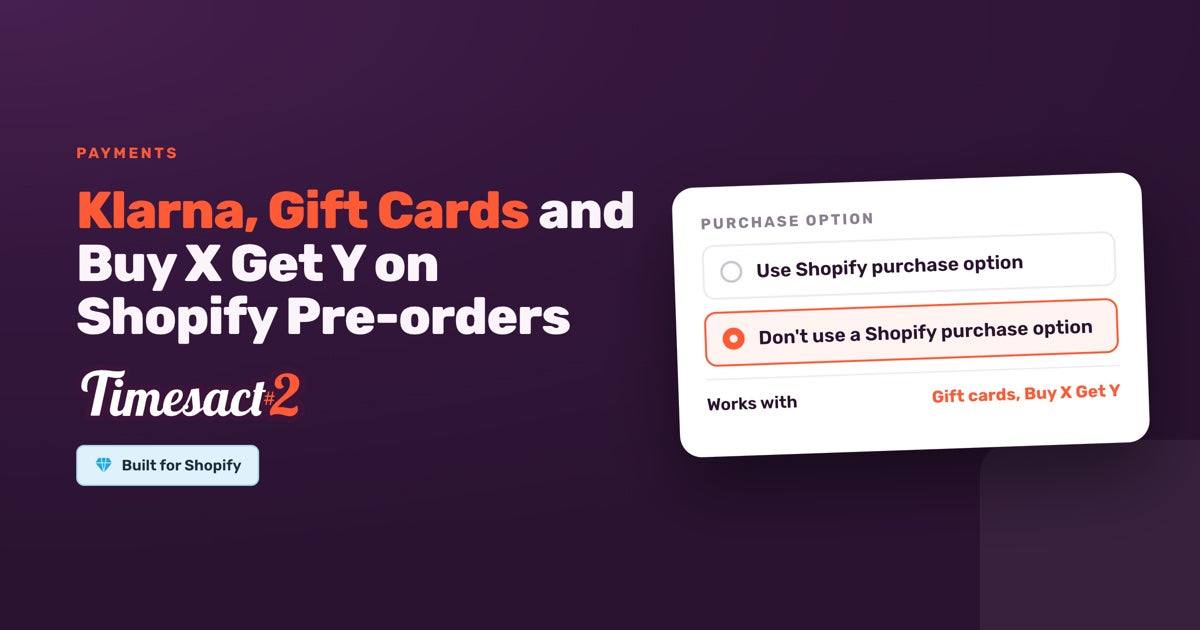
Yes, a Shopify pre-order can take Klarna, Afterpay and gift cards when it's charged in full at checkout without Shopify's purchase option. In Timesact that's one setting, Don't use a Shopify purchase option, and the same choice decides whether Buy X Get Y deals and Shopify's native bundles apply to the item.
The purchase option (sometimes called a selling plan) is the Shopify feature that attaches payment terms to a product, such as 30% now and the rest on 1 March. In this guide we call the two settings the purchase-option route (Use Shopify purchase option) and the full-payment route (Don't use a Shopify purchase option).
You pick the route in each customer experience (a set of pre-order settings you assign to products), so one store can run both. Here's how they compare:
| Use Shopify purchase option | Don't use a Shopify purchase option | |
|---|---|---|
| When the shopper pays | In full at checkout, or a first charge at checkout (can be 0) and the rest later | In full at checkout |
| Deposit, or nothing paid until later | Yes | No |
| Pre-order discount in Timesact | Yes (Pricing) | Run it from Shopify Discounts |
| Payment methods | Shopify Payments, PayPal Express | Your store's usual methods |
| Gift cards | No | Yes |
| Buy X Get Y | No | Yes |
| Native Shopify bundles | No | Yes |
| Fulfillment status | Set by Shopify from your shipping schedule | Unfulfilled, or On hold (pre-order items or the whole order) |
What does Shopify's purchase option give a pre-order?
The purchase option is what lets a pre-order take part of the price now and the rest later. Timesact marks it Recommended, and it gives you:
- Split payment. A first charge at checkout as a percentage, a fixed amount, or 0, with the rest charged later, for example on a specific date or a set time after checkout.
- A pre-order discount. Take a percentage or a fixed amount off to reward early buyers.
- Fulfillment from your shipping schedule. Shopify sets the order's fulfillment status from the shipping date you choose, such as Scheduled for that date.
If a deposit is the reason you're running pre-orders, we cover the full flow in our guide to taking a deposit now and charging the balance later.
Why don't Klarna and gift cards show on a Shopify pre-order?
Shopify hides any payment method that can't carry the purchase option. In practice, purchase-option pre-orders, including split payments, are paid with Shopify Payments or PayPal Express.
So a shopper checking out a purchase-option pre-order won't see Klarna, Afterpay or iDEAL, even though your in-stock products check out with them normally. Shopify's pre-order rules also list the express checkouts Shop Pay, Apple Pay and Google Pay among the ways these pre-orders can't be paid.
The same rule covers the rest. Gift cards can't be used as payment on a purchase-option pre-order, whichever billing and pricing you choose. Buy X Get Y discounts don't apply to the item. And native Shopify bundles aren't compatible with Shopify's purchase options, so a bundle and a purchase-option pre-order can't sit on the same product.
You haven't missed a setting. Shopify runs the checkout, and it decides which payment methods can carry payment terms.
How do you accept gift cards and Buy X Get Y on a pre-order?
Move the product to the full-payment route. The pre-order is then charged in full at checkout and works with:
- The payment methods your store already offers, including pay-later and local methods such as Klarna, Afterpay and iDEAL, wherever you already offer them in Shopify.
- Gift cards as payment.
- Buy X Get Y promotions on pre-order items.
- Pre-orders on native Shopify bundles, with the pre-order button, badge and message on the bundle.
In return, you leave behind what only the purchase option does. The shopper pays in full at checkout. The Timesact pre-order discount is off, so you run any promotion as a Shopify discount code on the pre-order items instead. Orders don't carry a scheduled fulfillment date. The Fulfillment status setting decides whether they arrive Unfulfilled or with Timesact placing them On hold (step 4 below).
Which route fits your pre-order?
Ask these questions about each product:
- Does the pre-order need to collect money on two dates? A deposit, a reservation with nothing paid upfront, or a balance charged later all need the purchase-option route.
- Do many of your shoppers pay with something other than Shopify Payments or PayPal Express? If Klarna, Afterpay, iDEAL or another local method brings in a real share of sales, the full-payment route keeps it on the pre-order.
- Is the launch built around a gift card, a bundle or a Buy X Get Y offer? Those run on the full-payment route.
Need a deposit and nothing else on that list? Stay on the purchase-option route. Need Klarna, a gift card, a bundle or Buy X Get Y, and no deposit? Switch to the full-payment route.
If a product needs both a deposit and a pay-later method, pick the one the launch depends on. Take the deposit if you need the cash upfront to build or order stock. Take the pay-later method if a large share of your shoppers check out with it.
Which route do a sofa, a gift box and a jersey need?
A made-to-order sofa with a long lead time. The maker takes 30% at checkout and charges the rest on a specific date that matches the build schedule. That's a split payment, so the sofa sits on the purchase-option route, paid with Shopify Payments or PayPal Express.
A holiday gift box sold as a native bundle. The box is a Shopify bundle of three products, and the promotion is "buy two boxes, get a candle free." Both need the full-payment route. A bundle takes its stock from its components, so set When Pre-order shows to Always, whatever the stock level. The pre-order button then appears as soon as the variant goes live. To keep the bundle buyable as components run low, turn on Continue selling when out of stock on each component product in Shopify.
A cycling brand whose Dutch shoppers pay with iDEAL. The new jersey is pre-ordered at full price, and the launch offer is a Shopify discount code. The full-payment route keeps iDEAL at checkout, and the code runs from Shopify Discounts.
How do you switch a pre-order to the other route?
The route lives in the customer experience, so it applies to every product that experience is assigned to. Here's how to set it up:
- In Timesact, go to Experiences and open the customer experience assigned to the product. To keep other products on their current route, create a separate experience for these ones instead.
- In the Pre-order Functionality settings, go to Purchase option and choose Use Shopify purchase option or Don't use a Shopify purchase option.
- If you chose Use Shopify purchase option: set Billing to Full amount or Split payment. For a split payment, set First charge and When to charge the rest, for example On a specific date. Set Pricing if you want a pre-order discount. Dates follow the Time zone in Billing & Account → Store settings.
- If you chose Don't use a Shopify purchase option: choose the Fulfillment status. Unfulfilled leaves the pre-order products without a hold. With On hold, Timesact places fulfillment on hold once Shopify has routed the order, and under What to place on hold you choose Hold preorder products or Hold the entire order. You release the hold in Shopify when you're ready to ship. Build any promotion in Shopify admin → Discounts. This route charges in full at checkout, so split payments and the pre-order discount are reset for that experience. If you return to the purchase option later, you set them fresh there.
- On the Product page tab, where the pre-order button, badge and message are set, update the Pre-order message so shoppers see the payment terms, for example "Pay in full today, ships in March." If the message includes
{{shippingDate}}, set a date for it under Shipping: pick Exact date or A set time from checkout. - Save, then assign the experience to the right products from Products.
Preview the product page in a private window to see exactly what shoppers see.
Set the route before your next launch
When a customer asks to pay for a pre-order with Klarna or a gift card, the answer is one setting: move that product to a full-payment customer experience, and keep deposits on the products that need them.
FAQs
Can customers pay for a Shopify pre-order with Klarna or Afterpay?
Yes, customers can pay for a Shopify pre-order with Klarna or Afterpay when the pre-order is set to Don't use a Shopify purchase option in Timesact. Every payment method your store normally offers then stays available on the pre-order, charged in full at checkout. Pre-orders that use Shopify's purchase option, for split payments or a pre-order discount, are paid with Shopify Payments or PayPal Express.
Do gift cards work on pre-order products?
Yes, gift cards work on pre-orders set to Don't use a Shopify purchase option. On pre-orders that use Shopify's purchase option, gift cards can't be used as payment, whichever billing and pricing you choose.
How do I run a Buy X Get Y offer on a pre-order product?
Set the pre-order's customer experience to Don't use a Shopify purchase option, then build the Buy X Get Y offer in Shopify admin → Discounts. Buy X Get Y doesn't apply to pre-order items that use Shopify's purchase option.
Can I take a pre-order deposit and still accept Klarna?
A deposit and Klarna can't share one pre-order, because the deposit runs on Shopify's purchase option and Klarna needs Don't use a Shopify purchase option. Pick the route the launch depends on more, and put your other products on a second customer experience set to the other route.
Can I offer a pre-order discount and still accept Klarna?
Yes, as a Shopify discount code. Set the pre-order's customer experience to Don't use a Shopify purchase option, then build the offer in Shopify admin → Discounts. Klarna stays available at checkout wherever you already offer it. Timesact's own pre-order discount (Pricing) runs on Shopify's purchase option, so for a Klarna launch the offer lives in Shopify Discounts.
Run this in Timesact
Pre-order, back in stock, coming soon and more. One app, no code.
Install the app →