News › Pre-Order
Shopify Preorders Across Multiple Inventory Locations
Which stock decides when a Shopify preorder starts?
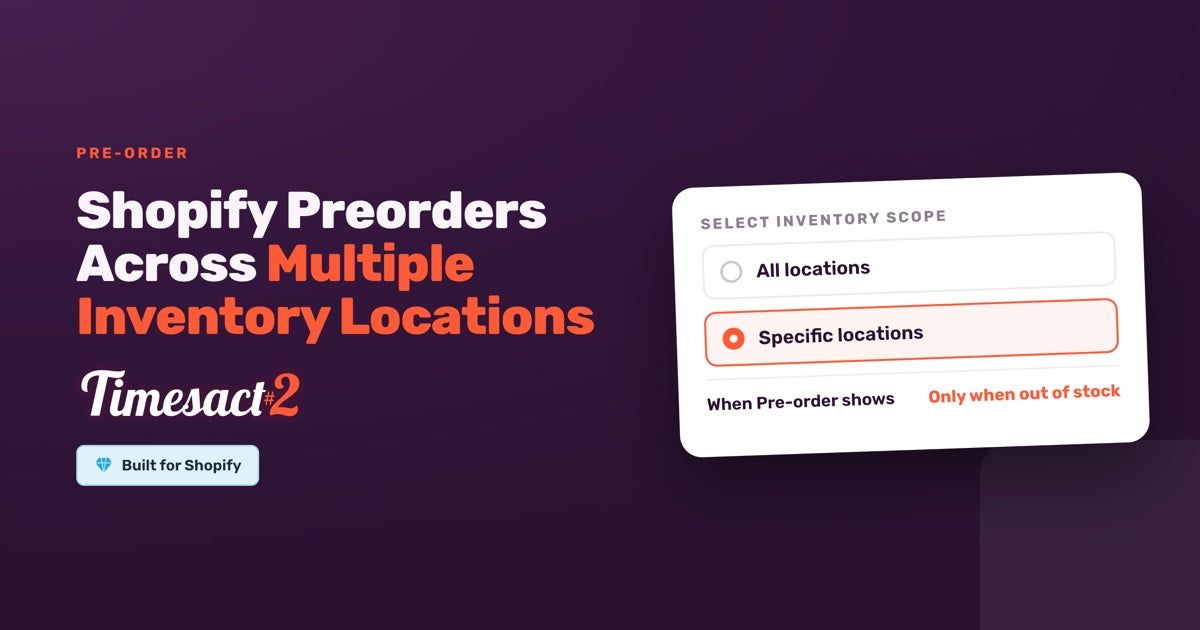
When your stock sits in multiple Shopify locations, Timesact adds up the available stock at all of them by default and treats the total as the variant's stock for the preorder. On the PRO plan, you can pick the locations instead, and only their stock counts. The setting is Select inventory scope. It lives in each experience, the group of settings you create under Experiences and attach to products, so different products can watch different warehouses.
Say your online warehouse is down to 0 while a returns location, where units wait to be checked before going back on sale, still holds 4. Counting every location, Timesact sees 4, so a preorder set to start when stock runs out keeps waiting. Count only the warehouse, and the preorder starts when your online stock runs out.
Choosing locations only changes the stock Timesact reads. Shopify still decides which location ships each order.
Three multi-location setups and which stock to count
Match the count to where your online stock sits.
A location that holds stock you don't sell online. A returns location, for example. Count only the locations that fulfill online orders: choose Specific locations and tick them. If that location has Use inventory at this location to fulfill online orders turned off in Shopify, its units can't be bought on your website, yet under All locations they still count toward the total. Once online stock runs out, online shoppers can't buy the product while the preorder waits on standby. Scoped to your online locations, and with Only when out of stock chosen, the preorder starts when your online stock reaches 0.
Your own warehouse plus a 3PL holding the same products. Count both: leave it on All locations, or tick both under Specific locations. Their stock is added together, which gives the product a fallback warehouse. With Only when out of stock, it keeps selling while the two locations together have units, and switches to preorder once their combined stock reaches 0.
Two Shopify settings let your online store sell a 3PL's stock:
- Open the product in Shopify, click Edit locations in the Inventory section, select the 3PL location, then click Done and Save. If your 3PL connects through a fulfillment app, the app manages that quantity; otherwise set it yourself.
- In Settings → Locations, open the 3PL's location and keep Use inventory at this location to fulfill online orders turned on. It's on by default for new locations.
Timesact then reads the 3PL's stock under All locations, or when you tick it under Specific locations.
A US warehouse for US shoppers and an EU warehouse for Europe. Use one experience per warehouse, each counting only its own location and shown to its own countries. The steps are below, under the market section.
In the first two setups, leave the market scope on the default, Global (all markets).
Point the preorder at the right warehouse
To base a preorder on one warehouse's stock, open the experience's Markets & locations page, set Select inventory scope to Specific locations and tick that warehouse.
- In the Timesact app, open Experiences and open the experience with the Pre-order functionality.
- Under Admin, open Functionality settings → When Pre-order shows and choose how stock drives the preorder. Only when out of stock switches to preorder when the counted stock reaches 0. With Only while Shopify stock lasts, that stock itself sells as a preorder until it reaches 0. Click Save.
- Under Admin, open Markets & locations. In Inventory location configuration, set Select inventory scope to Specific locations.
- Tick the locations whose stock should count, and click Save.
The third option for When Pre-order shows, Always, whatever the stock level, doesn't look at stock at all, so it runs the same whichever locations you tick.
If you're setting Timesact up for the first time, enable the Timesact App Embed as part of setup. In Shopify, go to Online Store → Themes → Customize → App embeds on the theme you publish, switch on the Timesact V2 embed and click Save.
Then open Products in the app to see each variant's status. Active means the preorder is live, and On standby means it's set up and waiting for the right stock level.
Run a different preorder in each market
One product can be on preorder in Europe and on Add to cart in the US at the same moment. To set that up, assign two experiences to the same product, each with its own countries and its own warehouse.
- Create the first experience, for example "Preorder US", and add the Pre-order functionality. Under Admin → Functionality settings, choose When Pre-order shows and the billing for this market, and click Save. On the Storefront side, under Product page, write the button and message shoppers in this market will read, and click Save.
- In the same experience, open Markets & locations. Set Select market scope to Specific countries (ISO codes), click Select countries, pick the United States and click Confirm. Set Select inventory scope to Specific locations, tick your US warehouse, and click Save.
- Repeat both steps for a second experience, "Preorder EU", with its own preorder settings and wording, the European countries you sell to, and your EU warehouse.
- Assign both experiences to the product from the Products page.
A shopper sees the experience that matches the country they're shopping in. Between the two experiences, cover every country you sell to, with no country in both, so each shopper matches exactly one. If you sell abroad with Shopify Markets, pick the same countries your market covers, since each experience is set by country.
Set Shopify's order routing so each region's orders ship from its own warehouse, as shown further down.
The storefront and payment settings inside an experience travel with its market, so each region can have its own:
- preorder button and message wording
- shipping date
- billing, from full payment to a deposit with the balance later
- preorder discount
So US shoppers can pay in full while European shoppers reserve with a deposit, on one product page and one set of Shopify inventory.
How do you set back in stock for a specific inventory location?
To set back in stock for a specific inventory location, open the Markets & locations page of the Back in Stock experience you assign to those products, set Select inventory scope to Specific locations and tick the warehouse that restocks them. On those products, the Notify Me button then shows when stock at those locations reaches 0, and the restock email goes out when it climbs back to the Quantity threshold set in the experience.
So a shopper waiting on your European warehouse hears when that warehouse is restocked, not when a different location gets a delivery. For the form itself and its wording, see our guide to the back-in-stock Notify Me form.
Where does the order ship from?
Shopify decides which location fulfills each online order, through your order routing rules. A preorder is a normal Shopify order, so it's routed like any other, and the locations you tick in Timesact never move or reserve units.
To keep each region's orders at its own warehouse:
- In Shopify admin, go to Settings → Shipping and delivery. In the Shipping section, click Order routing, then the arrow icon.
- Drag the Stay within the destination market rule to the top of the list, so Shopify looks first at locations in the same market as the order's shipping address. If the rule isn't in your list, click Add rule and choose it.
- Click Save.
To have one location ship ahead of the others instead, click Add rule, choose Use ranked locations, click the pencil icon on the rule, drag that location into the top location group and click Done. Then drag the rule to where it should apply in the list and click Save.
Map your locations before the next sell-out
List your locations, note which ones ship online orders, and decide which stock each product should react to. Then set the locations in the experience and see the variant status in Products. On the next sell-out, your preorders start when the stock that ships online runs out.
FAQs
Can a Shopify preorder start based on one location's stock?
Yes: a Shopify preorder can follow one location's stock when the experience's Select inventory scope is set to Specific locations with only that location ticked. With When Pre-order shows set to Only when out of stock, the preorder starts when that location's available stock reaches 0, even if other locations still hold units. Specific locations is on the PRO plan.
What makes an in-stock product show as a preorder in one market?
An in-stock product shows as a preorder in a market when one of these settings points that way: When Pre-order shows is set to Always, whatever the stock level, or to Only while Shopify stock lasts, both of which sell the units you hold as preorders; the experience's inventory scope leaves out the warehouse that holds the stock, so Only when out of stock reads 0; or an experience built for another market is still on Global (all markets), so its preorder shows in this market too. To show Add to cart where you have stock, give each market its own experience on Only when out of stock, set to its countries and to the warehouse that serves them.
Can one product show a preorder in one country and Add to cart in another?
Yes: one product can show a preorder in one country and Add to cart in another when you assign two experiences, each set to its own countries and to the warehouse that serves them. Use Specific countries for the market scope, with the two experiences covering every country you sell to between them, and Specific locations for the inventory scope.
Which warehouse ships a preorder?
Shopify assigns every online order, preorders included, to a location through your order routing rules, in Settings, Shipping and delivery, Order routing. The locations you tick in Timesact decide which stock the preorder reacts to, and they never move or reserve inventory.
How does Timesact work with Shopify Markets?
Timesact matches each experience to shoppers by country: set Select market scope to Specific countries and pick the countries your Shopify market sells to, then give that experience its own warehouse, preorder wording, shipping date, billing and preorder discount. Specific countries and Specific locations are on the PRO plan; Global (all markets) and All locations, the defaults, work on every plan.
Run this in Timesact
Pre-order, back-in-stock, coming-soon and more — one app, no code.
Install the app →