News › Pre-Order
How Shopify Preorders Work With Your Inventory
How do preorders work when a product is out of stock?
When a product runs out, Timesact keeps it buyable by replacing the sold-out button with a preorder button, so the sale still happens instead of hitting a dead end. You keep taking orders while the item is at zero, and the customer sees a clear preorder message at the point of purchase.
The part that trips people up is the relationship between Timesact and your Shopify stock numbers. Preorders don't ignore your inventory — they sit on top of it. Once you understand how the two connect, you can sell through a stockout, keep selling while a purchase order is in transit, and know exactly what your numbers will look like when the new stock lands. This guide walks through that relationship the way we'd explain it on a setup call, using the questions merchants actually ask us.
Do I need to turn on "Continue selling when out of stock"?
No. Turn this on automatically under Continue selling in your Customer Experience's Functionality settings is on by default, so Timesact switches on "Continue selling when out of stock" for each variant while its preorder is active and turns it back off afterwards — it is not a manual step you do in Shopify. The one thing to confirm is that Shopify inventory tracking is on for the product, because that's what lets Timesact watch the stock level and know when to show the preorder button.
This is a common point of confusion, so it's worth being direct about it: you do not toggle the continue-selling checkbox yourself, and you don't need to flip your products to "sell when out of stock" by hand. You set the preorder rule in Timesact, and the app handles the underlying Shopify flag for you.
I have 0 in stock but more is coming — how do I sell it now?
Set an inventory-based preorder rule, and the product stays buyable at zero without you touching stock levels each day. Timesact watches the Shopify inventory count and turns the preorder state on and off against it, so the button flips to preorder when you're out and back to a normal Add to Cart when stock returns.
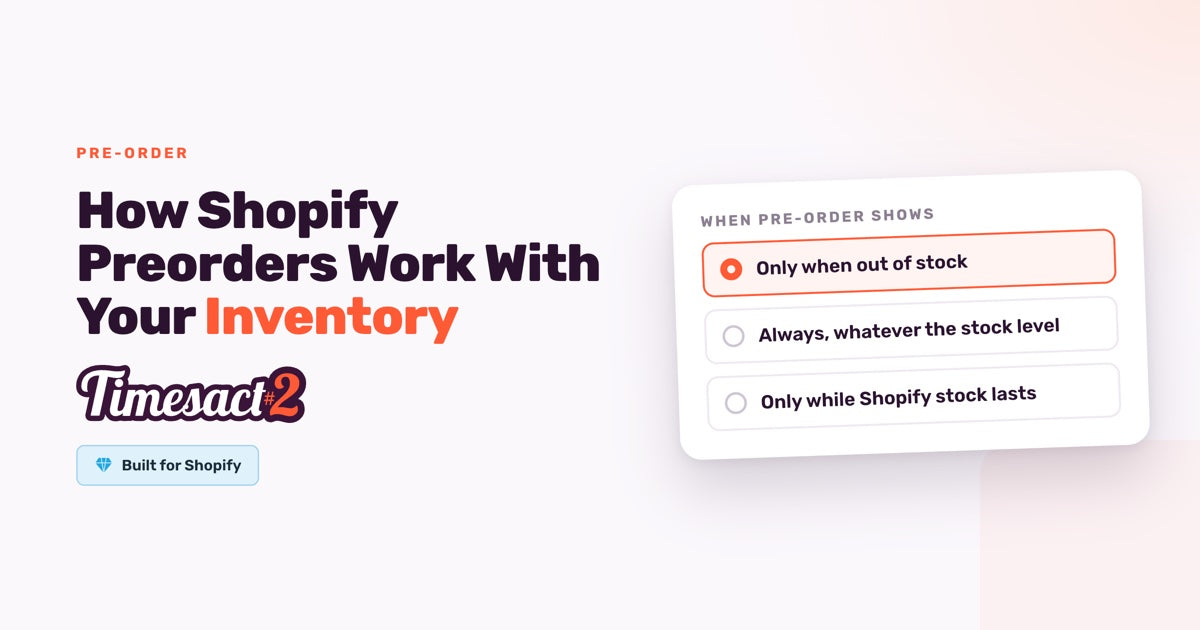
You choose the stock rule in your Customer Experience, under Functionality settings → When Pre-order shows. There are three options:
| Stock rule | When the preorder button shows |
|---|---|
| Only when out of stock | Only once Shopify inventory reaches zero — normal Add to Cart while you have stock |
| Always, whatever the stock level | Always on, whether or not you have units on hand |
| Only while Shopify stock lasts | Preorder while your Shopify stock is above 0; at 0 the product shows Sold out |
For a product where stock is on its way, "Only when out of stock" is the usual pick: customers buy normally while you have units, and the moment you sell through, the same page starts taking preorders instead of showing sold out. This is also the setup stores use to keep selling an item that's temporarily out of stock rather than losing the demand.
If the product isn't in Shopify yet because you want to see how many sell before you commit to a production run, add it to Shopify with inventory tracking on and zero stock, then set it to preorder. The orders that come in are your real demand signal — a practical way to gauge interest before you place the order.
What happens to my numbers when the new stock arrives?
When your purchase order lands, add the entire new quantity to Shopify — Shopify's positive and negative inventory cancel out for you. If you started at 0 and took 10 preorders (with When to reduce stock on its default, When the order is placed), your inventory reads -10; add the 100 units from your PO and your available stock settles at 90. The 10 you already sold are accounted for, and the remaining 90 are ready for normal sales. If you choose When the order is fulfilled instead, your available quantity stays the same until you fulfill those preorders.
Because the rule is inventory-based, adding stock also flips the button back on its own. Once the count is positive again, the product shows a standard Add to Cart, and it will return to preorder automatically the next time it sells out. You don't have to switch anything manually between cycles — the stock level drives the state.
Can I limit how many preorders I accept?
Yes — set a preorder limit per variant, and once that many units are sold, the variant returns to its standard Shopify state (Sold out when you have no stock). If you can only produce 100 of an item, you cap the variant at 100, and the 101st shopper sees sold out instead of another preorder going through. Pre-order quantity is unlimited by default; to cap it, go to Products in Timesact, open the product and its variant, turn off Unlimited pre-order quantity and enter the Pre-order quantity.
One thing to keep in mind: the limit is a cutoff, not a trigger. Timesact transitions preorder on and off based on your inventory rule, a date window, or a product tag through Tag automation — there's no "switch off automatically after X sales and do something else" behavior beyond returning the variant to its standard state at the cap. If you want a hard ceiling on a production run, the per-variant limit is the tool; if you want the preorder to run for a set period, use a date-based window instead.
Setting it up: the three layers that make it work
A working preorder is three layers, and it's worth naming all three so nothing renders blank:
-
Customer Experience — what the customer sees. In Timesact, open Experiences, create or open the Customer Experience for this product, and click Add functionality to add Pre-order. Then set your preorder button text, badge text and any message under Storefront → Product page, and the cart label under Cart page. This is where the customer-facing copy lives; without the Pre-order functionality, the Customer Experience has nothing to display. You can drop smart variables like
{{shippingDate}}into that copy — just set the shipping date under Shipping in Functionality settings, because an unset variable renders the literal textvariable_not_setrather than a blank or a guess. - Activation — when preorder turns on. This is your inventory rule (one of the three modes above), a date window, or a product tag through Tag automation. If you use a date window, its dates follow the time zone set in Billing & Account → Store settings → Time zone.
- Purchase option — the charge timing. With Use Shopify purchase option (the recommended option) in Functionality settings, choose under Billing when the charge lands: Full amount at checkout, or Split payment — a First charge at checkout (which can be 0) and the rest on a later date.
Finally, enable the Timesact App Embed in your theme to switch everything on. Preorder settings apply at the variant level, so on a multi-variant product you can put one size on preorder and leave the rest selling normally.
Keep selling through every stockout
The throughline is simple: your Shopify inventory stays the source of truth, and Timesact reads it to decide when to sell an item as a preorder. Set the stock rule once, add full quantities when your POs arrive, and the same product page moves between normal sales and preorder on its own — so a stockout becomes another sale instead of a lost one.
FAQs
Does Timesact change my Shopify inventory numbers?
Timesact reads your Shopify inventory to decide when to show the preorder button, and your stock count stays your source of truth. Under When to reduce stock you choose whether a preorder reduces your available quantity when the order is placed or when it is fulfilled. It sets the "continue selling when out of stock" flag for preorder products automatically so the product stays buyable at zero.
Do I have to enable "Continue selling when out of stock" myself?
No. With Turn this on automatically on (the default), Timesact sets that flag for the variants you put on preorder while they're active. You only need Shopify inventory tracking turned on so the app can watch the stock level.
How do I add stock after taking preorders?
Add the full new quantity from your purchase order to Shopify. Shopify's positive and negative inventory compensate: if you sold 10 preorders at zero stock with When to reduce stock set to When the order is placed (showing -10) and add 100, your available stock becomes 90.
Can I sell a product on preorder before it's in Shopify?
Add the product to Shopify with inventory tracking on and zero stock, then set it to preorder. Incoming orders show real demand, which many stores use to size a production run before committing to it.
Can I set a maximum number of preorders per item?
Yes. Set a preorder limit per variant; once that number of units sells, the variant returns to its standard Shopify state (Sold out when you have no stock). The limit is a cutoff at the cap, not an automatic switch to a different mode.
Run this in Timesact
Pre-order, back-in-stock, coming-soon and more — one app, no code.
Install the app →