News › Pre-Order
Making Every Route to Checkout Carry Your Preorder Terms
Which buttons carry a Shopify preorder to checkout?
A product page can offer more than one way to buy: the main purchase button, Buy it Now next to it, express buttons such as Shop Pay, Apple Pay and Google Pay, and on many themes a sticky add-to-cart bar, a quick view pop-up and a cart drawer with its own checkout button.
On a preorder, your terms travel with the item through Shopify's purchase option, which the Pre-order button adds as the item goes into the cart. So the question for every other route is whether it carries that purchase option too, or is closed on a preorder variant.
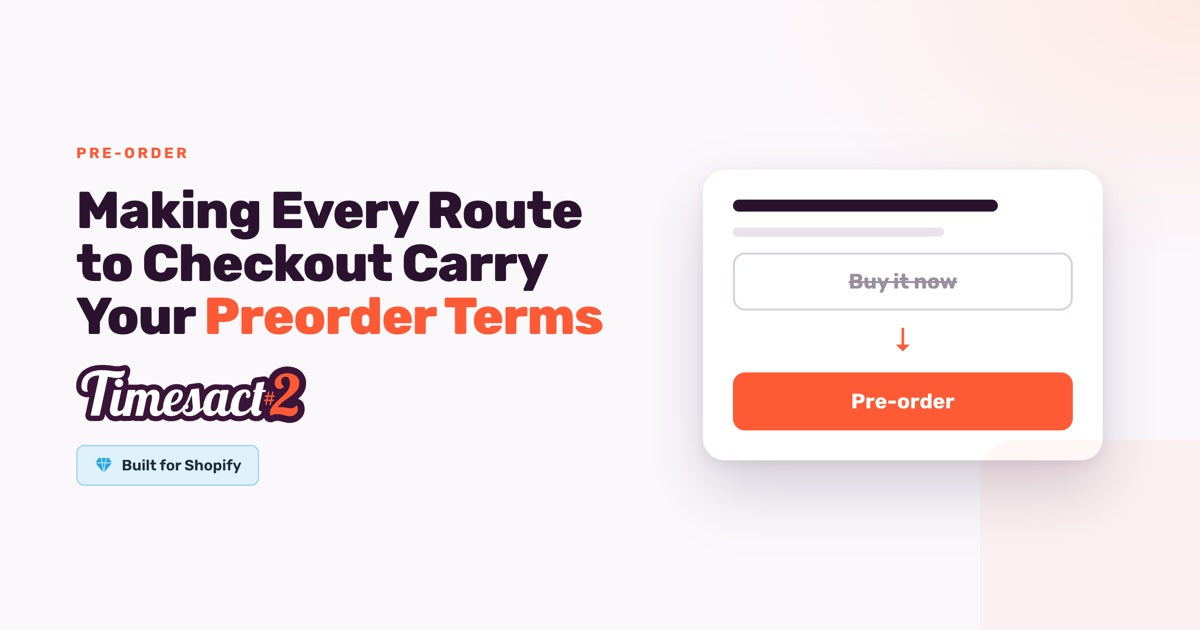
In practice, two routes are closed before a shopper reaches them. Shopify doesn't allow purchase-option preorders to be bought with Shop Pay, Apple Pay or Google Pay, and Timesact hides your theme's Buy it Now button on the variant. What remains is the Pre-order button, wherever your theme shows it, and the cart, and both carry your terms.
What each route carries
| Route | On a variant with Pre-order active |
|---|---|
| Pre-order button (your theme's add-to-cart button, taken over) | Adds the item with the purchase option and your terms |
| Buy it Now / accelerated checkout button | Hidden by Timesact, back on variants without Pre-order, Back in Stock or Coming Soon |
| Shop Pay, Apple Pay, Google Pay | Not available for purchase-option preorders under Shopify's rules |
| Sticky add-to-cart bar inside the product form | Shows the Pre-order button |
| Quick view pop-up | Supported, with its own settings |
| Cart page and cart drawer | The line carries the purchase option and its name |
The pattern behind the table is simple: the terms attach when the item enters the cart, so every route that stays open on a preorder variant goes through the cart.
Routing every purchase through the preorder flow
Timesact does the routing for you. When the selected variant has Pre-order, Back in Stock or Coming Soon active, Timesact hides your theme's payment button: the accelerated checkout block next to Add to cart that shows either Buy it Now or a branded button such as Shop Pay. Switch to a variant without one of those and the button comes back. Low Stock leaves it in place, because a low-stock variant is still an ordinary in-stock sale.
On a preorder variant, that leaves the Pre-order button, which is your theme's own add-to-cart button taken over by Timesact. It adds the item with your purchase option, and the cart carries it to checkout with your payment terms. Your in-stock products keep their Buy it Now and express buttons, and so do the in-stock variants of a product that is partly on preorder.
Timesact finds the payment button by its standard Shopify markup. If your theme builds it differently, the selector can be changed under Billing & Account → Developer settings, in the Shopify payment button field, and quick view has its own field. These take CSS selectors, so if your theme needs one, our support team sets it for you.
Sticky and floating Add to Cart bars
Some themes add a sticky or floating Add to Cart bar that follows the shopper. Where that bar sits inside the product form, the bar's button becomes the Pre-order button on a preorder variant, and an item added from it goes into the cart through the same product form, with the same purchase option as the main button.
Where a theme builds its floating bar outside the product form, our support team maps the Pre-order button to it, so both buttons do the same thing. Send the product link and we'll set it up.
Quick view pop-ups and the cart drawer
Quick view and quick-add pop-ups let a shopper buy from a collection page without opening the product. Themes are covered through the Quick view section of Developer settings, with its own fields for the pop-up's form, button and payment button. Support maps those for your theme, and where the preorder button and badge show up covers each surface in turn.
In the cart drawer, an item added with the Pre-order button already carries the purchase option on its line, and Shopify's theme guidelines have the line show the option's name, which is your Cart label. Checking out from the drawer or the cart page is the ordinary route, and the terms go with it. If you'd like shoppers to acknowledge the preorder first, the Cart alert pop-up on the template's Cart page tab can show when they click Pre-order or when they open the cart.
Where this shows up first
The routing question tends to surface in two moments.
The first is a drop, where traffic arrives fast and shoppers with Shop Pay or Apple Pay saved are used to tapping straight through. On an in-stock product that speed is the point. On a preorder variant the shopper sees the Pre-order button instead, and at Shopify's checkout the line-item summary shows the purchase option's name, which is your Cart label, so the terms are in front of them before they pay.
The second is a catalogue that mixes states, where some variants are on preorder and the rest are selling normally. Shopify's own switch for accelerated checkout buttons sits in the theme editor and covers a whole product template. Timesact works per variant on top of it, so the buttons can stay on across the store and step aside on the variants that are on preorder, waiting for stock or not launched yet.
Getting the preorder itself in place
The routing above follows from the preorder setup in a Customer Experience template:
- Pre-order added on the template's Functionality tab, with the button, message and badge on the Product page tab and the Cart label on the Cart page tab.
- When Pre-order shows, in Functionality settings: Only when out of stock, Always, whatever the stock level or Only while Shopify stock lasts.
- The Purchase option. Use Shopify purchase option (recommended) supports split payments, scheduled charges and discounts, and Billing then sets Full amount or Split payment, a deposit now with the balance later. Don't use a Shopify purchase option works with gift cards and Buy X Get Y, takes full payment at checkout with no preorder discount, and marks the preorder on the cart line with a line item property instead.
Then attach the template to your variants under Products, enable the Timesact App Embed on the theme you are publishing, under Online Store → Themes → Customize → App embeds, and click Save in the theme editor. The embed takes effect once the theme is saved, and it is set per theme, so enable it on the theme your storefront is actually running. The Pre-order button, the hidden Buy it Now and the purchase option on the cart line all come through it.
Reading it in your orders
With the purchase option on, your Cart label becomes the purchase option's name, the string that travels with a preorder purchase. Shopify shows it at checkout in the line-item summary and in the order details, and its theme guidelines put it on the cart line too. A label like "Pre-order, ships in March" is what the customer sees at each step, and the quickest sign that an order came through the preorder flow.
The Cart label is plain text. Smart variables such as {{shippingDate}} belong in the product-page message and are not filled in here, so write any date into the label itself. With Don't use a Shopify purchase option, the label becomes a Property name and Property value that Timesact adds to the cart line as a Shopify line item property, which carries through to the order.
Alongside it, every Online Store order containing a preorder item is tagged Pre-order, and an order mixing preorder and in-stock items also carries Partial Pre-order, so mixed orders arrive with both. Those order tags are what your fulfilment and email tooling reads.
Set the route before your launch
A preorder product has one intended path to checkout, and most of it is set for you: Shopify keeps Shop Pay, Apple Pay and Google Pay off purchase-option preorders, and Timesact hides Buy it Now on preorder variants. What's left is to switch on the App Embed and save the theme, write a Cart label that says what the shopper is buying, and preview a preorder product in a private window, quick view and sticky bar included.
FAQs
Do Buy it Now and Shop Pay work with Shopify preorders?
Not on a preorder variant. Shopify doesn't allow preorders on its purchase option to be bought with Shop Pay, Apple Pay or Google Pay, and Timesact hides your theme's Buy it Now button on variants where Pre-order is active. The purchase goes through the Pre-order button and the cart, which carry your preorder terms to checkout.
How do I make sure every preorder purchase uses the preorder terms?
Set the preorder up in a Customer Experience template with Use Shopify purchase option and attach it to the variants under Products. Then enable the Timesact App Embed on your published theme (Online Store → Themes → Customize → App embeds) and click Save in the theme editor. Timesact then hides Buy it Now on preorder variants, and the Pre-order button adds your purchase option to the cart line.
Does the preorder work in sticky add-to-cart bars and quick view?
Yes. A sticky add-to-cart bar inside the product form shows the Pre-order button and adds the item through the same form as the main button. Quick view is supported too, with its own selectors under Developer settings. Where a theme builds either one outside the standard product form, our support team maps the Pre-order button to it.
How can I tell whether an order came through the preorder flow?
Look for your Cart label. With the purchase option on, it is the purchase option's name, which Shopify shows at checkout in the line-item summary and in the order details. Online Store orders containing a preorder item also carry the Pre-order tag, with Partial Pre-order added on mixed orders.
Will hiding the dynamic checkout buttons affect my in-stock products?
No. Timesact hides the payment button only while the selected variant has Pre-order, Back in Stock or Coming Soon active, and shows it again when the shopper picks a variant without one. In-stock products keep their Buy it Now and express buttons on their own pages.
Run this in Timesact
Pre-order, back-in-stock, coming-soon and more — one app, no code.
Install the app →