News › Design
Where Your Preorder Button and Badge Show Up on Shopify
What shows up when a product goes on preorder?
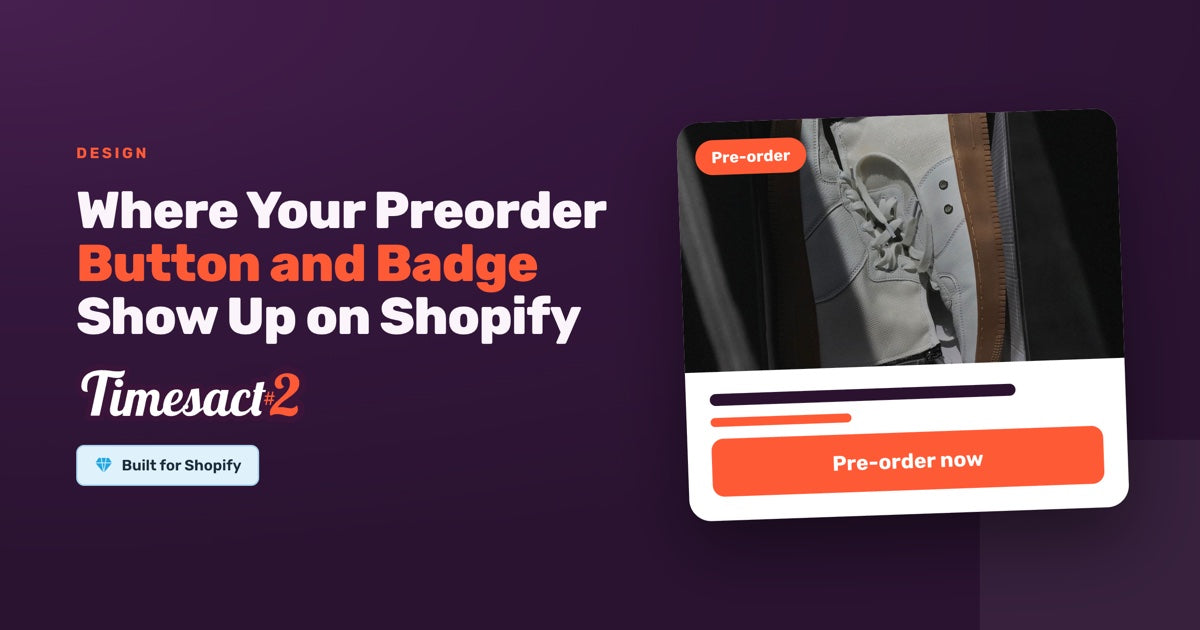
When a product is on preorder, the Add to Cart button is replaced by a preorder button, and you can add a badge on the product image, a message near the button, and a label that carries into the cart. Every one of those elements is copy you control — none of it is fixed text baked into the app.
That's the key idea to hold onto: the preorder button and badge are two layers working together. One layer decides where the elements can appear on your store; the other holds the words the customer reads. Once you know which layer does what, it's easy to get your preorder signal showing exactly where you want it. Here's how the pieces fit.
Where do the preorder button and badge appear?
The preorder button appears on the product page in place of Add to Cart, the badge (Ribbon is one of its styles) appears on both product pages and collection pages, and the cart label appears in the cart. Together they give a shopper a consistent preorder signal from browse to checkout.
| Element | Where it shows | What it does |
|---|---|---|
| Preorder button | Product page | Replaces Add to Cart so the item stays buyable |
| Badge | Product page and collection page | Flags the item as a preorder while customers browse |
| Message / banner | Product page, near the button | Explains the preorder in a sentence or two |
| Cart label | Cart | Reminds the customer the item is a preorder before checkout |
Because preorder settings apply per variant, the button and badge follow the variant that's actually on preorder — you can show a preorder button on one size and a normal Add to Cart on the rest of the same product.
How do I turn the button and badge on?
Two things switch the preorder button and badge on: the App Embed activates Timesact in your theme, and the Customer Experience template supplies the copy that renders. The App Embed lives in your Shopify theme customizer under the App Embeds tab — enabling it is what makes Timesact's elements part of your live storefront.
Think of it as activation, not a check to run afterward: you enable the App Embed as a setup step, the same way you'd enable any theme feature you want live. With the embed on and a template assigned that keeps Pre-order enabled as its functionality, your preorder button, badge, and cart label render on the storefront.
Setting the copy your customers see
All the customer-facing preorder wording lives in one place — the template — so you write it once and it renders consistently. A template holds:
- The preorder button label (for example, "Preorder now").
- The badge text shown on product and collection pages.
- The message or banner near the button.
- The cart label that appears in the cart.
- A countdown and smart variables like
{{shippingDate}}if you want them.
If you use a smart variable such as {{shippingDate}}, set the shipping date under Functionality settings → Shipping — an unset variable renders the literal text variable_not_set instead of a date. Writing this copy is also your chance to make the preorder read as intentional rather than a fallback, which is a big part of building preorder product pages that convert rather than confuse. If your goal is specifically to swap the main call-to-action, the mechanics of replacing Add to Cart with a preorder button walk through that single element in more detail.
Preorder button vs a Coming Soon button
A preorder button lets customers buy now for later; a Coming Soon button does not — it's a non-clickable button that takes the place of the buy button on a product that isn't purchasable yet. If you're pointing at an upcoming drop where you don't want to take money yet, that's a Coming Soon button rather than a preorder button, and the two are configured separately. Reach for preorder when you want the sale now; reach for Coming Soon when you want the anticipation without checkout.
Showing preorders in custom theme areas
The preorder button and badge render on your product and collection pages once the App Embed and template are in place, and Timesact also picks up quick-view popups, homepage and landing-page Featured Product sections, and sticky add-to-cart bars that are part of the product form. Themes build those areas differently, so Billing & Account → Developer settings lets you point Timesact at your theme's product-page, collection and quick-view elements when your theme uses its own markup.
If one of those areas uses markup of its own, our support team can fine-tune the placement for your specific theme so it matches the rest of your store. It's a quick adjustment on our side, and a good one to mention on a setup call if a custom section is central to how customers browse your catalog.
Get your preorder signal showing everywhere it counts
The pattern is worth remembering: the App Embed activates Timesact, and the template holds every word your customer reads — button label, badge, message, and cart label — across your product and collection pages. Set those two layers up once and your preorder signal reads clearly from the first browse to the cart.
FAQs
Where does the preorder badge appear?
The preorder badge appears on both product pages and collection pages, flagging the item as a preorder while customers browse. Its text is set in the template, so you control exactly what it says.
What makes the preorder button appear?
The preorder button renders once the Timesact App Embed is enabled in your theme customizer and a template with Pre-order enabled as its functionality is assigned to the product. Enabling the App Embed under the App Embeds tab is the activation step that puts the button on your live storefront.
Can I show the preorder button on one variant only?
Yes. Preorder settings apply at the variant level, so you can show a preorder button on a single size or color and keep a normal Add to Cart on the other variants of the same product.
Can I change the preorder button and badge wording?
Yes. The button label, badge text, message, and cart label all live in the template, so you can edit each of them to match your store's voice without touching theme code.
Can the preorder button appear in a quick-view or on my homepage?
Yes. Besides product and collection pages, Timesact renders in quick-view popups and Featured Product sections on your homepage and other pages, and Developer settings has selector fields for themes that build them differently. Our support team can fine-tune any area your theme builds in its own way.
Run this in Timesact
Pre-order, back-in-stock, coming-soon and more — one app, no code.
Install the app →