News › Pre-Order
Shopify Backorders: Keep Selling Until Your Restock Arrives
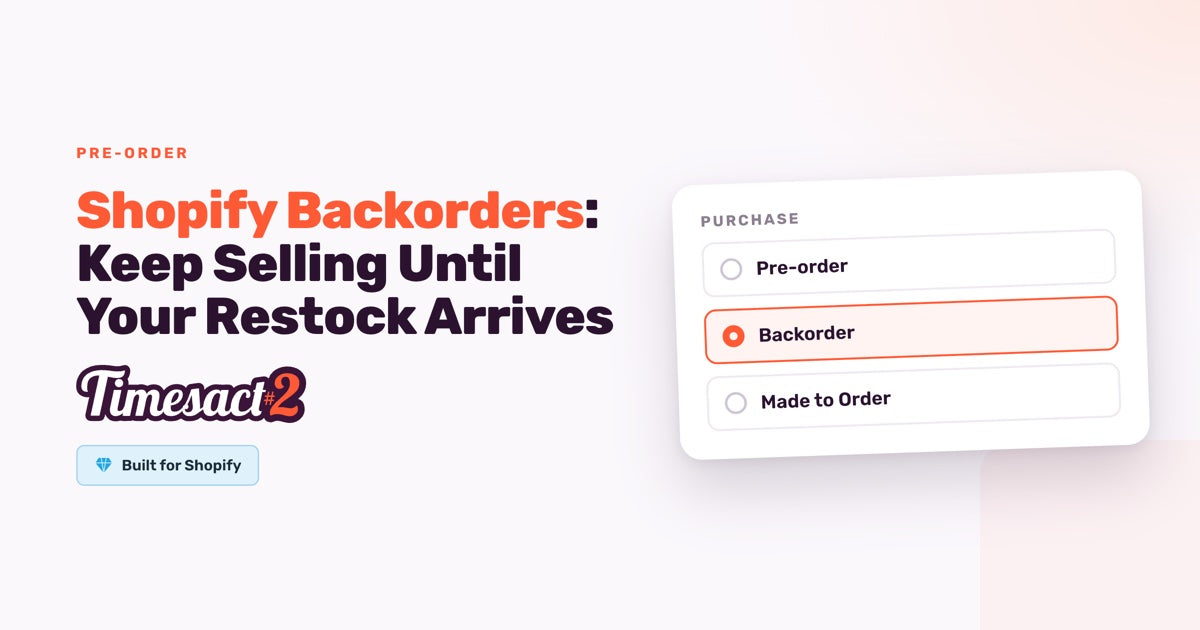
A backorder lets shoppers keep buying a product you normally stock after it sells out, and you ship their orders when the restock arrives. Shopify backorders rely on the "Continue selling when out of stock" setting on each variant. Timesact adds the storefront side: a Back Order button where Sold out would be, with the supplier's date under it, and a cap on each variant so you promise only the units on their way.
The example below follows a kitchenware store's cast-iron skillet, sold in three sizes, through one restock cycle.
Before it sells out: a Backorder template on standby
Set the backorder up while the skillet still has stock. On Timesact's default stock setting, it waits on standby and takes over by itself when a size sells out.
- In Timesact, go to Experiences and choose Create Customer Experience to make a template for products you restock.
- On the Functionality tab, choose Add functionality, then Backorder under Purchase. The button starts as "Back Order", the message as "Back-order delivers when stock is replenished." and the cart label as "Back-order item delivers when stock is available." A "Back Order" badge is there too, switched off until you turn it on.
- Open Functionality settings. The tab carries the Backorder name, and the settings inside keep their Pre-order names. Leave When Pre-order shows on Only when out of stock, When to reduce stock on When the order is placed and Billing on Full amount. All three are the defaults.
- Go to Products > Add products and assign the template to the skillet's three sizes.
- Enable the Timesact V2 app embed on the theme you publish (Online Store > Themes > Customize > App embeds) and click Save.
While a size has stock, Timesact shows it as On standby and your theme's Add to cart sells it as usual.
Day 1: the last 26 cm skillet sells and Back Order replaces Sold out
When a size reaches 0 in Shopify, its Sold out button becomes Back Order, and shoppers can keep ordering it. The 20 cm and 30 cm sizes keep selling from stock, because each variant switches on its own.
On the backordered size:
- Timesact turns on Shopify's "Continue selling when out of stock" for the variant, so checkout accepts it at 0, and turns it back off when the backorder closes. You don't tick it yourself.
- Each backorder lowers the variant's Available count in Shopify below 0, because stock is reduced when the order is placed.
- Every order with a backordered item gets Timesact's
Pre-ordertag, and one that also has in-stock items getsPartial Pre-orderas well. Filter on them in Shopify's Orders list. - The cart label goes with the item to the cart, checkout and the order.
Day 2: how many backorders should each size take?
As many as the supplier is sending of that size. When your reorder is confirmed, say 30 of the 20 cm, 60 of the 26 cm and 40 of the 30 cm, give each size a pre-order limit equal to its units on the shipment.
In Timesact, go to Products, open the skillet and its 26 cm size. Under Pre-order quantity settings, switch Unlimited pre-order quantity off, enter 60 in Pre-order quantity and click Save changes. Repeat for the other sizes.
Each size closes at its own number, and only placed orders count toward it, not skillets sitting in carts. The variant shows Pre-order quantity limit next to Pre-order quantity sold, so you can see how many of the 60 are promised. When a size reaches its number, its button goes back to Sold out. To keep collecting interest from then on, attach a Back in Stock template as well: its Notify Me sign-up shows at 0 stock, under the Back Order button while backorders are open, and stays once the size is full.
Day 3: when will a backorder ship?
Put the date you expect to ship on the product page. Open the template's Functionality settings, choose Exact date under Shipping and enter your ship date rather than the delivery date: if the pallet lands on day 22 and your team needs two days to unpack it, enter day 24. If the supplier quotes a lead time, A set time from checkout counts a period from each order rather than a fixed date.
Then, on the Product page settings, add {{shippingDate}} to the message, for example "Back order now. Ships by {{shippingDate}}." Shoppers see your date in its place. Dates follow the time zone in Billing & Account > Store settings, so set it to your own first.
The date also goes in the cart label and onto the order:
- In the cart label (on the Cart page settings), which shows text exactly as typed: write the date in words, such as "Back order: ships by 24 March".
-
On the order: with an exact date, Shopify marks the backordered item Scheduled for that day. If your warehouse picks from Unfulfilled orders, keep As soon as possible instead, write the date in the message in words and leave
{{shippingDate}}out, since there's no date for it to show.
A template holds one shipping date, so sizes arriving on different days each get a template of their own, ticked on their own variants.
Day 22: the shipment is in and Add to cart comes back
Add the delivered units to each size's count in Shopify, on top of the number already there. Every backordered unit has already come off that number, so the result is the stock you can sell to new customers.
The 26 cm size took 45 backorders and reads -45. Receive 60 and Available becomes 15: Add to cart returns, the size goes back to On standby in Timesact, and "Continue selling when out of stock" switches off. The 20 cm size took all 30 of its backorders, so the 30 delivered are already spoken for. Available reads 0 and that size shows Sold out until you add stock or raise its limit.
The backorders keep their tags and the date they were placed with. Ship them from Shopify like any other order, fulfilling Scheduled items early when the stock comes in ahead of their date, as with any pre-order once stock arrives.
Day 40: the skillet sells out again
On Only when out of stock, the Back Order button comes back by itself at the next sell-out, up to each size's limit. Pre-order quantity sold keeps counting from the last run, so before the next shipment, raise each limit by the units on it: the 26 cm size has 45 sold, so a new shipment of 50 makes its limit 95. Then set the new date under Shipping.
Backorder, pre-order or made to order: what's the difference?
A backorder sells an item you stock while more is on its way, a pre-order sells a product before it's released, and made to order sells an item you make after the order comes in. In Timesact, all three are options under Purchase in Add functionality. They share one set of settings and start with different wording, and a template carries one of them at a time.
| Backorder | Pre-order | Made to Order | |
|---|---|---|---|
| You're selling | An item you stock, sold out with more on order | A product before its release, or its first run | An item you make once it's ordered |
| Usual When Pre-order shows | Only when out of stock | Always, whatever the stock level, or Only when out of stock | Always, whatever the stock level |
| Usual Shipping | Exact date from the supplier | Exact date for the release | A time range from checkout |
| Starting button | Back Order | Pre-Order | Made to Order |
| Starting message | Back-order delivers when stock is replenished. | Pre-order delivers as soon as available. | This item is custom-made. Please allow extra production time. |
To offer both in one store, keep a template for each and assign it to the products it fits. One product can even carry a Backorder template on one variant and a Pre-order template on another.
Get the Backorder template ready before your next sell-out
If you'd like a hand matching each variant's cap and date to a supplier order, we can set it up with you on a call.
FAQs
How do I set up backorders on Shopify?
In Timesact, create a customer experience template, choose Add functionality, then Backorder under Purchase, and keep When Pre-order shows on Only when out of stock. Assign the template to your products under Products > Add products, then enable the Timesact V2 app embed on your published theme (Online Store > Themes > Customize > App embeds) and click Save. Each variant shows a Back Order button when its Shopify stock reaches 0.
What's the difference between a backorder and a pre-order?
A backorder sells a product you normally stock after it sells out, while more is on its way. A pre-order sells a product before it's released. In Timesact both are options of one Purchase functionality: they start with different wording, and a backorder usually runs on Only when out of stock while a launch often runs on Always, whatever the stock level.
Can I limit backorders to the units on my incoming shipment?
Yes, per variant. Under Products, open the variant, switch Unlimited pre-order quantity off, enter that variant's units on the shipment in Pre-order quantity and click Save changes. When the variant reaches its number, its button goes back to Sold out. Only placed orders count toward it, not items in a cart.
Where do customers see when a backorder will ship?
On the product page, when the message includes {{shippingDate}} and the template's Shipping is set to Exact date with your expected ship date. Write the date in words in the cart label too, which goes with the item to checkout and onto the order. With an exact date, Shopify also marks the backordered item Scheduled for that day.
What happens to backorders when the restock arrives?
Add the delivered units to the variant's existing count in Shopify. Each backorder already lowered that count, so what's left is stock you can sell, and on Only when out of stock Add to cart returns once Available is above 0. The backorders keep their shipping date and order tags, and you ship them from Shopify as usual.
Run this in Timesact
Pre-order, back in stock, coming soon and more. One app, no code.
Install the app →