News › Seasonal
Sold Out by Black Friday? Keep Selling Through Cyber Monday
A Shopify product sold out before Black Friday, Friday 27 November 2026, can keep taking orders through Cyber Monday on 30 November. With Timesact, each size shows "Only 3 left" as stock runs low, switches to a Back Order button and your ship date at 0, and stops taking backorders at the number your next delivery covers. Products that won't be back this year collect Notify Me sign-ups instead.
Your 2026 Black Friday calendar
Set everything up the week before Thanksgiving, so the weekend runs on saved settings.
| Date | What happens | In Timesact |
|---|---|---|
| 9 to 13 Nov | Sort products by restock date | Choose a template per product |
| 16 to 20 Nov | Build templates, preview | Low Stock, Backorder, Notify Me |
| 27 to 30 Nov | Black Friday to Cyber Monday | Watch Pre-order sold |
| Tue 1 Dec | Close the window, if you want | End date |
| December | The restock lands | Add the stock in Shopify |
9 to 13 November: which products could sell out before Black Friday?
Ask each supplier when your fast sellers' next delivery lands, then sort by the answer:
- A restock lands in December, on a date you can name: Low Stock and Backorder. The units arriving for each size are your cap.
- Nothing before the new year, or no date yet: Low Stock and a Notify Me sign-up, so a sold-out size collects emails.
- The last of a line: Low Stock on its own, then Sold out at 0.
For a holiday product you're still making, choose Pre-order in place of Backorder ("Sell products before they launch"). Its tab has the same When Pre-order shows, Shipping and Billing settings used below.
16 to 20 November: build the templates and preview them
Three templates cover the groups, and one product can carry more than one: Low Stock with Backorder, Notify Me, and Low Stock on its own.
"Only 3 left" while stock runs low
- In Experiences, create a customer experience template, choose Add functionality and pick Low Stock under Urgency.
- Under Admin > Functionality settings > Low Stock, set the Quantity threshold, such as 5.
- On the Product page tab, write the Low Stock message with
{{inventoryQuantity}}: "Only {{inventoryQuantity}} left" shows "Only 3 left" on a size with 3 in stock. - Set Low Stock button text to "Add to cart" there and on the Collection page tab. It starts as "Low Stock".
Low Stock works from each variant's own stock, so each size carries its own state: M can show "Only 2 left" while L has 20.
Backorder at 0, capped per size
In the same template, add Backorder under Purchase and leave When Pre-order shows on Only when out of stock: a size shows Add to cart while it has stock, the Back Order button at 0, and Add to cart again once you restock.
Then cap each size at what the delivery covers: add the products under Products, expand a product's variants and click the Edit pencil on a size. Under Pre-order quantity settings, switch Unlimited pre-order quantity off, enter the number and click Save changes. Only orders placed while the size is on backorder count toward it, and at its number Timesact stops offering the backorder on that size.
For a higher-priced item, Billing > Split payment takes part of the price at checkout and the rest on a later date; with First charge as on Fixed amount, that first part can be $1.
A ship date that clears the holidays
Show shoppers the day the backorders ship. Under Shipping, choose Exact date and enter it, such as Monday 14 December for a delivery landing on Thursday 10 December. Shipping starts on As soon as possible, which sets no date, so switch it before adding {{shippingDate}} to the product-page message. "Back order now. Ships {{shippingDate}}." then shows the date you entered, such as December 14, 2026.
Work back from your carrier's last shipping day for Christmas delivery, and if your date falls after it, say so: "Ships {{shippingDate}}, after the holidays." Other shipping options, such as a set time from checkout, fit rolling lead times; for Black Friday, one fixed date gives every shopper the same day.
The date belongs to the template, so give each restock date its own template, named by the date ("Backorder, ships 14 Dec"). The Cart label on the Cart page tab takes plain text, so write the date there in words. Dates follow Billing & Account > Store settings > Time zone, so set it to your own before you pick dates.
Notify Me for what won't be back this year
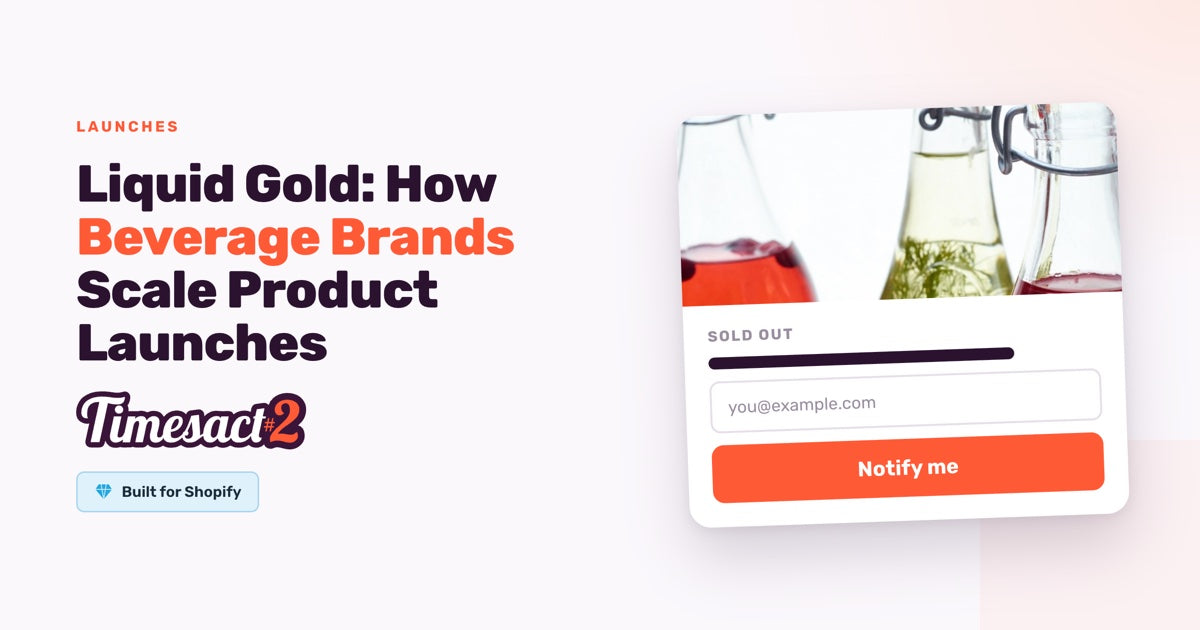
Create a second template and add Notify Me under Notification. A size at 0 then shows a sign-up in place of Sold out, and Timesact emails everyone waiting on that size once its stock reaches the Quantity threshold you set. Word its Form description for the wait, such as "Back in January. Leave your email and we'll write.", and set the Notify Me email to Live under Notifications.
Attach it to the products with no December restock and to your backordered ones: the sign-up shows under the Back Order button while backorders are open, and in place of Sold out once a size reaches its cap. A third template with Low Stock alone covers the last-of-line products.
Last, enable the Timesact V2 app embed on the theme you publish (Online Store > Themes > Customize > App embeds) and click Save. It's set per theme, so if a holiday theme goes live for the weekend, switch it on there too. Then preview a product that's sold out in one size.
Do Black Friday discount codes apply to backorder items?
Yes, when the code's scope includes them. Codes live in Shopify admin > Discounts, and Shopify discount codes on pre-order items follow the scope and combinations you set there. To keep a sitewide Black Friday code off backordered items, open it and exclude those products under its eligibility. If your offer is a Buy X Get Y, or shoppers will pay with gift cards, set the Backorder template's Purchase option to Don't use a Shopify purchase option, which takes the full price at checkout.
26 to 30 November: what do you check over the weekend?
The Pre-order tab on the Products page shows each backordered size's Pre-order quantity and Pre-order sold.
If the supplier confirms more units, raise the size's Pre-order quantity to the new total: the sold count keeps running, so after 40 sold, 30 more means 70. The size reopens when you click Save changes.
If the supplier's date moves, change the Exact date so new shoppers see the new day. Orders already placed keep the terms they were created with, so word the Shipping delay email under Notifications once, then select those orders in Analytics > Pre-order > Sales and choose Send shipping delay email.
1 December: close the backorder window or move the date?
Either works. To take backorders only through Cyber Monday, give each backordered size an End date of Tuesday 1 December: on its variant page in Products, open Schedule settings, switch on Enable end date, enter the date and click Save changes. The backorder ends as 1 December begins in your store's time zone, and the size's button follows your Shopify stock again. An End date closes the whole template on that size, which is why Notify Me has its own: it carries on collecting sign-ups.
To keep selling into December, move the Exact date to the next delivery instead, with the message saying whether it falls before or after Christmas.
December: when the restock lands
Add the delivered units to each size's stock in Shopify, on top of the count already there. Each backorder took a unit off when it was placed, so 40 backorders and a delivery of 100 leave 60 to sell. Add to cart returns, and that size's Notify Me list is emailed once stock reaches your threshold.
Backorders placed through your Online Store carry the Pre-order tag (Partial Pre-order too when the order also has in-stock items), so filter Orders in Shopify admin by tag to pull them together. On the default purchase option, they wait as Scheduled for your ship day.
Set up your Black Friday templates this week
Start with the products likely to run out first. On a setup call, we can build the templates with you and set each size's cap before Thanksgiving.
FAQs
What should a Shopify store do when a product sells out before Black Friday?
Switch each size to Backorder at 0 with a real ship date and a cap. In Timesact, add Backorder to a template with When Pre-order shows on Only when out of stock, choose Exact date under Shipping with {{shippingDate}} in the message, and set a Pre-order quantity on each size. Give products with no restock this year a Notify Me sign-up, and enable the Timesact V2 app embed on your published theme (Online Store > Themes > Customize > App embeds), then click Save.
Will Black Friday discount codes apply to backordered items?
Yes, when the code's scope includes them. To keep a sitewide code off backordered items, open it in Shopify admin > Discounts and exclude those products under its eligibility. A Buy X Get Y offer, or paying with gift cards, needs the template's Purchase option set to Don't use a Shopify purchase option, which takes the full price at checkout.
Should I show a shipping date on Black Friday backorders?
Yes, so shoppers decide with the date in front of them. Choose Exact date under Shipping in the Backorder template, enter your ship day and put {{shippingDate}} in the product-page message. As soon as possible sets no date, so leave the variable out if you keep it, and write the date in words in the cart label.
How many backorders will one size take?
As many as you allow on that size. Each variant has its own Pre-order quantity, Unlimited until you set a number, and only orders placed while the size is on backorder count toward it. At its number, Timesact stops offering the backorder on that size, and the others carry on against their own.
Can I stop taking backorders after Cyber Monday?
Yes. Give each backordered size an End date of Tuesday 1 December 2026 under Schedule settings on its variant page in Products. The backorder ends as that day begins in your store's time zone (Billing & Account > Store settings), and the button follows your Shopify stock again. Keep Notify Me in its own template so it carries on collecting sign-ups.
Run this in Timesact
Pre-order, back in stock, coming soon and more. One app, no code.
Install the app →