News › Pre-Order
Made to Order on Shopify: Sell It, Then Make It
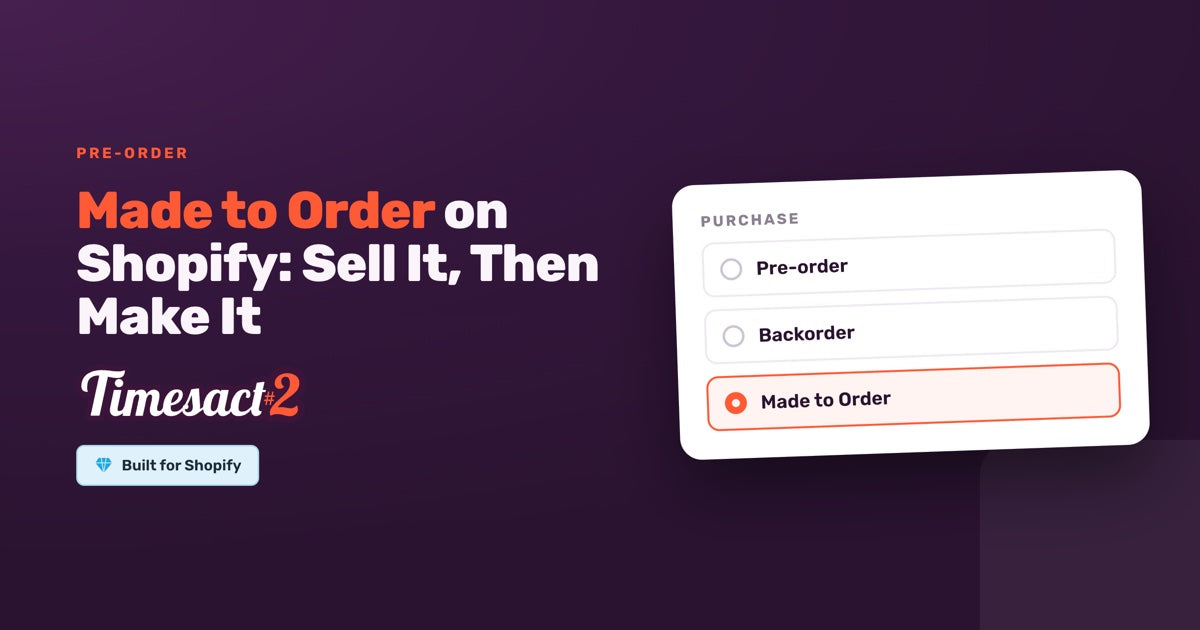
A sofa built after the order, a wig unit made to measure, a ring cast in the customer's size: each of these is sold before it exists, so what you can promise is a production time. To sell made to order on Shopify with Timesact, add the Made to Order functionality to a customer experience template, give it a production window, and let the made-to-order wording follow the item from the product page to the confirmation email.
Made to Order or Backorder: which one fits your product?
Choose Made to Order when you make the piece after the order, and Backorder when you stock the item and more is on its way. The app describes Made to Order as a way to "sell products you make once the order comes in, with extra production time built into the message", and Backorder as "Keep selling after you run out. Customers order now and you ship once you have restocked."
| Made to Order | Backorder | |
|---|---|---|
| The situation | You make the piece after the order | You sell an item you stock, and more is on its way |
| What you can promise | A lead time, such as 4 to 6 weeks | A restock, often with a date |
| When Pre-order shows | Always, whatever the stock level, or Only when out of stock if you keep some ready pieces | Only when out of stock |
| Shipping | A time range from checkout or A set time from checkout | Exact date if you know the delivery date, A set time from checkout if you know the lead time |
| Payment | Often a deposit now and the rest later | Usually the full amount at checkout |
Shopify names both needs in its own help pages. Its reasons for selling an item while it's out of stock include "You have stock coming soon and you want to continue selling before it arrives" and "You want to sell first and then order supplies later." The first is a backorder. The second is made to order.
How do you set up made to order on Shopify?
Add Made to Order to a template, give it a production window, and assign it to your products:
- In Timesact, go to Experiences and create a customer experience template for your made-to-order products.
- On its Functionality tab, choose Add functionality, then Made to Order under Purchase. The button, message, badge and cart label start in made-to-order wording.
- Under Functionality settings, set When Pre-order shows. Choose Always, whatever the stock level if every piece is made after the order.
- Under Shipping, choose A time range from checkout and set the production window as an earliest and latest time, for example 4 to 6 weeks. Put
{{shippingDate}}in the product page message and shoppers see that window counted from the day they order. - Under Billing, choose Full amount, or Split payment to take a deposit for custom work.
- Go to Products > Add products and assign the template to your made-to-order products.
- Enable the Timesact V2 app embed on the theme you publish (Online Store > Themes > Customize > App embeds) and click Save.
- Open a product in a private window to preview what shoppers see.
A deposit fits made-to-order work well, because you start making the piece once the customer has paid part of the price. With Split payment, you take a percentage or a fixed amount at checkout and choose When to charge the rest: on a specific date, a set time after checkout, or, on the PRO plan, when you fulfill the order, so the balance is charged as the finished piece ships.
Each template carries one shipping window, so products with different lead times get templates of their own: one for 2 to 3 weeks, another for 6 to 8 weeks.
To switch a pre-order template you already use for these products, open it, go to Add functionality and choose Made to Order under Purchase. Your shipping, payment and stock settings stay as they are. The button, message, badge and cart label switch to made-to-order wording, so type any custom text in again afterwards.
Where does the made-to-order wording show?
Shoppers should read "made to order" on the product page, in the cart, at checkout and in their email. Here's where each line comes from:
| Where the shopper sees it | Where you set it |
|---|---|
| Button, message and badge on the product page | The template's Product page settings (the badge starts switched off) |
| Button, message and badge on collection pages | The Collection page settings |
| The line under the item in the cart, at checkout and in past order details | The Cart label, on the Cart page settings |
| Each item's line in the confirmation email | The same cart label |
The cart label does the most work, because Shopify carries it to checkout and onto the order. Its default asks shoppers to allow extra production time. Rewrite it with your real window, for example "Made to order: ships 4 to 6 weeks after your order", since the cart label shows text exactly as typed.
Timesact's Confirmation email is one version for your whole store, and it lists each item with its cart label, so a made-to-order item arrives with its made-to-order line. If every product you sell is made to order, reword the email's heading and body once to match. It starts as a Draft, so publish it under Notifications to set it Live.
If you turn on the cart alert pop-up or the mixed cart alert on the Cart page, write their messages in the same made-to-order terms, so every notice gives the same production time.
Ready pieces first, then made to order
Some makers keep a few finished pieces and make more once those sell. Set When Pre-order shows to Only when out of stock for that. The ready pieces sell with Add to cart and ship straight away. When the last one sells and Shopify's stock reaches 0, the Made to Order button takes over and new orders get your production window. With the default stock setting, each made-to-order sale takes the count below 0, so add finished pieces to that number in Shopify; Add to cart returns once Available is above 0.
Timesact switches Shopify's "Continue selling when out of stock" on for the variant while Made to Order is active, so the product stays buyable at 0, and by default each order lowers its stock count below zero.
Backorders: for products you restock
Backorder suits a product you normally stock that has run out, with more on the way. Choose Backorder under Purchase, keep When Pre-order shows on Only when out of stock, and the product sells with Add to cart while you have stock, shows Back Order at 0, and goes back to Add to cart once the restock lifts Shopify's Available count above 0. Set Shipping to Exact date when you know the delivery date, and add {{shippingDate}} to the message so shoppers see when to expect it.
Give your made-to-order range its own template
Set up one product with its real production window and preview it from the product page to checkout. We're happy to help word the cart label or set the deposit with you.
FAQs
How do I sell made-to-order products on Shopify?
Create a customer experience template in Timesact, choose Add functionality, then Made to Order under Purchase. Set When Pre-order shows to "Always, whatever the stock level", choose "A time range from checkout" under Shipping, assign the template to your products under Products > Add products, then enable the Timesact V2 app embed on your published theme (Online Store > Themes > Customize > App embeds) and click Save.
What's the difference between made to order and a backorder?
Made to order means you make the item after the customer orders it, so you promise a production time. A backorder means you sell an item you normally stock while more is on its way, so you promise a restock. In Timesact, choose Made to Order or Backorder under Purchase in Add functionality, and each starts with wording for its situation.
Is a deposit possible on made-to-order items?
Yes. Under Billing, choose Split payment and set the first charge as a percentage or a fixed amount. Then choose when to charge the rest: on a specific date, a set time after checkout, or, on the PRO plan, when you fulfill the order.
Where do I set a production time instead of a ship date?
Under Shipping, choose "A time range from checkout" and set the earliest and latest time, such as 4 to 6 weeks. Add {{shippingDate}} to the product page message to show the window for each order, and write the same timing in words in the cart label.
Does switching an existing pre-order to Made to Order keep my settings?
Yes. Open the template, go to Add functionality and choose Made to Order under Purchase. Shipping, payment and stock settings stay as they are, and the button, message, badge and cart label change to made-to-order wording, so re-enter any custom text you had written.
Run this in Timesact
Pre-order, back-in-stock, coming-soon and more — one app, no code.
Install the app →