News › Pre-Order
Stock Arrived? How to Remove a Pre-order on Shopify
Does a pre-order switch off by itself when stock arrives?
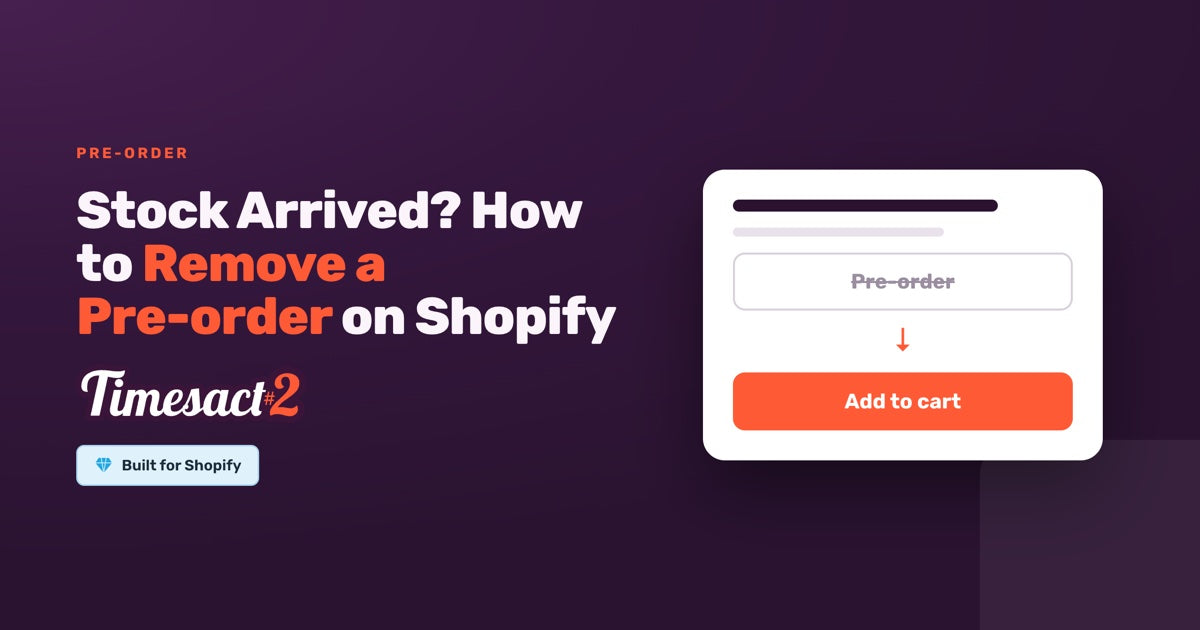
If you kept the default setting, you don't have to do anything to remove the pre-order on Shopify. Once the variant's Available count in Shopify (the number on your Inventory page) goes above 0, Add to cart replaces the Pre-order button by itself. That default is When Pre-order shows set to Only when out of stock, in the customer experience template the product is on (Experiences > your template > Functionality settings). The other two options keep the Pre-order button on while the new stock sells.
| When Pre-order shows | New stock arrives | It sells out again |
|---|---|---|
| Only when out of stock (default) | Add to cart returns once Available is above 0, and the variant shows On standby in Timesact | Pre-order comes back by itself, up to the variant's pre-order limit if it has one |
| Always, whatever the stock level | Stays on Pre-order and sells the new units as pre-orders | Stays on Pre-order |
| Only while Shopify stock lasts | Stays on Pre-order and sells the new units as pre-orders | Shows Sold out |
Each pre-order has already lowered the variant's stock, because by default Timesact reduces stock when a pre-order is placed (the When to reduce stock setting). A variant that took 120 pre-orders reads -120. When the delivery comes in, add it to that number in Shopify instead of typing the new total over it. Receive 300 units and Available becomes 180: on Only when out of stock, Add to cart returns and 180 units are free to sell. Receive 100 units and Available reads -20, so the variant stays on pre-order until the rest arrives.
Once the button flips, new orders are ordinary orders. To see where a variant stands, look at its badge on the Products page, such as "Pre-order - Active" or "Pre-order - On standby". On standby means the pre-order is set up and waiting for the next sell-out. Open the product in a private window to see what shoppers see.
Four ways to remove a pre-order on Shopify
There are four ways to end a pre-order, and the right one depends on whether you want it back. The stock rule, an end date and Delete products all work per variant, so you can end some sizes and keep others on pre-order. A tag covers the whole product.
| You want to | Do this | Comes back by itself? |
|---|---|---|
| Sell the new stock normally, and pre-order again if it sells out | Nothing, on Only when out of stock. Add the delivery in Shopify | Yes, at the next sell-out (within any pre-order limit) |
| Close this run and keep everything for later | Set an End date on the variant | No, you reopen it |
| Take products out of Timesact | Delete products on the Products page | No |
| Stop pre-orders on products added by a tag | Remove the tag in Shopify | Only if you tag it again |
Set an end date to close the run and keep your setup
An end date closes the pre-order for that variant and keeps its dates, limit and sold count in place, so you can open the next run later without rebuilding anything.
- Go to Products, find the product and open the variant.
- In the Customer Experience library on that page, under the template's Schedule, switch on Enable end date. The app fills in a date 30 days after the start date; change it to the day you want the pre-order to close.
- Click Save changes.
Dates follow your store's time zone, which the date picker shows. The end date is the day the pre-order switches off: set 1 November, and 31 October is the last day shoppers can pre-order.
When it closes, the variant's status reads Ended and the theme's own button takes over: Add to cart while there's stock, Sold out at 0. It stays that way until you reopen it by moving the end date to a future day or switching Enable end date off.
To keep Notify Me collecting sign-ups after the pre-order closes, run it from a template of its own.
Take products out of Timesact and keep them in Shopify
Delete products removes products or variants from Timesact's list. The product, its variants and its stock stay in Shopify, and orders already placed are not changed.
- Go to Products and tick the product (that selects all its variants), or tick single variant rows.
- Open More actions and choose Delete products, then confirm.
- Keep the tab open while it runs, until you see "Products deleted".
The confirmation says this can't be undone. That applies only to Timesact's setup for those variants: the pre-order button, message and badge stop showing, and Timesact takes its purchase option (the Shopify setting that carries the pre-order terms to checkout) off the variant. With Turn this on automatically switched on under Continue selling, the template's default, Shopify's "Continue selling when out of stock" switches back off too. To sell the product on pre-order again later, add it back from Products > Add products; its pre-order count starts from zero.
For many products at once, use Select all variants or a filter tab on the Products page before More actions, or upload a CSV with remove in the action column. If you'd rather not do it yourself, send our support team the list and we'll take them out for you.
Products added by Tag automation leave the template when you remove the tag in Shopify. A product you added or edited by hand is pinned to the template, so removing its tag leaves it in place; use Delete products for those.
What happens to the orders you already took?
They keep the terms they were placed with. Ending a pre-order changes the storefront, not existing orders:
- Each order keeps the
Pre-ordertag Timesact added when it was placed (every order with a pre-order item gets it, and mixed orders also keepPartial Pre-order), so your saved order views keep working. - Each order keeps the shipping date it was placed with.
- Split-payment balances are still charged on the agreed date, to the payment method Shopify saved at checkout.
To collect a balance early, open the order in Shopify and click Collect payment in its payment section. For several orders at once, select them in Timesact under Analytics > Pre-order > Sales and choose Collect payment. Shopify recommends telling customers before you charge them early.
You ship these orders from Shopify like any other. The first step depends on the order's status:
- On hold: release the hold, then fulfill. To release many at once, select the orders in the same orders table and choose Release holds. It releases the holds Timesact created and leaves any others as they are.
- Scheduled: open the order in Shopify and fulfill the scheduled item early.
- Unfulfilled: fulfill it as normal.
If you charge the balance when the order ships, fulfilling the whole order collects it, so shipping early charges those customers early. Send them a short note first so the charge doesn't come as a surprise.
Keep collecting interest after the pre-order closes
Once the run is over, a Notify Me button lets shoppers leave their email for the next restock. It comes from the Back in Stock functionality. Give it a template of its own, then open the variant under Products, tick that template in the Customer Experience library and click Save changes. If you'd rather keep the pre-order coming back at each sell-out, add Back in Stock to the same template instead, and shoppers see both buttons when it sells out.
Notify Me appears when the variant is out of stock, so while the new stock is selling it waits On standby. As with any setup, enable the Timesact V2 app embed on the theme you publish (Online Store > Themes > Customize > App embeds) and click Save. Sign-ups get the back-in-stock email when the variant comes back.
Decide how each run ends
If you'd like a hand choosing how each product's run should end, we'll go through your catalog with you and set it up.
FAQs
How do I remove a pre-order on Shopify once my stock arrives?
If the template uses "Only when out of stock", add the delivery to the variant's stock in Shopify and Add to cart returns once Available is above 0. To close the run on a set day and keep the setup, open the variant under Products, switch on Enable end date under Schedule, pick the day and click Save changes. To take the product out of Timesact entirely, tick it on the Products page and choose More actions, then Delete products.
Will deleting a product in Timesact delete it from my Shopify store?
No. Delete products removes the product or variants from Timesact's list and stops the pre-order button, message and badge showing. The product, its variants and its stock stay in Shopify, and orders already placed are not changed.
What happens to customers who already pre-ordered?
Their orders keep the terms they were placed with. The Pre-order tag, the shipping date and any split-payment balance date stay as they were, and each balance is still charged on the agreed date. Ship the orders in Shopify as usual, releasing holds or fulfilling scheduled items early once the stock is in.
If I add stock, does the product stop being a pre-order automatically?
Yes, if the template's When Pre-order shows setting is "Only when out of stock". Add to cart returns once the variant's Available count goes above 0. Each pre-order has already lowered that count, so add the delivery to it instead of replacing it. With the other two options, "Always, whatever the stock level" and "Only while Shopify stock lasts", the pre-order stays on while the new stock sells.
Can I pause a pre-order and turn it back on later?
Yes. Open the variant under Products, switch on Enable end date under Schedule, pick the day and click Save changes: the pre-order closes on that day and keeps its dates, limit and sold count. To reopen it, move the end date to a future day or switch Enable end date off and click Save changes.
Run this in Timesact
Pre-order, back-in-stock, coming-soon and more — one app, no code.
Install the app →