News › Back in Stock
Back-in-Stock Emails on Shopify for Your Whole Catalog

How does a back-in-stock email get sent on Shopify?
A back-in-stock email on Shopify goes out when the variant a shopper asked about is restocked in your Shopify inventory. With Timesact, you don't press send. The shopper signs up on the sold-out product page, and Timesact emails them once that variant has enough stock again.
Here's what happens for one shopper waiting on one size:
- The shopper enters their email in the Notify Me form on a sold-out variant. Timesact saves the sign-up as Pending. Nothing is emailed yet.
- You restock the variant in Shopify, the way you normally update inventory.
- Shopify tells Timesact the product changed, and Timesact checks every Pending sign-up on that product.
- If the variant now has at least the Quantity threshold you set, every shopper waiting on that variant gets your restock email, and their status moves to Sent.
Sign-ups are stored per variant, so the shopper waiting for a size 8 hears about the size 8. The email links straight to that variant and shows the product image, the variant's price and a Buy now button, so waitlisted shoppers land on the page ready to buy.
The threshold is a setting in your Back in Stock experience, the group of settings you create under Experiences and attach to products. Open Admin → Functionality settings, then the Back in Stock tab, and set Minimum units in stock: the number of units that counts as a real restock. With 10, alerts go out at 10 units or more, and nothing is sent at 9. Leave it at 1 to email shoppers as soon as one unit is back.
Cover every sold-out product, not one at a time
You can put the Notify Me form on every sold-out product in three ways, all from the same Back in Stock experience: one store-wide switch, the Products page, or a Shopify tag.
| Route | What it covers | Good fit |
|---|---|---|
| Enable across your store (PRO plan) | Every qualifying out-of-stock product in the store, with no product list to maintain | Large catalogs where any item can sell out |
| Products page | The products, variants or collections you add | A hand-picked set of top sellers or limited runs |
| Tag automation | Any product carrying a Shopify tag you choose | Catalogs where your team tags products in Shopify as part of its routine |
Enable across your store sits on the same Back in Stock tab as the threshold.
With Tag automation, save a new, unique tag on the experience's Tag automation page, then add the same tag to products in Shopify. A tagged product joins the experience, and removing the tag takes it out again, while products you've added or edited by hand stay put. Tag matching is case-sensitive, so copy the tag from the app.
The Notify Me button label and the message shoppers see after signing up are set on the Storefront side of the same experience, under Product page. Our guide to the back-in-stock Notify Me form walks through the form and where it shows.
Then enable the Timesact App Embed as part of setup. In Shopify, go to Online Store → Themes → Customize → App embeds on the theme you publish, switch on the Timesact V2 embed, and click Save.
Edit the back-in-stock email template
Your back-in-stock email is already Live from the day you install, so sign-ups are emailed even before you touch it. In the app it's the Notify Me email, on the main Notifications page. Editing it makes it sound like your store.
- Open Notifications and select Notify Me email.
- Click Edit code. You'll see three fields: Email subject, Email logo and Email body (HTML).
- Upload your logo under Email logo. It replaces the logo placeholder in the email.
- Adjust the subject. The default is
Back in Stock! {{productTitle}} Available Now, where{{productTitle}}inserts the product name. - Edit the body. It's HTML, with the product image, name, price and a Buy now button that links to the variant through
{{productLink}}. The default body includes a sample shipping and returns line and a support link: swap in your own policy and point the link at your contact page. - Click Save. Then reopen Notify Me email and click Send test to see it in a real inbox. The test fills in sample product details and carries
[TEST]in the subject.
The email stays Live while you edit it, so your changes go out with the next restock. Mark as draft pauses it, and Publish turns a draft back on.
Every Back in Stock experience on built-in notifications sends this one email.
Send it from your own domain
You can send back-in-stock emails from your own address by adding a custom email domain, included on every plan, the Free plan too. Your store name is already the sender name. The domain changes the address the emails come from.
- At the top of the Notifications page, find the Custom email domain setup card.
- Enter your Sender email address, for example
notifications@yourdomain.com, using a domain you own. - Click Configure. The app shows the DNS records to add.
- Add those CNAME records where your domain's DNS is managed.
- Once they're added, click Configure again to reopen them and click Validate DNS records. DNS changes usually spread within an hour or two, and can take up to 24 hours.
Once the records check out, Timesact's emails to your customers go from that address.
Which tool should send it?
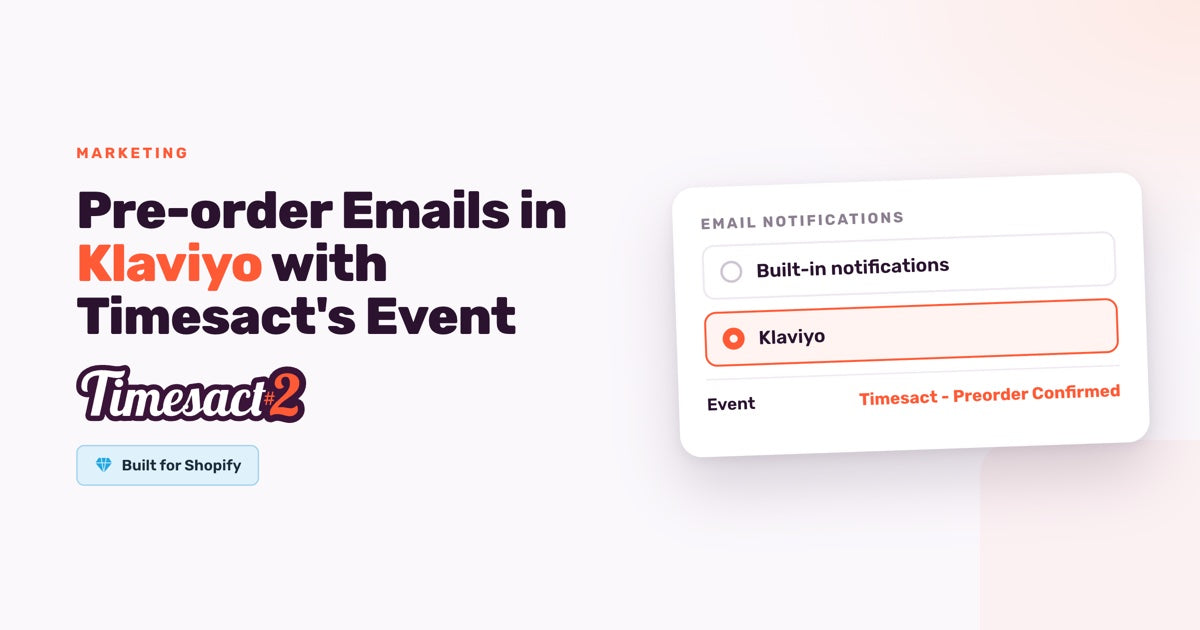
Use built-in notifications unless your customer emails already run in Klaviyo, or in Shopify Flow with an email app. Built-in works from install, with nothing to connect, and sends the Notify Me email you edited above. Each Back in Stock experience picks one notification channel, under Admin → Notifications in the experience.
| Channel | Who sends the restock message | Where you build it |
|---|---|---|
| Built-in notifications | Timesact, using your Notify Me email | The Notifications page |
| Klaviyo | Your Klaviyo flow, from the Timesact - Back in Stock Ready event | Klaviyo |
| Shopify Flow | The email app your workflow uses, started by the Back-in-stock notification ready trigger | Shopify Flow |
Klaviyo and Flow both pass the product title, variant, image, price and the shopper's email into your workflow. Klaviyo connects under Billing & Account → Integrations, and the Flow triggers appear under Timesact in Shopify Flow.
If you've published the Notify Me SMS, shoppers who sign up by phone get a text too, whichever channel you pick.
Can you send a confirmation email when a shopper signs up?
You can send a sign-up confirmation email through Klaviyo or Shopify Flow. You build the "you're on the list" email in that tool, next to the restock message.
In Klaviyo, set the experience's channel to Klaviyo and save. Start a flow on Timesact - Back in Stock Subscribed for the confirmation, and another on Timesact - Back in Stock Ready for the restock alert.
In Shopify Flow, set the channel to Shopify Flow and save. Start a workflow on the Customer signed up for back-in-stock alert trigger and add the send-email action of the email app you've connected to Flow, with the shopper's email from the trigger as the recipient. Build a second workflow on Back-in-stock notification ready for the restock message itself.
Switch on the newsletter checkbox in the experience's Notify Me form, and the sign-up event carries each shopper's choice, so the same workflow can grow your email list from back-in-stock sign-ups. On Klaviyo, shoppers who tick it are subscribed to email marketing for you.
Put your whole catalog on restock alerts
Open the Notify Me email first: add your logo, replace the sample policy line and send yourself a test. Then decide how the form reaches your catalog (store-wide, by product or by tag) and set a Quantity threshold that matches a real restock. From there, every sold-out variant on restock alerts collects shoppers, and every restock to your threshold emails them.
To see who's waiting at any point, open Analytics → Notify Me, Back in Stock and Waitlist → Trends over time and scroll to the subscriber records. Each one shows its product, variant and status, and the list exports to CSV.
FAQs
How do I set up back-in-stock emails on Shopify?
Create a Back in Stock experience in Timesact and attach it to your products, or, on the PRO plan, switch on Enable across your store in the experience's Functionality settings. Then enable the Timesact App Embed on the theme you publish and click Save. The Notify Me email is Live from install, so shoppers who sign up are emailed when their variant is restocked. On the Notifications page, add your logo and replace the sample shipping and returns line with your own policy.
How do I automate restock notifications on Shopify when inventory updates?
Restock emails go out automatically: when Shopify reports a variant's stock at or above the Quantity threshold set in its Back in Stock experience, every shopper waiting on that variant is emailed and their sign-up moves from Pending to Sent. You set the threshold once, in the experience's Functionality settings.
How do I turn on stock notifications for every product in my Shopify store?
On the PRO plan, switch on Enable across your store in a Back in Stock experience, and the Notify Me button shows on every qualifying out-of-stock product with no product list to maintain. You can also add products and collections from the Products page, or attach products by Shopify tag with Tag automation.
Can I send back-in-stock emails from my own email address?
Yes: add a custom email domain, included on every plan. On the Notifications page, enter a sender address on a domain you own in the Custom email domain setup card and click Configure, add the CNAME records the app shows, then click Validate DNS records. Once they validate, your back-in-stock emails come from that address.
What features should a Shopify back-in-stock app have?
Look for sign-ups saved per variant, a way to cover your whole catalog without adding products one by one, a quantity threshold so emails go out on a real restock, an email you can edit and send from your own domain, and a hand-off to Shopify Flow or Klaviyo if you run your emails there. Timesact covers each of these, with the store-wide switch on the PRO plan and a subscriber list you can export to CSV from Analytics.
Run this in Timesact
Pre-order, back-in-stock, coming-soon and more — one app, no code.
Install the app →