News › Marketing
Pre-order Emails in Klaviyo with Timesact's Event
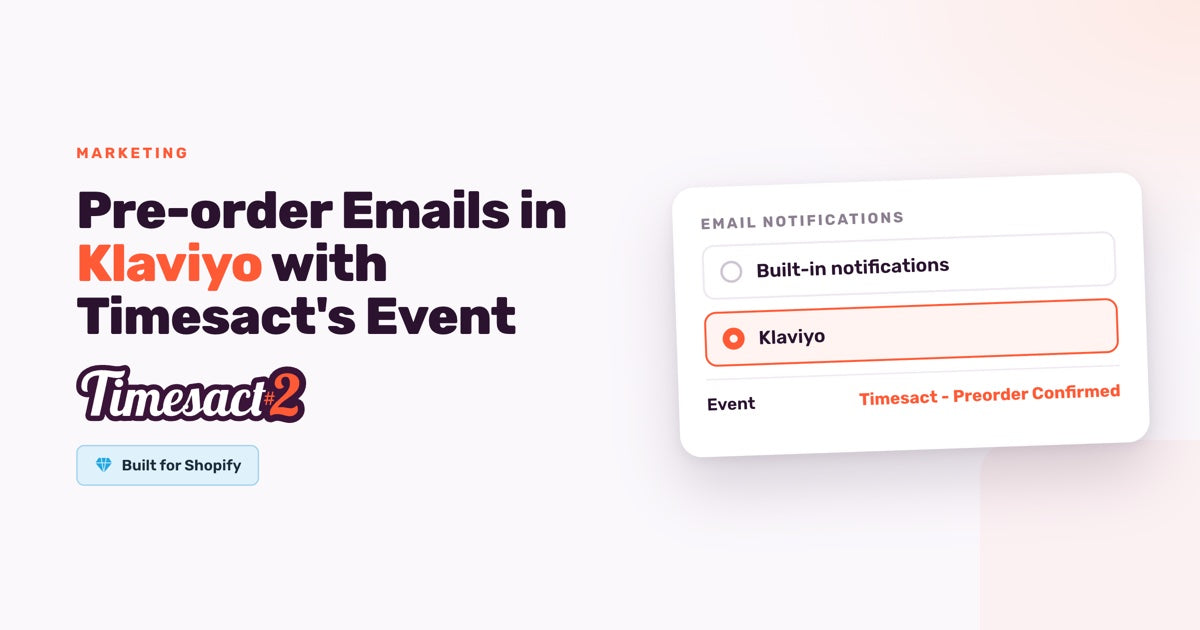
If your store's emails already run in Klaviyo, your pre-order confirmations can too. Connect Timesact to Klaviyo, choose Klaviyo as the pre-order channel in your customer experience template, and Timesact sends a Timesact - Preorder Confirmed event to Klaviyo for each order, with every pre-order item and the cart label you set for it. You then build your Klaviyo pre-order emails with your own templates and branding.
How does Timesact send pre-orders to Klaviyo?
Timesact sends one event per order, Timesact - Preorder Confirmed, as soon as an order with a pre-order item is placed. The app describes it as "fired once per order when a customer places a pre-order. Use it to send the pre-order confirmation email and follow-up communications about expected ship dates."
The event goes to the Klaviyo profile with the customer's email, so you can start a Klaviyo flow from it like from any other metric. Klaviyo is included on every Timesact plan, including Free.
Connect Klaviyo and choose it for pre-orders
- In Timesact, open Billing & Account, then the Integrations tab.
- On the Klaviyo card, click Connect, sign in to Klaviyo and approve. The card then shows Connected, with no API key to copy.
- Open Experiences, then the customer experience template your pre-order products use.
- In its Admin section, open Notifications and go to the Pre-order tab.
- Under Email notifications, choose Klaviyo, then Save.
When you connect, Timesact creates its metrics in your Klaviyo account straight away, so you can pick them in a flow before your first pre-order arrives.
From then on, orders from that template send the event to Klaviyo, and Timesact's own Confirmation email isn't sent for them, so customers get one pre-order email from you, not two. Shopify's order confirmation still goes as usual. The choice is per template, so one template can use Klaviyo while another keeps the built-in email.
What's in the Timesact - Preorder Confirmed event?
The event carries the pre-order side of the order: the items on pre-order and their cart labels.
| Property | What it holds |
|---|---|
customer_email |
The customer's email |
order_id, order_number
|
The Shopify order ID and order number, such as #1234 |
order_total, order_currency
|
The order total and its currency |
product_count |
How many pre-order lines the order has |
shop_name |
Your store name |
preorder_products |
A list with one entry per pre-order item |
Each entry in preorder_products holds product_title, variant_title, price, quantity, the product and variant IDs, and preorder_information, which is the cart label from that item's template.
Show each item's expected ship date
The expected timing reaches Klaviyo through preorder_information, which carries the Cart label from your template. So the first step is in Timesact: write the timing into the cart label in words, such as "Pre-order: ships in early March", which is also the line shoppers see under the item at checkout. The cart label is plain text, so type the date or window itself rather than a variable.
Then, in the Klaviyo email, repeat a block for each item in event.preorder_products and show {{ item.product_title }}, {{ item.variant_title }}, {{ item.quantity }} and {{ item.preorder_information }} inside it. Klaviyo's content repeat feature does this: select the block or section, open Display Options, click Create Content Repeat, set Repeat for to event.preorder_products and Item alias to item. Each customer then sees every item they pre-ordered with the timing you wrote for it.
If products ship on different schedules, such as a fixed date for one and a period for another, give each schedule its own template and cart label.
How do you build Klaviyo pre-order emails?
Build the flow in Klaviyo on the Timesact event:
- In Klaviyo, create a new flow and choose Metric as the trigger.
- Pick Timesact - Preorder Confirmed.
- Add an email and personalize it with event variables, such as
{{ event.order_number }}, plus the item block above. - Preview it with the event data, then set the flow live.
For follow-ups, add a time delay after the first email and a second message, such as "your pre-order is on track". For the confirmation itself, Klaviyo lets you request transactional status for the flow email; its Help Center lists what qualifies.
Add the product image
To show product images, pair Timesact's event with Klaviyo's own Shopify Placed Order event. Placed Order comes from Klaviyo's Shopify integration and includes product names, images and variant details, and the order confirmation emails in Klaviyo's flow library already list the items in the order. One way to set it up: the Timesact event for the pre-order confirmation with its cart labels, and your existing Placed Order flow for the receipt-style email with images.
Why use the event rather than the order tag?
Inside Klaviyo, the Timesact event is what tells a flow that an order was a pre-order. Timesact also tags orders: Pre-order on every order that includes an item on pre-order, and mixed orders also get Partial Pre-order. Those tags are added just after the order is created, and Klaviyo's Shopify sync doesn't pick up tags added after an order is processed. The event also carries each item's timing text.
The tags remain the tool inside Shopify: order filters, saved views, Shopify Flow and exports.
Back-in-stock sign-ups go to Klaviyo too
The same Klaviyo connection works for back in stock. Choose Klaviyo on a template's Back in Stock tab and Timesact sends Timesact - Back in Stock Subscribed when a shopper signs up by email and Timesact - Back in Stock Ready when their variant is restocked, both with the product image and link. Build your back-in-stock emails on those two events.
Bring your pre-orders into your Klaviyo flows
Start with one template: switch it to Klaviyo and build the confirmation flow on the event. On a setup call, we can show you how the event fits alongside your existing Klaviyo flows.
FAQs
How do I connect Klaviyo to Timesact?
Open Billing & Account in Timesact, go to the Integrations tab, click Connect on the Klaviyo card, then sign in to Klaviyo and approve. The card shows Connected when it's done, with no API key to paste.
How do I send pre-order confirmations from Klaviyo instead of Timesact?
Once Klaviyo is connected under Billing & Account > Integrations, open the customer experience template, go to Admin, then Notifications, choose the Pre-order tab, select Klaviyo under Email notifications and click Save. Orders from that template then send the Timesact - Preorder Confirmed event to Klaviyo, Timesact's own Confirmation email isn't sent for them, and Shopify's order confirmation still goes out.
What does the Timesact - Preorder Confirmed event include?
It fires once per order and carries the customer's email, the order ID and number, the order total and currency, the number of pre-order lines, your store name, and a preorder_products list. Each item in that list has its product and variant titles, price, quantity, IDs and preorder_information, which is the item's cart label.
How do I show the expected ship date in my Klaviyo pre-order email?
Write the timing in words in your template's cart label, for example "Pre-order: ships in early March". Timesact sends it as preorder_information for each item, so repeat a block over event.preorder_products in Klaviyo with the item alias item, and show item.preorder_information next to each product.
Can I trigger a Klaviyo flow from the Pre-order order tag?
Use the Timesact - Preorder Confirmed event instead. Timesact adds the Pre-order tag to the Shopify order just after it's created, and Klaviyo's Shopify sync doesn't pick up tags added after an order is processed. The tags are the right tool inside Shopify, for order filters, saved views, Shopify Flow and exports.
Run this in Timesact
Pre-order, back-in-stock, coming-soon and more — one app, no code.
Install the app →