News › Back in Stock
Hide Sold-Out Products on Shopify, or Keep Them Selling
By default, Shopify keeps a sold-out product on your store with a Sold out button. Whether that's right depends on one question: is the product coming back? Hide sold-out products on Shopify that aren't coming back, and keep the ones that are on the page with Notify Me or a pre-order, or a Coming Soon button before a launch. Timesact's Hide Sold Out takes care of the first part automatically: it takes fully sold-out products off your store and puts them back when stock returns.
Should you hide a sold-out product or keep it selling?
| The sold-out product is… | What fits | What shoppers see |
|---|---|---|
| Not coming back: discontinued, last season, a one-off original | Hide Sold Out | Nothing: the product leaves the store until it's restocked |
| Coming back, without a firm date | Notify Me | A sign-up form in place of Sold out, so they're emailed on restock |
| Coming back on a confirmed run, and you want the sale now | Pre-order | A Pre-order button in place of Sold out |
| Not launched yet | Coming Soon | A non-clickable Coming Soon button, with Notify Me alongside it to collect emails |
| Partly sold out, with some sizes left | Keep it up and handle the sold-out sizes one by one | The sizes in stock, plus your choice on the rest |
These work together. Hide Sold Out can be your default for the catalog, while the products with demand carry Notify Me, Pre-order or Coming Soon, and Hide Sold Out leaves those up. Handling a product where only some sizes are gone is covered in when only some variants are out of stock.
What does Hide Sold Out do?
Hide Sold Out watches your whole catalog. When every variant of a product is sold out, it hides the product, and when any variant is back in stock, it shows the product again. It works store-wide, so there are no products to attach: you set it up once and it covers every product.
A variant counts as sold out when Shopify can't sell it: its inventory is tracked, it's set to stop selling when out of stock, and its quantity is 0 or below. A variant on Continue selling when out of stock, or one Shopify doesn't track, keeps its product visible.
Hide Sold Out comes with the Timesact add-on, which you can add to any plan, including Free.
Draft product or Hide from Online Store?
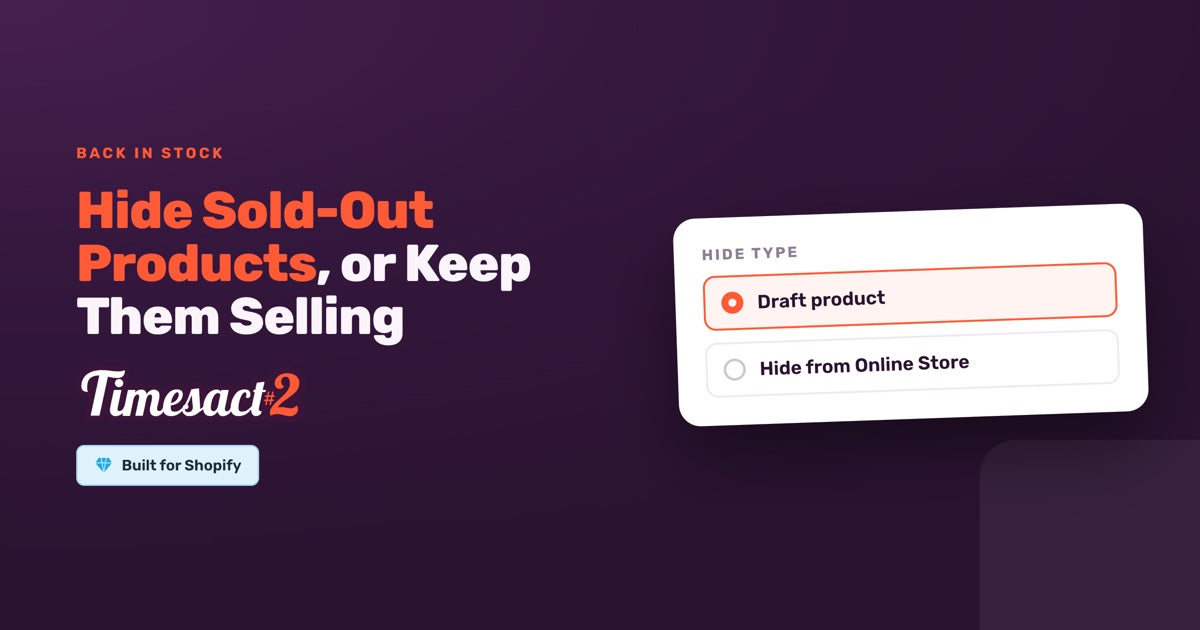
You choose how products are hidden with Hide type:
| Draft product (the default) | Hide from Online Store | |
|---|---|---|
| What changes in Shopify | The product's status moves to Draft | The product stays Active and is removed from the Online Store sales channel |
| Other sales channels | Off them too, since Draft applies to every channel | Stays on them |
| Your store's search and collections | Not shown | Not shown |
| When stock returns | Back to the status it had before | Back on the Online Store channel |
Pick Draft product when a sold-out item should disappear everywhere, including in person and in other apps. Pick Hide from Online Store when you only want it off your website. While a product is in Draft, Shopify takes its page offline, so you can redirect its URL to a live page, such as its collection.
What stays on your store?
Hide Sold Out leaves these products up:
- Products with any variant in stock. It hides whole products only.
- Products on another Timesact functionality. If a variant has an active or scheduled Pre-order, Back in Stock, Coming Soon or Low Stock setup, the product stays visible, so your pre-orders and sign-up forms keep working.
-
Products with the exclusion tag. Any product with the Shopify tag
timesact-keep-visiblestays up, and adding the tag to a hidden product restores it. You can change the tag name in the settings. - Every product, when store-wide Notify Me is on. Back in Stock's Enable across your store option on the PRO plan shows a sign-up form on every sold-out product instead. It's the other catalog-wide default: hide what's sold out, or collect sign-ups on all of it.
On the products you keep, a Notify Me sign-up with its restock email gathers shoppers for the next delivery, and a Coming Soon button holds the page while you stage a pre-order launch. For those storefront buttons, enable the Timesact V2 app embed on the theme you publish (Online Store > Themes > Customize > App embeds) and click Save as part of setup.
How do you hide sold-out products on Shopify automatically?
- In Timesact, open Billing & Account and add the add-on, then approve it in Shopify.
- Go to Experiences, open the template gallery and choose the Hide Sold Out template, then Use template. It's added switched off.
- Open it, go to Admin > Functionality settings and the Hide Sold Out tab.
- Choose a Hide type: Draft product or Hide from Online Store.
- Check the Exclusion tag. It's set to
timesact-keep-visible; tag any product in Shopify that should stay up whatever its stock. - Turn on Hide sold-out products and confirm with Enable. That saves your settings and switches it on.
Timesact then checks the catalog and hides the products that are fully sold out. Products, markets or locations listed on that template don't apply to it.
See what was hidden, and get told when a variant sells out
The Hide Sold Out report sits under Analytics > Sold-out products > Overview. It lists each sold-out variant with its stock status, quantity, inventory policy, whether Shopify tracks it, when it was first seen sold out, and the reason for what happened, such as "Hidden as draft" or "Skipped: active in another Customer Experience". Variants on Continue selling, or not tracked in Shopify, don't appear there, because they don't count as sold out.
The add-on also sends a Variant sold out alert. From the report's Alerts button, send it to email addresses, a Slack channel, or both, and you hear about each variant as it sells out.
Turning it off
Switch Hide sold-out products off and confirm, and Timesact shows again every product it hid, in the background, back to the status or channel each one had before. Products you hid yourself are left as they are.
Choose your default for sold-out products
We can sort your sold-out catalog with you on a setup call: Notify Me or a pre-order for what's coming back, Hide Sold Out for the rest.
FAQs
How do I hide sold-out products on Shopify automatically?
Use Timesact's Hide Sold Out, which comes with the Timesact add-on on any plan, including Free. Add the add-on from Billing & Account, choose the Hide Sold Out template in the Experiences gallery and click Use template. Under Admin, then Functionality settings, pick a Hide type and check the exclusion tag, then turn on Hide sold-out products and confirm with Enable. Products whose every variant is sold out are hidden, and they come back when stock returns.
Will Hide Sold Out hide my pre-order products?
No. A product stays visible when any of its variants has an active or scheduled Pre-order, Back in Stock, Coming Soon or Low Stock setup in Timesact.
What's the difference between Draft product and Hide from Online Store?
Draft product moves the sold-out product to Draft status in Shopify, which takes it off every sales channel. Hide from Online Store keeps the product Active and removes it from your Online Store channel only, so it stays on your other channels. Either way, it comes back when stock returns.
How do I keep one sold-out product visible?
Add the Shopify tag timesact-keep-visible to that product. Products with the exclusion tag stay up whatever their stock, and adding the tag to a product that's already hidden brings it back. You can change the tag name in the Hide Sold Out settings.
What happens when a hidden product is restocked?
When any variant is back in stock, Timesact shows the product again automatically, restoring the status or Online Store listing it had before. If you switch Hide Sold Out off, every product it hid is shown again in the same way.
Run this in Timesact
Pre-order, back in stock, coming soon and more. One app, no code.
Install the app →