News › Launches
Streetwear Drops on Shopify: Drop Day, Sizes and Sell-outs
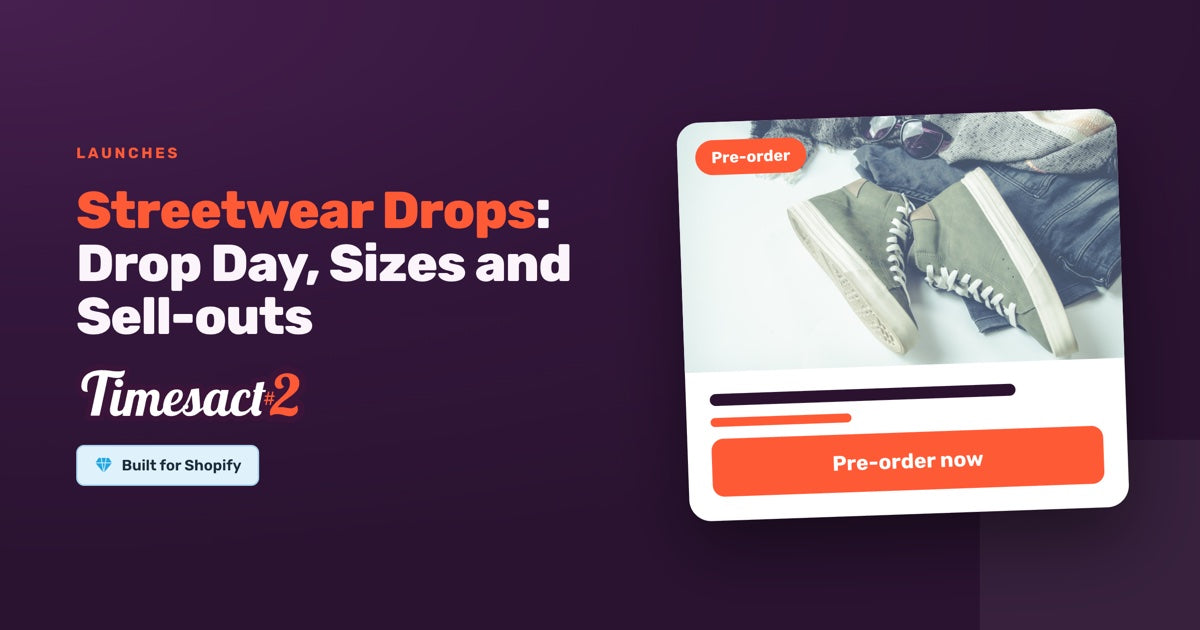
A streetwear drop on Shopify opens at a set time and sells out size by size, often within hours. With Timesact, the waiting page, the switch that opens the drop and what each size shows at 0 are settings you prepare the week before.
The week before: a page that's ready and waiting
Before the drop, keep the drop's sizes at 0 stock in Shopify and give the product a Coming Soon template. Coming Soon puts a non-clickable button where the buy button sits, with an optional message, badge and countdown, so fans see the product without being able to buy it yet. Attach a Back in Stock template to the product, separate from Coming Soon: at 0 stock, its sign-up shows alongside the Coming Soon button, and each sign-up is saved for the size the fan wants. Keeping it separate means it keeps running after you end Coming Soon on drop day.
Alongside the templates:
- Create every size in Shopify first, then add the product to Timesact, so each size is set up from the start.
- Start each new colorway from a product that isn't in Timesact. Duplicating last drop's product in Shopify copies its Timesact setup along with it.
- Enable the Timesact V2 app embed on the theme you publish (Online Store > Themes > Customize > App embeds) and click Save as part of setup. It shows shoppers the Coming Soon button, the pre-order and the sign-ups, and the drop itself opens with stock or a template, as below.
- Match the size picker to your theme. Variant change delay, under Billing & Account > Developer settings, sets how long Timesact waits after a shopper picks a size before it updates the button. Our support team can tune it for your theme.
Can you open a streetwear drop on Shopify at a set hour?
Yes, by opening it yourself at that hour. Timesact's start and end dates switch in the first hour of the day, in the time zone set in Billing & Account > Store settings (UTC until you change it; set it to your own, so a template you tick at the drop hour starts that day), which suits a midnight drop. For any other hour, the switch is the stock or the template:
| Drop | The switch | What happens |
|---|---|---|
| Midnight, pre-order | Dates: give Coming Soon an end date of drop day and the Pre-order template a start date of the same day | Both switch in the first hour of drop day |
| In-stock units, at midnight or a set hour | Load the stock in Shopify at that moment | Coming Soon steps aside and Add to cart appears, size by size |
| A set hour, pre-order | At that hour, tick the Pre-order template and untick Coming Soon on each of the drop's variants | The Pre-order button appears when you save |
For an in-stock drop across many products, load the stock for the drop in one go and preview one product first. If sold-out sizes should switch to Pre-order afterwards, attach the Pre-order template once the stock is in, so it opens only on the sizes that sell out.
What happens when one size sells out?
Each size works out its own state from its own stock, so on drop day M can be on pre-order while S still has stock. When Pre-order shows in your Pre-order template decides what a sold-out size does:
| Your drop | When Pre-order shows | Each size |
|---|---|---|
| Sell the stock you have, then take pre-orders for the next run | Only when out of stock | Add to cart while it has stock, Pre-order at 0 |
| A pre-order window, with everything made afterwards | Always, whatever the stock level, with an end date to close the window | Pre-order from the start date, whatever the stock |
| Pre-sell a fixed run you've already counted | Only while Shopify stock lasts, with the run entered as Shopify stock when the drop opens | Pre-order while that size has stock, then Sold out |
With Only when out of stock or Always, whatever the stock level, give each size its own pre-order limit to cap how many pre-orders it takes. With Only while Shopify stock lasts, the size's Shopify stock is the cap. When a size reaches its number, that size's Pre-order button closes and the Notify Me sign-up takes fans' emails for the next run. Until then, a size on pre-order at 0 also shows the Notify Me sign-up under the Pre-order button; with Only while Shopify stock lasts it appears only once the size sells out.
How do sign-ups hear the drop is live?
Fans who signed up hear about the drop:
- Automatically, when you load stock. Timesact emails everyone waiting on a size once that size's stock reaches the Quantity threshold in your Back in Stock template (Minimum units in stock).
- When you choose. In Analytics > Notify Me, Back in Stock and Waitlist > Subscribers & email performance, select pending sign-ups in the list and use Send notifications, up to 100 at a time. Send it once the drop is live, so the email lands when fans can order.
Your Notify Me email goes out for drops and restocks alike, and its default copy talks about an item being back in stock, so word it for both and set it to Live under Notifications.
The hour after the drop
- End Coming Soon. Coming Soon shows whenever a size is at 0, so a size that sells out would show it again. For a midnight drop, its end date of drop day takes care of it; for a drop at a set hour, untick it on the variants once the drop is live.
- Leave the Back in Stock template on. Sold-out sizes then gather sign-ups for the restock.
When every size is gone
A product whose every size has sold out can stay up collecting sign-ups for the next drop, or come off the store. Timesact's Hide Sold Out takes down fully sold-out products with nothing running on them, and leaves up any product with a Timesact template still running or scheduled, such as your Back in Stock template. Choosing between the two for each product is covered in hide sold-out products on Shopify.
Set up your next drop the week before
If your next drop opens at a set hour, we can walk through the switch with you on a setup call before drop day.
FAQs
Can I schedule a streetwear drop for a specific time on Shopify?
For a midnight pre-order drop, yes: Timesact's start and end dates switch in the first hour of the day, in your store's time zone (Billing & Account, then Store settings). For any other hour, open the drop yourself at that time: load the stock in Shopify, or on the drop's variants tick the Pre-order template and untick Coming Soon, and it opens when you save. As part of setup, enable the Timesact V2 app embed on your published theme (Online Store > Themes > Customize > App embeds) and click Save.
Can Coming Soon show while my drop's stock is already in Shopify?
Coming Soon shows on sizes at 0 stock. Keep the drop's sizes at 0 until the drop, then load the stock and Coming Soon steps aside size by size. End the Coming Soon template on drop day, so it doesn't come back when a size sells out.
How do my Notify Me sign-ups find out the drop is live?
Timesact emails the fans waiting on each size when that size's stock reaches the Quantity threshold in your Back in Stock template. You can also send it yourself once the drop is live: select the pending sign-ups in the Analytics sign-up list and use Send notifications, up to 100 at a time. Set the Notify Me email to Live under Notifications.
What happens when one size sells out during the drop?
Each size works from its own stock. Depending on When Pre-order shows, a sold-out size switches to Pre-order or shows Sold out, and with a Back in Stock template still running on that size, it shows the Notify Me sign-up so fans can wait for the next run.
How do I handle caps, sold-out sizes and restocks on a limited drop?
Give each size its own Pre-order quantity, or its own Shopify stock on Only while Shopify stock lasts, so it closes at its number. Add a Back in Stock template so sold-out sizes collect Notify Me sign-ups for the restock, and use Hide Sold Out for products whose every size is gone and that have no Timesact template still running on them.
Run this in Timesact
Pre-order, back in stock, coming soon and more. One app, no code.
Install the app →