News › Design
Show "Only 3 Left" on Shopify with a Low Stock Message
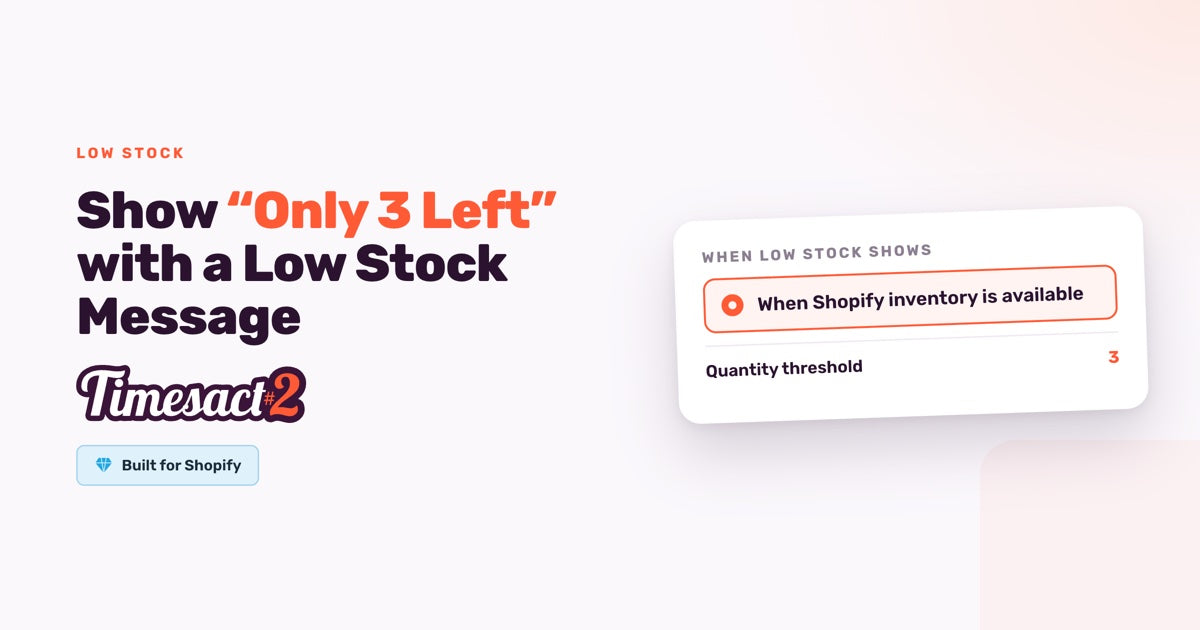
A Shopify low stock message tells shoppers that only a few units are left while the product is still in stock, so they can buy before it runs out. In Timesact, the Low Stock functionality shows it on the product page, adds an optional badge, and steps aside for Notify Me or a pre-order when the last unit sells.
What does a Low Stock message show?
Low Stock switches on for a variant when its Shopify stock is above 0 and at or below a number you set, the Quantity threshold. Until then, and again once the variant sells out, the product page looks as it normally does.
| Where | What shoppers see while stock is low |
|---|---|
| Buy button | Your theme's Add to cart button, still working, with a label you choose |
| Message | Your text, below or above the button, such as "Only 3 left in stock" |
| Badge on the product image | Optional, off until you switch it on |
| Product cards on collection pages | The badge, and your label on a quick-add button if the card has one |
The product stays buyable the whole time, and Low Stock reads its count straight from your Shopify inventory.
How do you set up a Shopify low stock message?
- In Timesact, go to Experiences and create a customer experience template, or open one you use.
- On its Functionality tab, choose Add functionality, then Low Stock under Urgency.
- Under Admin > Functionality settings > Low Stock, set the Quantity threshold, such as 3. The message shows when a variant's stock is at or below that number.
- On the Product page settings, open the Low Stock tab and set Low Stock button text to the label you want, such as "Add to cart". It starts as "Low Stock", which is what the button would say otherwise.
- Write the Low Stock message. Add
{{inventoryQuantity}}to show the live count for the size the shopper has selected: "Only {{inventoryQuantity}} left in stock" reads "Only 3 left in stock". Choose Below button or Above button. - Switch on Enable badge and type the Low Stock badge text if you want a label on the product image, and set the same badge and button text on the Collection page tab.
- Go to Products > Add products and assign the template to the products you want covered.
- Enable the Timesact V2 app embed on the theme you publish (Online Store > Themes > Customize > App embeds) and click Save.
It works size by size
Low Stock is worked out for each variant from that variant's own stock. If size M has 2 left and the other sizes have 20, the message shows when a shopper selects M, and the other sizes show the normal button, so one product can carry a different state for each size.
The threshold belongs to the template, so every product on it uses the same number. For different thresholds, create a template for each and name it by its number, such as "Low stock 3" and "Low stock 10", then assign products to the one that fits. A fast seller might switch on at 10 units; a slow one at 3.
On collection pages, a product card reflects the variant the card shows, usually the first available one.
What happens when the last one sells?
When a variant's stock reaches 0, Low Stock steps aside, and whatever else is on that variant takes over:
| Also on the variant | At 0, shoppers see |
|---|---|
| Nothing else | Your theme's Sold out button |
| Back in Stock or Notify Me | A sign-up button in place of Sold out |
| Pre-order with When Pre-order shows on Only when out of stock | The Pre-order button |
| Coming Soon | The Coming Soon button |
One template can hold Low Stock together with Back in Stock, Pre-order or Coming Soon, so a product can move from "Only 2 left" to a Notify Me sign-up or a pre-order without any switching on your part. Setting up the sign-up and its restock email is covered in back-in-stock emails on Shopify. For products that aren't coming back, take them off the Low Stock template, and Hide Sold Out takes them off the store once every variant has sold out.
Low Stock across your whole store
On the PRO plan, the Enable across your store switch in the Low Stock settings shows the indicator on every product at or below your threshold, without adding products one by one. It shows on product pages for variants that have no other Timesact functionality active on them. Use one template for store-wide Low Stock, so there's one threshold for the whole catalog.
If your theme already shows stock counts
Some themes have their own stock line. Shopify's Dawn theme, for example, has an Inventory status block on the product page with its own low inventory threshold. If your theme shows one, remove that block in the theme editor, so shoppers see one low-stock line, not two.
Stock alerts for your team
For you and your team, with the Timesact add-on and Hide Sold Out switched on, a Variant sold out alert reaches you by email or Slack as each variant sells out, and Shopify Flow has a ready-made template to email you when a variant's inventory gets low.
Add a low stock message where stock runs out first
Start with the products that sell out fastest. On a setup call we can choose a threshold for each group with you and name the templates to match.
FAQs
How do I show "Only 3 left" on a Shopify product page?
Add the Low Stock functionality to a Timesact template, set the Quantity threshold, and write a Low Stock message with {{inventoryQuantity}}, such as "Only {{inventoryQuantity}} left in stock". Set the Low Stock button text to "Add to cart", assign the template to your products, then enable the Timesact V2 app embed on your published theme (Online Store > Themes > Customize > App embeds) and click Save.
Does the low stock message show when only one size is running low?
Yes. Low Stock is worked out for each variant from its own stock, so the message shows when the shopper selects the size that's at or below your threshold. The other sizes show your normal button.
Can I set a different low stock threshold for different products?
Yes. The threshold belongs to the template, so create one Low Stock template per threshold, such as one at 3 and one at 10, and assign each product to the template that suits it.
Does Low Stock show on collection pages?
Yes, as a badge on the product card and as your label on a quick-add button if the card has one. Set them on the template's Collection page tab. The card reflects the variant it displays, usually the first available one.
Is Low Stock on the Free plan?
Yes. Low Stock is included on every plan, including Free. Showing it across your whole store automatically, without assigning products, is part of the PRO plan.
Run this in Timesact
Pre-order, back in stock, coming soon and more. One app, no code.
Install the app →