News › Launches
TCG and Game Pre-orders on Shopify: Release-Day Setup
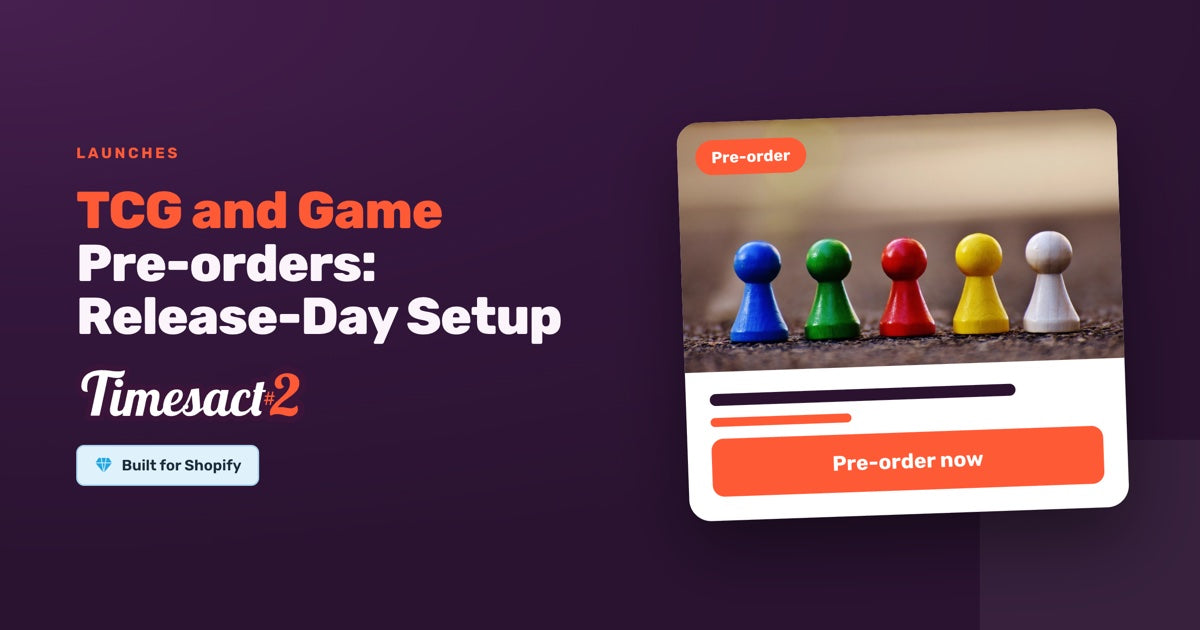
Game and trading-card releases run on a calendar: the set is announced, pre-orders open, your distributor confirms an allocation, and everything ships on release day, the day the set goes on sale everywhere. With Timesact, each stage of a game pre-order on Shopify is a setting: the dates you set open and close the pre-order, the order is scheduled for release day, and the pre-order stops once your allocation is sold.
How does a game pre-order on Shopify run, stage by stage?
It runs in five stages: Coming Soon at announcement, a pre-order window with start and end dates, a cap at your allocation, the end date on release day, and Exact date shipping for that day.
| Stage | What shoppers see | What you set in Timesact |
|---|---|---|
| Set announced | A non-clickable Coming Soon button, with a Notify Me sign-up | A Coming Soon template with Back in Stock added for the sign-up, ending on pre-order day |
| Pre-order window opens | A Pre-order button with the release date | A Pre-order template, starting on pre-order day and ending on release day |
| Allocation selling | Pre-order until your allocation is used, then Sold out | A Pre-order quantity per variant, or the allocation as Shopify stock |
| Release day | Your theme's normal button, following stock | The end date passes and the variant reads Ended |
| Shipping | Pre-ordered boxes go out on release day | Shipping set to Exact date, the release date |
Announce the set with Coming Soon
When a set is announced and there's nothing to sell yet, a Coming Soon button holds the buy button's place, and a Back in Stock sign-up on the same product collects the emails of interested players. When pre-orders open, you can export that list to CSV or reach those players through Klaviyo. To hand over to pre-orders on the day, give the Coming Soon template an end date of pre-order day and the Pre-order template a start date of the same day. The full two-template switch is set out in Coming Soon before a pre-order launch.
Open the pre-order window
- Create a Pre-order template for the release. In Functionality settings, set Shipping to Exact date with the release date. On the Storefront side, write the date into the product page message and the Cart label, such as "Pre-order: releases 14 November".
- Set When Pre-order shows to Always, whatever the stock level or Only while Shopify stock lasts, so the pre-order stays open when early stock is entered into Shopify. (Only when out of stock suits restocks, not releases.)
- Assign the template to every product in the set from Products > Add products. On each variant, under Schedule, set the Start date to pre-order day, switch on Enable end date and set the End date to release day.
- Enable the Timesact V2 app embed on the theme you publish (Online Store > Themes > Customize > App embeds) and click Save.
Dates are calendar days. The start date opens the pre-order as that day begins, and the end date is the day it closes, so an end date of 14 November keeps pre-orders open through 13 November. Dates follow the time zone in Billing & Account > Store settings; set it to your own, so each switch happens as the day begins where you are. Before its start date a variant reads Scheduled in Timesact, then Active once the window opens.
For a weekly release cadence, duplicate last week's template, rename it, and change its Exact date, message and cart label. Each release gets its own template, because the shipping date on a template applies to every product on it.
How do you cap pre-orders at your distributor allocation?
Distributors split a print run among stores, so once your allocation is confirmed you know how many boxes you'll get. You can cap the pre-order at that number in Timesact or with Shopify stock:
| Pre-order quantity | Allocation as Shopify stock | |
|---|---|---|
| Setting | Always, whatever the stock level, plus a Pre-order quantity on each variant | Only while Shopify stock lasts, with the allocation entered as Available stock in Shopify on pre-order day |
| When it's used up | Timesact stops offering the pre-order and the variant reads No units left | The variant shows Sold out, and Shopify stops the sale at checkout |
| Suits | Allocations still being confirmed, which you raise as they firm up | A confirmed allocation you want held exactly |
With stock as the allocation, keep When to reduce stock on When the order is placed, the default, so each pre-order lowers Shopify's count. When the allocation is used, tick a Back in Stock template of its own on the variant, and its sign-up collects the players who missed out.
Packs, boxes and cases as variants
A set sold as a pack, a booster box and a case works well as one product with three variants. Each variant takes its own Pre-order quantity and its own dates, so you can split an allocation between single boxes and whole cases. Release-wide settings, such as the shipping date and payment terms, live on the template and apply to every variant on it.
For a higher-priced case, a deposit can help. Give the case variant its own template with Split payment under Billing: a first charge at checkout and the rest on a date or a set time after checkout, or on the PRO plan when you fulfill the order. Packs and boxes stay on the full-payment template for the same release.
What happens on release day?
When the end date passes, the variant reads Ended and the pre-order comes off the product: the theme's normal button takes over, Add to cart while you have stock, Sold out at 0. Orders taken with an Exact date were scheduled in Shopify for release day, so they're ready to fulfill on the day. Publishers and distributors set their own rules for when pre-sold product may ship, so set your dates to each release's terms; Timesact opens and closes the pre-order on the days you choose. If your distributor's terms allow you to ship sooner, Shopify lets you change the fulfillment date on an order.
Players may add in-stock singles or accessories to a sealed pre-order. Those orders carry the Pre-order tag and also Partial Pre-order, so your team can pick out the ones with singles to send now and decide whether to split the shipment or send one parcel on release day.
What if the release date slips?
- In the release's template, change Shipping to the new Exact date, and update the message and cart label. New orders and the product page follow; orders already placed keep their date.
- Move each variant's End date to the new release date, so the pre-order stays open until then. For a set with many variants, our support team can go through the date change with you.
- Tell players: in Analytics > Pre-order > Sales, search for the set's name, select the orders, choose Send shipping delay email, enter the product title and the new date, and send.
Get the next set ready on announcement day
Set up the next set's Coming Soon and Pre-order templates on the day it's announced, so the dates switch on their own when pre-orders open and close. We can build that release calendar with you on a setup call.
FAQs
How do I set up a game pre-order that ends on release day?
Create a Pre-order template with Shipping set to Exact date (the release date), assign it to the set's products, and on each variant set the Start date to pre-order day and the End date to release day. Then enable the Timesact V2 app embed on your published theme (Online Store > Themes > Customize > App embeds) and click Save. The end date is the day it closes, so pre-orders run through the day before.
Which When Pre-order shows option should I use for a release?
Use "Always, whatever the stock level" or "Only while Shopify stock lasts", so the pre-order stays open even if early stock is entered into Shopify. "Only when out of stock" is built for restocks, where new stock should end the pre-order.
Can I cap pre-orders at my distributor allocation?
Yes. Either enter the allocation as Available stock in Shopify on pre-order day and use "Only while Shopify stock lasts", so Shopify stops the sale at 0, or set a Pre-order quantity on each variant with "Always, whatever the stock level". Packs, boxes and cases each take their own number.
What happens to pre-orders on release day?
When the end date passes, the variant reads Ended and your theme's normal button returns. Orders taken with an Exact shipping date are scheduled in Shopify for that date, so they're ready to fulfill on release day, and each one keeps the terms it was placed with.
Can I sell packs, booster boxes and cases from the same set?
Yes. Make them three variants of one product. Each variant takes its own Pre-order quantity and its own dates, while the template's shipping date and payment terms apply to all three. To take a deposit on cases only, give the case variant its own template with Split payment.
Run this in Timesact
Pre-order, back in stock, coming soon and more. One app, no code.
Install the app →