News › Payments
The "Deferred or Recurring Purchase" Preorder Notice
Where does the "deferred or recurring purchase" message come from?
That message comes from Shopify, not from your preorder app. It reads along the lines of “One or more items in your cart is a deferred or recurring purchase,” it appears at checkout, and it is generated by Shopify’s Purchase Options system.
Merchants find it and reasonably assume an app put it there, because it showed up the same week they set preorders live. What actually happened is that enabling preorders put those items into Shopify’s Purchase Options framework, and Shopify displays this notice for everything in that framework.
Why does it mention subscriptions?
Because Shopify runs preorders and subscriptions through the same internal system. Both involve a payment that is arranged now and completed on a different schedule than a standard checkout, so Shopify groups them together under Purchase Options and shows one shared notice covering the category.
It’s a wording artefact of that grouping rather than anything about how your product is set up. Nothing is subscribing your customer to anything, no repeat charge is scheduled, and a preorder charged in full at checkout is charged exactly once. The notice is Shopify describing a category, and your item happens to sit in it.
This is genuinely useful to know before you go looking for a setting to switch off, because there isn’t one inside your preorder app: the text isn’t an app setting, so it isn’t in the app’s settings to change.
Can you edit or remove the checkout message?
On Shopify Plus, yes. Checkout text customisation, including this notice, is available on the Plus plan through your theme’s default content.
On plans below Plus, the checkout wording isn’t editable. Edits made to that text in theme content won’t come through to the checkout page. This is a Shopify plan boundary rather than anything your preorder setup controls, and Shopify Support is the right place to ask what’s adjustable on the plan you’re on.
So on most stores the practical question isn’t “how do I edit this text,” it’s “what do I want my checkout to say instead,” and there are two good answers depending on which parts of preorder you’re using.
Option one: put your own wording where you do control it
The copy your shopper reads on the way to checkout is largely yours, even when the checkout notice isn’t. In Timesact, the Cart page of your Customer Experience holds the Cart label and the Cart alert pop-up, and both are free text.
This is the higher-value move for most stores, because it’s where a shopper is actually deciding. A cart that says “Pre-order, ships early September” in your own voice does more for confidence than any edit to a generic notice would. Set that alongside your preorder button label and badge, and the checkout notice becomes a standard piece of Shopify boilerplate underneath copy that has already explained the situation. The cart label starts with a default line (“Pre-order item delivers as soon as available.”), so replace it with your own wording.
The cart label also travels further than the rest of your copy. With Shopify’s purchase option, it is the string that shows on the cart line, at checkout, and in Shopify’s order-confirmation email. It’s the preorder field you control that renders on the checkout surface this whole article is about, so set it to something a shopper recognises: “Pre-order, ships early September” sits right beside the notice and does the explaining for it.
The product page is a separate layer worth getting right alongside it. The line under the preorder button is the Message on the same experience’s Product page, next to the button text and badge. If your product page promises a September ship and your cart label just says “Pre-order,” the checkout notice is doing more explaining than either of them.
Enable the Timesact App Embed on the theme you publish (Online Store → Themes → Customize → App embeds) and click Save in the theme editor, so that copy renders on your storefront.
Option two: run preorders without Purchase Options
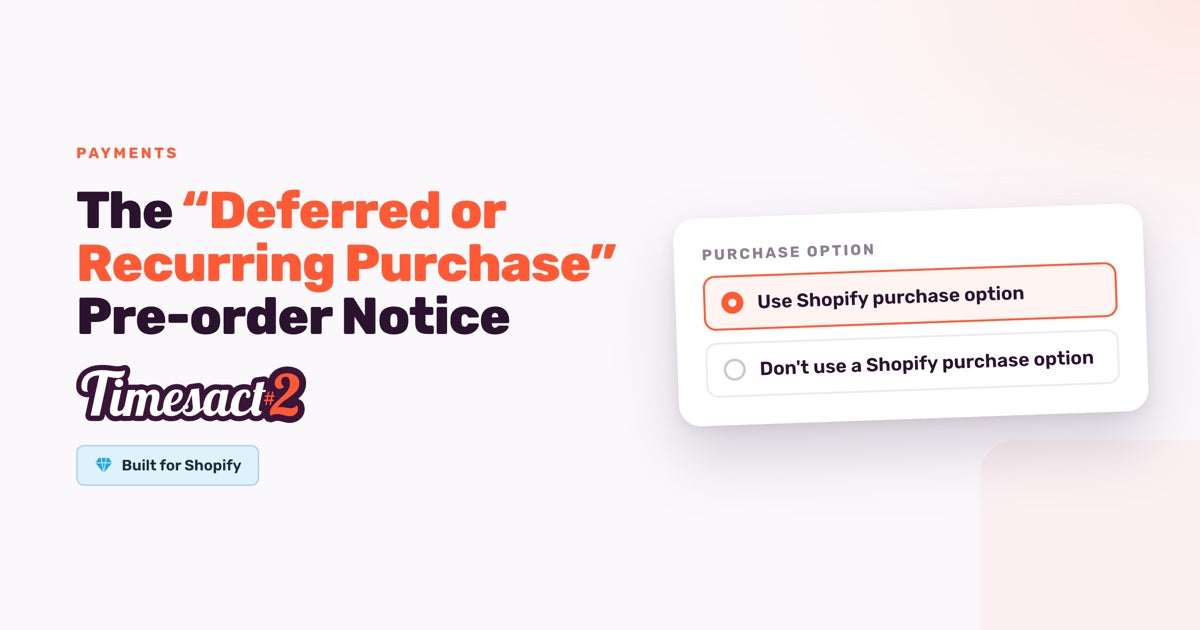
If you don’t need deferred payment at all, Timesact can run a preorder without Shopify’s purchase option: the Don’t use a Shopify purchase option setting. Because the item doesn’t use Purchase Options, the notice doesn’t appear.
It suits a specific and very common setup: customers pay 100% at checkout, and you want the order to sit unfulfilled until stock arrives. Plenty of stores run preorders that way and never need a split payment. Here’s what each setting gives you and what the second one trades:
| Use Shopify purchase option | Don’t use a Shopify purchase option | |
|---|---|---|
| Shopify checkout notice | Shown | Not shown |
| Payment | In full at checkout, or split: a first charge at checkout and the rest later | In full at checkout |
| Split payments | Available | Not available |
| Order status after checkout | Set by Shopify from your shipping date | Unfulfilled, or On hold if you choose it |
| Preorder discount in Timesact | Available (Pricing) | Not available; run it from Shopify Discounts |
| Cart label and messages | Yours to configure | Yours to configure |
| Order tags | Applied | Applied |
The trade is real and it’s narrow: split payments and the Timesact preorder discount both need Shopify’s purchase option, so a deposit-now-balance-later preorder stays on it. If you’re taking full payment upfront anyway, you’re not giving up something you were using, and a promotion can still run as a Shopify discount.
You make the switch yourself. Open the Customer Experience assigned to the products, go to Functionality settings, choose Don’t use a Shopify purchase option under Purchase option, then pick the Fulfillment status (Unfulfilled, or On hold if you want Timesact to hold the preorder items or the whole order) and save. The setting applies to every product that experience is assigned to, so give these products their own experience if others still need split payments. Any split payment or preorder discount on that experience is switched off when you change it. Per-product timeframes still work the way you’d expect: create a Customer Experience per lead time and write the timeframe into each one’s message as plain copy, so your 2–3 week items and your 4–6 week items each carry their own message. Preorder still turns on as it always did: the products stay in your Timesact Products list with any start or end dates, and the experience you assign there, with its When Pre-order shows option, is what they render. This setting is also the route that makes Shopify discount types like Buy X Get Y work on preorder items.
Which one is right for your store?
Work backwards from payment, because that’s the question that actually decides it:
- You want a deposit now and the balance later → Use Shopify purchase option, with the notice. Split payments run on Shopify’s purchase option, and the notice comes with that territory. Put your explanation in the cart label.
- You want full payment at checkout with no Timesact preorder discount, and the notice is the thing bothering you → Don’t use a Shopify purchase option removes it cleanly, and you keep your messages, cart label, tags, and per-product lead times.
- You’re on Shopify Plus → keep Shopify’s purchase option and edit the checkout text directly, and you get both.
For everyone, the cart label and cart alert are worth setting whichever option you land on. They’re the copy shoppers read while they’re still deciding.
What your customers actually take from it
Worth keeping in proportion: shoppers who are already buying a preorder are expecting something slightly different from a normal purchase. A line at checkout explaining that the item is deferred rarely lands as a surprise when your product page and cart have already said the product ships in September.
Where it reads oddly is when the notice is the first time the arrangement is mentioned. That’s the version worth fixing, and it’s fixable on any plan through the copy you control. Set the cart label, keep the product-page message aligned with it, and keep your preorder emails consistent with both. By the time a shopper reaches checkout, the notice is confirming what they already know.
Set your own checkout copy first
The deferred-purchase notice is Shopify’s, it appears because preorders live in Purchase Options alongside subscriptions, and outside of Shopify Plus it isn’t editable text. What you do control is everything around it: the cart label that travels to checkout, the cart alert, the product-page message, and the choice of whether a preorder uses Shopify’s purchase option at all. Set your own copy first, then decide which Purchase option setting fits how you take payment.
FAQs
Why does my preorder checkout say the item is a deferred or recurring purchase?
Shopify generates that notice for anything in its Purchase Options system, and preorders sit in that system. It’s Shopify’s checkout text rather than something added by your preorder app.
Why does the message mention subscriptions when I’m selling a preorder?
Shopify runs preorders and subscriptions through the same Purchase Options framework, so one shared notice covers the whole category. It doesn’t mean a repeat charge is scheduled on your customer’s card.
Can I remove the deferred purchase message at checkout?
Editing checkout text is available on Shopify Plus, through your theme’s default content. On plans below Plus that text isn’t editable, and edits made in theme content don’t reach the checkout page.
Is there a way to run preorders without the Shopify checkout notice?
Yes. Set the preorder’s Customer Experience to Don’t use a Shopify purchase option in its Functionality settings, and the notice doesn’t appear, because the item no longer uses Shopify’s Purchase Options. Preorders on that setting are charged in full at checkout and arrive Unfulfilled, or On hold if you choose it; split payments and the Timesact preorder discount run on Shopify’s purchase option.
Can I still customise preorder wording if I stop using Shopify’s purchase option?
Yes. The button text, badge and message on the experience’s Product page work the same way, and the cart label on its Cart page is added to the cart line as a Shopify line item property, with a property name and value you choose. Creating a Customer Experience per lead time lets different products carry different shipping timeframes.
Run this in Timesact
Pre-order, back in stock, coming soon and more. One app, no code.
Install the app →