
 Contact Us
 Live Chat


 HELP CENTER
 VIDEO TUTORIALS
 STEP BY STEP GUIDES
 FAQ
FAQ

 Preorder Management
 Back in stock notifications
 Support and Resources
 Analytics and Reporting
 Customisation and User experience
 Feature combinations
 Operational Tools and Integrations


 Join the Program


Countdown Timer
Countdown Timers are effective tools for creating a sense of urgency and capturing your customers’ attention for your pre-orders/in stock items. They can be particularly useful when promoting a limited pre-order window or an exclusive time-limited discount, ensuring your message is communicated effectively.
Enabling Countdown Timer
- Go to SETTINGS > TEMPLATES > PRE-ORDER/IN STOCK (depending on which functionality you want to enable it), and click on Edit (pencil icon).

- Once there, click on the MESSAGE tab, scroll down until you see the ‘Configure countdown timer’ section, and then enable it.

Customizing your Countdown Timer
- You can customize your countdown timer, from the title and labels to the timer type. Additionally, you can customize styles for your timer and adjust its placement.
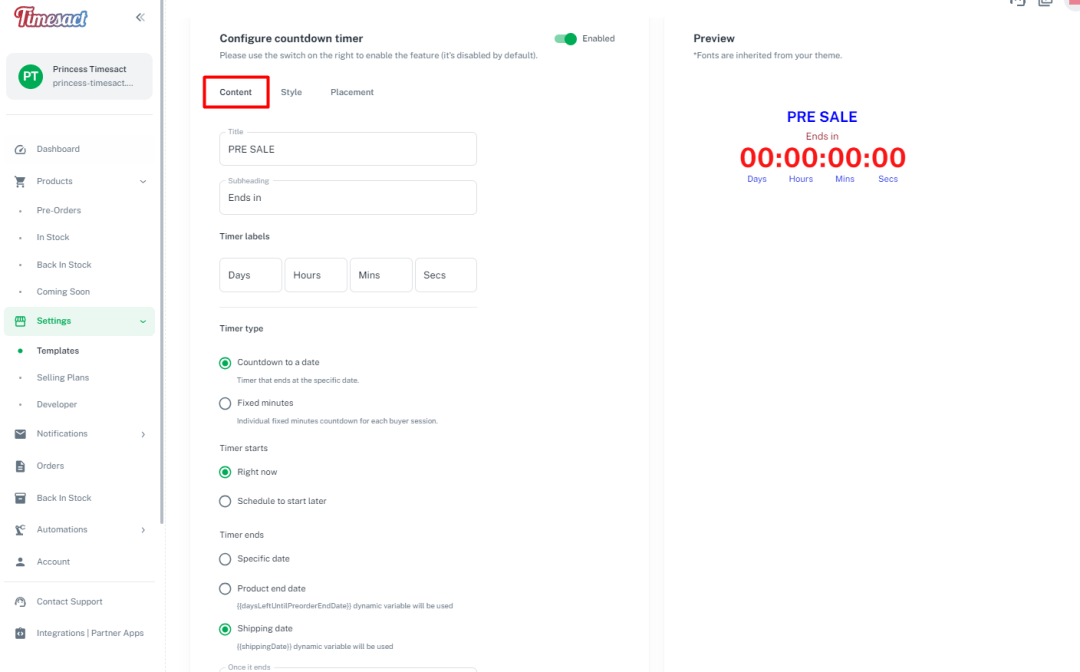


- After you are satisfied with your customization, click ‘Save Changes.’ Your changes will be applied automatically to your pre-order/in-stock item once you refresh the product page.

FAQ
- Can I have different templates for Countdown Timers?
Yes, you can have different templates for Countdown Timers. Each timer is set up based on the template you choose in SETTINGS > TEMPLATES. - Why does it not sync with my local time?
The countdown timer (and the app in general) has its timezone set to UTC+0. Currently, you can’t change this, but we are looking to implement a feature to change the timezone in the future.