News › Launches
How Apparel Brands Use Preorders to Capture Every Sale
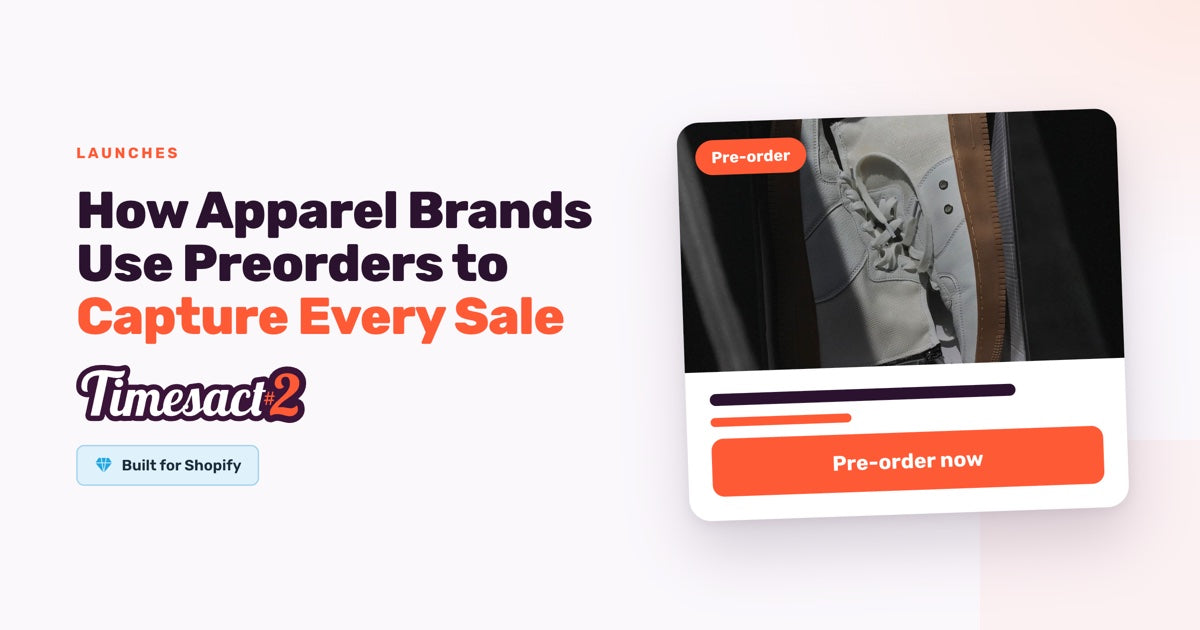
When a fashion piece goes viral, the influx of demand can be both a dream and a nightmare. For a boutique apparel brand, a surge in interest often leads to rapid stockouts across popular sizes, leaving customers frustrated and leaving potential revenue on the table. Instead of showing a “Sold Out” button that ends the customer journey, forward-thinking fashion merchants are turning to automated preorder strategies to keep the momentum alive and secure sales before the next shipment arrives.
The Challenge for High-Variant Apparel Brands
In the world of fashion, inventory management is complex due to high variant counts across sizes and colors. A single “hero product” can have over a dozen variations, and it is rarely the case that all variants sell out simultaneously. When a specific size goes out of stock, merchants face the “Sold Out” dead end. For viral items, the gap between selling out and receiving a restock from manufacturers can span several weeks, creating a significant window where high-intent traffic is wasted.
What Merchants Seek to Solve
Based on real-world onboarding scenarios, fashion merchants typically focus on these core friction points:
- Eliminating the “Sold Out” barrier: Replacing non-clickable buttons with active purchase options for out-of-stock sizes.
- Managing long manufacturing lead times: Securing revenue while items are still in production or in transit.
- Variant-level precision: Ensuring that preorder rules apply only to specific out-of-stock sizes while in-stock items remain available for immediate shipping.
- Clear customer communication: Preventing support tickets by displaying explicit shipping estimates (e.g., “Ships mid-to-end of April”) directly on the product and cart pages.
How Preorder Automation Fits the Workflow
For an apparel brand, the goal is a smooth transition from “In Stock” to “Pre-order” without manual intervention.
Preorders
Preorders are essential for fashion brands managing manufacturing cycles. By enabling preorders, merchants can stay profitable during stockouts and accurately forecast demand based on actual paid commitments. Since Timesact operates at the variant level, you can have the “Extra Small” on preorder while the “Medium” remains a standard “Add to Cart” purchase.
Strategic Display Logic
A key decision for fashion merchants is where to offer “Notify Me” on a hero product whose sizes are selling out at different speeds. What a shopper sees is decided per variant, so the sizes you put on preorder show the pre-order button, while the sizes you leave on Back in Stock keep collecting sign-ups. For viral launches, many merchants choose to disable back-in-stock notifications temporarily. This encourages high-intent customers to commit to a preorder immediately rather than waiting for a restock that might sell out again instantly. This strategy secures the sale today and reduces the risk of customers losing interest during the wait.
Setting Expectations with Templates
Transparency is the foundation of building trust with preorder buyers. By using custom Customer Experience templates, fashion brands can give each stage of production its own messaging: a drop still being made, a batch already in transit, and a restock can each sit on their own template with their own wording. Whether it is a general “Pre-order item” label or a specific shipping window, these details ensure the customer knows exactly when to expect their delivery.
Implementation Approaches for Apparel
- Use Specific Templates: Create separate Customer Experience templates for different drops to avoid generic messaging.
- Sync Your Cart Label and Message: Ensure your Cart label matches your Pre-order message for consistency between the product page and the cart.
- Leverage Smart Variables: Use variables like {{shippingDate}} in your pre-order message to automatically pull dates from your Shipping settings into the product page.
- Coordinate Cart Labels: Always update the cart label so the preorder status remains visible throughout the entire customer journey.
- Enable the App Embed: Turn on the Timesact App Embed on the theme you are publishing (Online Store → Themes → Customize → App Embeds) and click Save. The embed applies per theme and takes effect once the theme is saved.
Qualitative Results to Expect
Merchants who move away from “Sold Out” states toward automated preorders report a significant reduction in “When will this be back?” support tickets. More importantly, they experience calmer launches. Instead of a frantic scramble when stock hits zero, the store automatically shifts into a preorder phase, protecting revenue and maintaining brand momentum during viral peaks.
The Mini Playbook for Viral Drops
- Configure your Preorder settings in the app: in the drop's Customer Experience, under Functionality settings → When Pre-order shows, select the “Only when out of stock” option.
- Set a descriptive cart label in the same Customer Experience, like “Ships Mid-April”.
- Assign your products and variants to that Customer Experience.
- Disable “Back in Stock” for high-demand viral items to maximize immediate conversion.
- Choose the shipping date in that Customer Experience deliberately. Under Shipping, an Exact date marks preorder items Scheduled, A set time from checkout or A time range from checkout marks them On hold, and As soon as possible keeps them Unfulfilled. Set the charge timing in the same place, under Billing: the Full amount at checkout, or a Split payment with the rest charged on a specific date, a set time after checkout or, on the PRO plan, when you fulfill the order. Give the date a value wherever you use {{shippingDate}} so the storefront renders the window, and note that dates follow the Time zone set in Billing & Account → Store settings. Then preview the customer experience on an active product: open the product page, add a size to the cart, and see the pre-order button, the shipping message and the cart label the way your shopper will.
Ready to Secure Your Next Launch?
Don’t let viral hype go to waste. Transform your out-of-stock sizes into active revenue streams today.
FAQs
Can I have different shipping dates for different sizes of the same dress?
Yes. Since Timesact works at the variant level, you can assign a different Customer Experience to each size: each Customer Experience holds the shipping date for that size, and its pre-order message renders it on the storefront through {{shippingDate}}, so every size shows its own shipping window.
What happens if a customer buys an in-stock item and a preorder item together?
The customer places a single order. You can choose to fulfill the in-stock item immediately and the preorder item later within your Shopify admin.
Will the preorder message show up in the customer's confirmation email?
Yes, through Timesact's pre-order confirmation email, which goes to the customer when they place a pre-order. Edit it under Notifications → Confirmation email and publish it so it is Live rather than Draft. Its wording is set once for the whole store, so every pre-order customer gets the same version: keep it general, and leave drop-specific timing like “ships mid-April” to the product page message and cart label. Shopify still sends its own order confirmation alongside it.
Can I limit the number of preorders I accept for a viral item?
Absolutely. You can set a “Pre-order quantity” limit at the variant level to ensure you don’t sell more than your manufacturer can provide. Open the product under Products, switch Unlimited pre-order quantity off and enter the number on each size you want capped.
Does the app work with my custom Shopify theme?
Timesact is designed to be compatible with standard themes. If your theme is heavily modified, our technical team can fine-tune the implementation for your theme.
Run this in Timesact
Pre-order, back in stock, coming soon and more. One app, no code.
Install the app →